New AI features are available
If you've spent any time browsing DVD and Blu-ray backup discussions, you've probably come across MakeMKV. It's frequently recommended in forums and Reddit threads, whether someone is looking for a DVD ripper, struggling with HandBrake, or searching for an alternative to paid disc-copying software. Yet for all the recommendations it gets, what MakeMKV actually does, and where its limitations lie, isn't always clear.
MakeMKV saves video, audio, and subtitle tracks from DVDs and Blu-rays into MKV files without re-encoding the video. This preserves the original encoded quality, making it a useful option for building a personal movie library. However, the resulting files can be large, MP4 output isn't supported, and certain discs require extra effort to identify the correct titles. Its free beta and paid licensing arrangements can also be confusing.
So, is MakeMKV still worth using in 2026? This review examines its features, ripping performance, output quality, and practical limitations, drawing on published benchmark results to help you decide whether it meets your needs.
MakeMKV Review: Quick Verdict
MakeMKV is an excellent choice for quality-focused DVD and Blu-ray extraction, offering unmatched simplicity in preserving original content. Its straightforward workflow, read a disc, select your desired titles and audio tracks, and save as MKV files, requires no complex encoding configuration. However, it won't create optimized MP4 files for mobile devices, handle video editing, or compress files for smaller sizes. Navigating complex DVDs to locate the correct title can also take longer than expected. Thus, if quality and simplicity matter most, MakeMKV is your perfect pick. Everything else, such as format conversion, mobile optimization, and editing, it's better to use other alternative tool like VideoProc Converter AI.
| Category | Verdict |
|---|---|
Best for |
Lossless DVD and Blu-ray extraction |
Video quality |
Preserves original video streams without re-encoding |
Ease of use |
Straightforward, although title selection can be confusing |
Ripping performance |
Depends heavily on the disc and optical drive |
Output formats |
MKV |
DVD support |
✔️ |
Blu-ray support |
✔️ |
4K UHD Blu-ray |
Supported with compatible hardware |
Pricing |
Free DVD functionality; Blu-ray trial and beta licensing |
Biggest limitation |
No built-in compression or MP4 output |
Bottom line: Choose MakeMKV if you want to preserve the original quality of your disc collection. If smaller files, MP4 conversion, or video editing are your priorities, you'll probably need additional software.
What Is MakeMKV? Key Features at a Glance
MakeMKV is a DVD and Blu-ray ripping and backup tool available for Windows, macOS, and Linux. Its main function is to save disc titles as MKV files while retaining the original video and audio streams, along with selected subtitles, chapters, and track information.
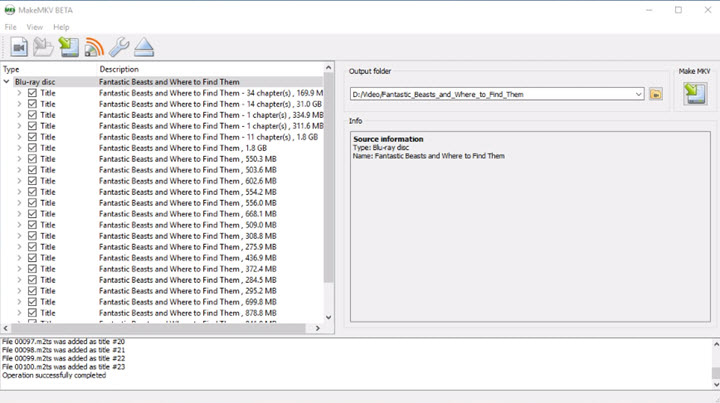
Here's what MakeMKV offers:
- DVD and Blu-ray ripping: Extract movies, TV episodes, and other titles from supported discs into MKV files.
- Original-quality video and audio: Preserve the source streams without re-encoding or additional lossy compression.
- Multiple audio and subtitle tracks: Choose which languages, commentary tracks, and subtitles to include.
- Chapter and metadata preservation: Keep chapter markers and available track information in the output file.
- 4K UHD Blu-ray support: Process supported UHD discs with compatible optical drives and firmware.
- Blu-ray disc backup: Back up Blu-ray content while retaining its folder structure, rather than extracting individual MKV titles.
⚠️ Note: saving a movie as MKV is not the same as copying an entire disc. MKV extraction leaves out the original disc menus and navigation, while MakeMKV's separate Blu-ray backup function is designed to preserve the disc structure.
How Well Does MakeMKV Perform? Our Hands-On Tests
We tested MakeMKV v2.0.0 on a Windows 10 PC with an Intel Core i7-13700K processor and 32 GB of RAM, using two DVDs (Big Fat Liar and Up) and two Blu-ray ISO files. Both DVD extractions succeeded, but MakeMKV couldn't open either Blu-ray ISO.
DVD Ripping Performance and Title Detection
Here are the results from our two DVD tests. For each movie, we selected the main title, English audio, and English subtitles.
| Test Metric | Big Fat Liar | Up |
|---|---|---|
Disc scanning |
10.65s |
21.87s |
MKV extraction |
1m 24.66s |
2m 25.95s |
Final MKV size |
3.18 GB |
4.50 GB |
Main-title selection |
Manual |
Manual |
Extraction result |
Successful |
Successful |
Selected audio/subtitle tracks |
Preserved |
Preserved |
MakeMKV successfully extracted both DVDs, but identifying the correct movie took more effort than expected. For Big Fat Liar, we selected the 4.0 GB title with 18 chapters. Up was more confusing: MakeMKV displayed three 5.3 GB versions of the movie with different angles, plus several smaller titles, without clearly identifying which one to choose.
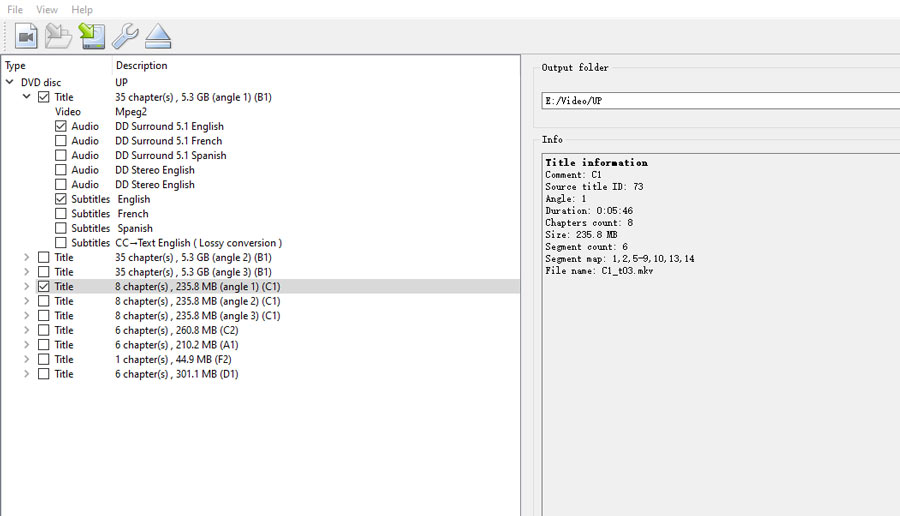
The extraction itself worked well, but main-title selection remains one of MakeMKV's weaker points. Its dated interface offers little guidance when multiple similar titles appear, leaving users to make the final decision themselves.
Blu-ray ISO Compatibility and Reliability
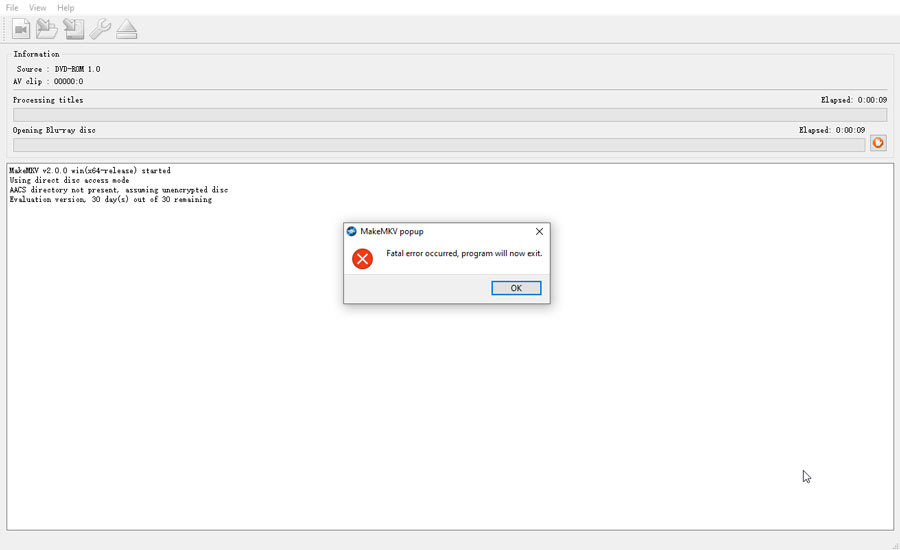
Our Blu-ray ISO tests were less successful. We tried two ISO files that played normally in Leawo Player, but MakeMKV failed to open either of them.
We tested both Windows-mounted virtual discs and direct ISO loading. Neither method worked, even though MakeMKV detected the virtual drive and the 30-day evaluation period was active.
The debug log didn't reveal a clear cause, so we couldn't determine whether the failures were related to the ISO files or our test environment. Still, MakeMKV couldn't process either Blu-ray ISO in our tests, which was a disappointing result for a tool that supports Blu-ray extraction.
How to Use MakeMKV to Back Up a DVD or Blu-ray
One of MakeMKV's strongest features is its uncomplicated workflow. You don't need to understand codecs or compression settings to create a basic MKV backup.
Step 1. Insert your disc. Launch MakeMKV and insert a DVD or Blu-ray into your optical drive.
Step 2. Open the disc. Click the large disc icon and wait for MakeMKV to finish scanning.
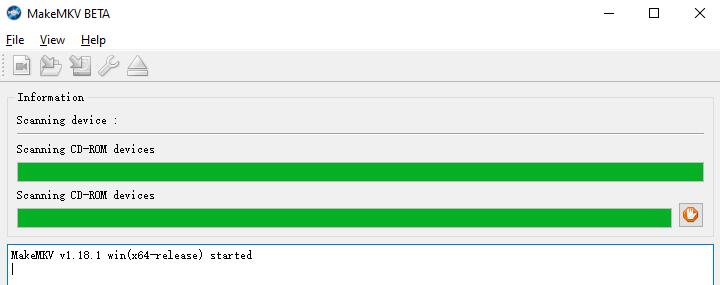
Step 3. Select the titles and tracks. Choose the movie or episodes you want to rip, along with the audio and subtitle tracks you need.
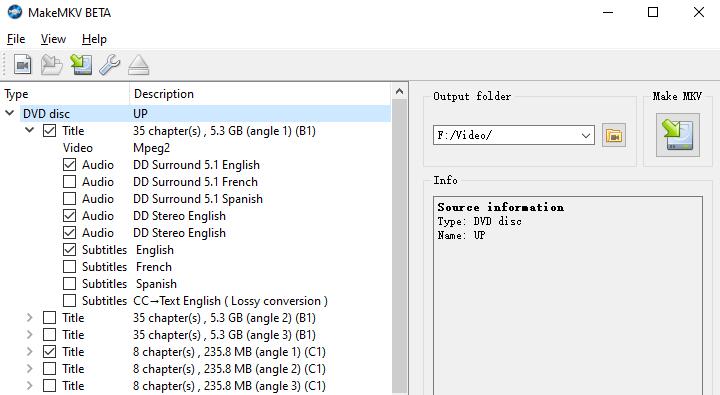
Step 4. Set the output folder. Choose where to save the MKV files. Click Make MKV and wait for the extraction to finish.
Once completed, check the MKV file in a media player to make sure the video, audio, and subtitles play correctly.
MakeMKV Pros and Cons
Pros:
- Preserves original video and audio quality without re-encoding.
- Supports DVD, Blu-ray, and compatible 4K UHD Blu-ray sources.
- Retains selected audio tracks, subtitles, and chapters.
- Free DVD ripping, with free beta access to Blu-ray features.
- Straightforward MKV extraction once the correct title is selected.
Cons:
- Outdated interface with limited guidance for beginners.
- Main-title selection can be confusing, especially on discs with multiple titles or angles.
- MKV-only output, with no built-in compression or video editing.
- Large output files that require substantial storage space.
- Failed to open both Blu-ray ISO files in our tests.
- Beta key expiration and licensing can be inconvenient.
Is MakeMKV Still Free in 2026? Pricing and Licensing Explained
One of the most confusing parts of MakeMKV is its licensing model. According to the official MakeMKV website, the software contains both free and shareware functionality. DVD and AVCHD conversion and streaming are free without a time limit. Blu-ray conversion and streaming are officially shareware functions, with a 30-day free trial. However, MakeMKV also continues to provide free access to its functionality during the beta period through beta registration keys.
Here's how the model works:
| License or feature | What you should know |
|---|---|
DVD/AVCHD functionality |
Free without a time limit |
Blu-ray functionality |
Shareware with a 30-day trial |
Beta key |
Provides free beta access while valid |
Permanent registration key |
No subscription or expiration |
Official purchase availability |
Temporarily unavailable as of October 12, 2026 |
How Much Does MakeMKV Cost
MakeMKV has historically offered a paid permanent registration key, commonly reported at approximately $60, with applicable taxes potentially adding to the total. However, the official purchase page currently states that registration-key purchases are temporarily unavailable because of technical issues. The developer directs users to the current beta registration key instead. For that reason, it would be misleading to present approximately $60 as a confirmed, currently purchasable checkout price.
You can check the official MakeMKV purchase page for the latest availability and registration details.
Permanent License vs. Free Beta Key
A paid MakeMKV registration key is a one-time purchase. It works across supported platforms and software versions without expiring, so there's no subscription or annual renewal.
The free beta key is different. It expires periodically, and once it expires, Blu-ray features that require registration may stop working. To continue using them, get the latest beta key from the MakeMKV forum, enter it under Help > Register, and restart the software. Previously created MKV files are unaffected.
As of October 2026, MakeMKV's official purchase page says permanent licenses are temporarily unavailable, leaving the free beta key as the current alternative.
Try a Better MakeMKV Alternatives
VideoProc Converter AI is a more versatile alternative to MakeMKV, combining DVD ripping, video conversion, compression, editing, and AI-powered enhancement in one program. It also delivered a smoother experience in our DVD tests, particularly in disc scanning and automatic main-title detection.

| Comparison | MakeMKV 2.0.0 | VideoProc Converter AI |
|---|---|---|
Real-World DVD Tests |
||
Big Fat Liar scan time |
10.65s |
3s |
Big Fat Liar ripping time |
1m 24.66s |
1m 21s |
Up scan time |
21.87s |
5s |
Up ripping time |
2m 25.95s |
1m 12s |
Main-title selection |
Manual on both DVDs |
Automatic on both DVDs |
Features & Usability |
||
Interface |
Dated; more manual navigation |
Clearer, easier-to-follow workflow |
DVD copy protection |
Supports protected DVDs |
Supports common DVD protections |
Output formats |
MKV only |
MP4, MKV, and other formats |
Video compression |
No |
Yes |
Video editing |
No |
Yes |
AI video upscaling |
No |
Up to 1080p or 4K output |
Blu-ray ripping |
Yes |
No |
Test notes: Both programs successfully processed the two DVDs. MakeMKV used standard MKV extraction, while VideoProc used Backup > MKV Copy. The output sizes matched, although identical file sizes alone don't verify identical video, audio, and subtitle streams. Interface evaluations reflect our hands-on experience; additional features were not part of the ripping benchmark.
💡 Our take: Both programs handled the DVD backups, and their extraction times were close for Big Fat Liar. What made VideoProc more enjoyable to use was how little manual work it required. MakeMKV left us choosing between multiple titles and angles, especially with Up, while VideoProc automatically found the correct movie. Its cleaner interface and broader conversion, compression, and AI tools also make it useful for much more than disc backup. MakeMKV still has the advantage when Blu-ray ripping is the priority.
Is MakeMKV Safe and Legal to Use
MakeMKV is an established disc-processing utility, and downloading it from the official website is preferable to using unofficial repackaged or modified installers.
However, software safety and copyright legality are separate questions.
The legality of copying or circumventing protection on DVDs and Blu-rays varies by country and jurisdiction. Owning a physical disc does not automatically mean every method of making a digital backup is permitted.
In the United States, for example, the DMCA includes restrictions on circumventing technological protection measures, subject to specific exceptions.
Check the rules that apply in your location before processing protected discs, and use the software only for content you are authorized to copy.
Final Verdict: Is MakeMKV Worth Using in 2026
MakeMKV still has its place in 2026. It's a capable tool for preserving DVD and Blu-ray content in MKV without re-encoding, and its free DVD functionality makes it worth considering. For anyone who simply wants to keep the original video and audio streams, it does the job without unnecessary conversion settings.
That said, MakeMKV feels increasingly dated in everyday use. Our DVD tests exposed its awkward main-title selection, while two Blu-ray ISO files failed to open altogether. Add its limited output options and somewhat confusing licensing system, and it's harder to recommend as an all-around solution.
Overall, MakeMKV is worth using for its original-quality MKV extraction, but it's no longer an easy recommendation for everyone. If you need more control over video formats, file sizes, or editing, a more versatile tool such as VideoProc Converter AI will likely serve you better.