New AI features are available
 Listed in
 MakeMKV and HandBrake are often mentioned together when people want to digitize DVDs or Blu-rays, but they are not really designed to do the same job.
MakeMKV is primarily used for DVD extraction and preservation. It takes the video, audio, subtitle, and chapter streams from a disc and puts them into an MKV container without re-encoding the video.
HandBrake is for video transcoding and compression. It re-encodes video so you can reduce file size, change codecs, adjust quality, or create files that are easier to play on different devices. HandBrake officially describes itself as a post-production video transcoder and outputs MP4, MKV, and WebM.
The difference became especially clear in our own DVD tests. On one 7.5GB DVD, MakeMKV extracted the selected movie in 2 minutes 14 seconds and produced a 7.19GB MKV. HandBrake took 37 minutes 44 seconds to encode the video, but reduced the final file to 2.11GB.
So the real question isn't "Which one is better?" It's whether you care more about preserving the source or creating a smaller, more customizable video file.
- MakeMKV vs HandBrake: Quick Answer
- What Are MakeMKV and HandBrake
- How They Compare on Paper
- Supported Input and Output Formats
- Customization & User Control
- Copy Protection Decryption
- Handle Blu-ray and 4K UHD
- MakeMKV vs HandBrake: Let's Put Them Into Test
- MakeMKV vs HandBrake: Key Differences
- Should You Pick MakeMKV or HandBrake
MakeMKV vs HandBrake: Quick Answer
Short answer: Choose MakeMKV for extraction and preservation. Choose HandBrake for compression and conversion.
| If You Want to... | Better Choice | Why |
|---|---|---|
Preserve the original video streams |
MakeMKV |
No video re-encoding |
Reduce file size |
HandBrake |
Re-encodes and compresses video |
Convert video to MP4 |
HandBrake |
Supports MP4 output |
Extract DVD/Blu-ray titles to MKV |
MakeMKV |
Disc extraction is its core purpose |
Keep the source as close to the disc as possible |
MakeMKV |
Preserves original streams |
Control codec, bitrate, resolution, and filters |
HandBrake |
Extensive encoding controls |
Create files for phones, TVs, or limited storage |
HandBrake |
More control over compatibility and size |
Keep an archive and also make a smaller copy |
MakeMKV + HandBrake |
Use MakeMKV for the disc archive, then HandBrake for a smaller converted copy |
What Are MakeMKV and HandBrake
📌What Is MakeMKV
MakeMKV is a specialized disc extractor. Its main purpose is to take video from DVDs and Blu-rays and place the selected titles into MKV files while keeping the original video and audio streams rather than performing a new video encode. This process is commonly called remuxing. Because MakeMKV is not spending time compressing or converting the video, it is relatively straightforward to use: open the disc, choose the title and tracks you want, and create the MKV.
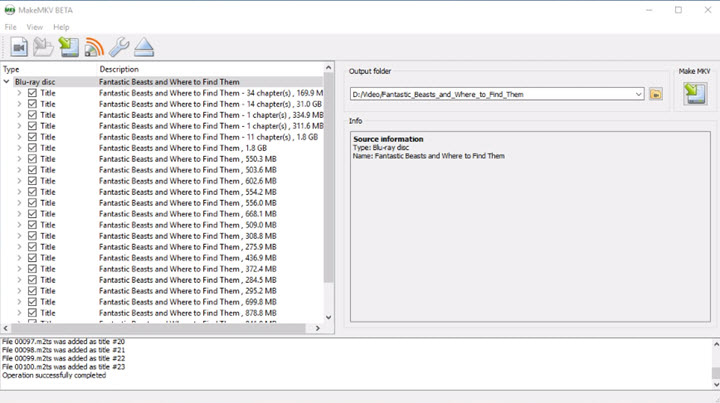
👍 Pros of MakeMKV:
- No video re-encoding, so there is no additional quality loss caused by an encode.
- Fast extraction compared with a full video transcode.
- Straightforward interface.
- Useful for preserving original audio, subtitles, and chapter information.
- Designed specifically around DVD and Blu-ray extraction.
❌Cons:
- MKV is the only output container.
- Files can remain very large because the video is not being compressed again.
- There is little control over bitrate, resolution, codec, or video filtering.
- Its beta/shareware licensing model is less straightforward than HandBrake's fully free open-source model. MakeMKV states that DVD/AVCHD conversion is free while Blu-ray functionality is shareware.
📌What Is HandBrake
HandBrake is a free, open-source video transcoder for Windows, macOS, and Linux. Its job is to take an existing video source and create a newly encoded version of it. It can convert supported sources into MP4, MKV, or WebM and gives users extensive control over video codec, quality, resolution, frame rate, audio, subtitles, filters, and more. This makes HandBrake particularly useful when the original video is too large, uses an inconvenient format, or needs to be optimized for a particular device.
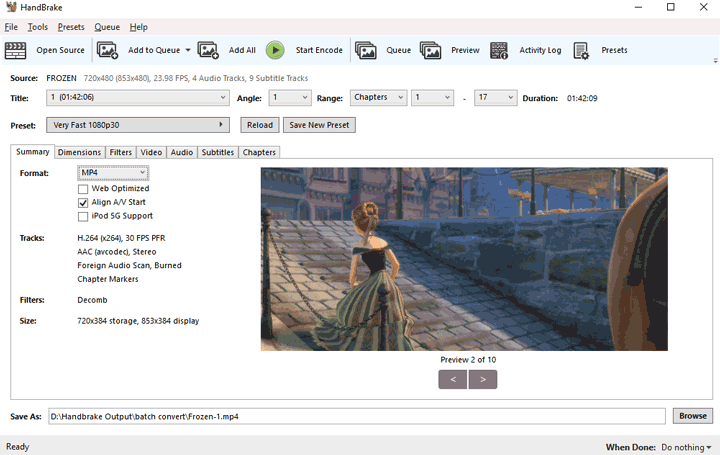
👍 Pros:
- Can greatly reduce file size.
- Supports MP4, MKV, and WebM output.
- Offers H.264, H.265, AV1, and other encoding options depending on container and platform.
- Includes numerous presets.
- Gives advanced users extensive control over video and audio.
- Completely free and open source.
- Supports compatible hardware encoders for faster processing.
❌ Cons:
- Video is always re-encoded rather than passed through unchanged.
- Encoding can take considerably longer than simple extraction/remuxing.
- Its many settings can be intimidating for beginners.
- It does not include functionality to defeat or circumvent copy protection.
MakeMKV vs HandBrake: How They Compare on Paper
Beyond their core purposes, MakeMKV and HandBrake differ in several practical areas, including input and output support, copy-protection handling, and the level of control they offer over the final file.
1. MakeMKV vs HandBrake: Input & Output Flexibility
| Feature | MakeMKV | HandBrake |
|---|---|---|
Input Sources |
DVD and Blu-ray discs |
Video files and readable DVD/Blu-ray sources |
Output Containers |
MKV only |
MP4, MKV, WebM |
Video Processing |
Keeps the original video stream without re-encoding |
Re-encodes video to supported codecs such as H.264, H.265/HEVC, AV1, and VP9 |
2. MakeMKV vs HandBrake: Customization & Control
HandBrake offers far more control over how the final file is encoded and organized, while MakeMKV keeps the process relatively simple and preservation-focused.
| Feature | MakeMKV | HandBrake |
|---|---|---|
Video Settings |
None for re-encoding; keeps the source video stream |
Resolution, bitrate, frame rate, quality, filters, and encoder settings |
Audio |
Select and preserve original audio tracks |
Select, re-encode, mix down, or passthrough supported audio tracks |
Subtitles |
Select and preserve subtitle streams |
Select, passthrough, or burn in subtitles; options depend on the container and subtitle format |
Chapters |
Preserves chapter information |
Can retain chapter markers in supported containers |
Presets |
None |
Rich presets for devices, web, and general use |
Ease of Control |
Simple, with fewer decisions to make |
More flexible, but requires more configuration |
HandBrake's output container can also affect track handling. MKV is more flexible for keeping multiple subtitle tracks and supported audio passthrough, while MP4 has more limitations with some subtitle formats.
In practice, MakeMKV is easier when you mainly want to carry selected disc streams into an MKV, while HandBrake gives you much more control over how those streams are handled in the finished file.
3. MakeMKV vs HandBrake: Copy Protection (DRM) Handling
A key strength of MakeMKV is its native ability to bypass most commercial DVD and Blu-ray copy protection schemes. This built-in functionality makes it a reliable and straightforward choice for creating personal backups of protected discs without needing additional software.
HandBrake, however, does not include built-in DRM decryption. To process protected discs, users must install third-party libraries, such as libdvdcss for DVDs. This adds an extra step and can introduce a layer of complexity for beginners, as it requires manual configuration outside of HandBrake itself.

4. Blu-ray and 4K UHD: MakeMKV vs HandBrake
The difference between MakeMKV and HandBrake becomes even more important with Blu-ray and 4K UHD, where source files can be much larger than DVDs.
MakeMKV is the more disc-focused tool. It is designed around DVD and Blu-ray extraction, and MakeMKV's official support resources also document UHD workflows. For UHD discs, however, the optical drive matters: MakeMKV's UHD documentation specifies a compatible BDXL/LibreDrive-capable drive, and its LibreDrive documentation states that compatible drive support is required for reading UHD discs.
HandBrake is better viewed as the encoding stage. Once a Blu-ray or UHD source is readable—such as an MKV created beforehand—HandBrake can compress and convert the video into a smaller file. HandBrake is a post-production transcoder rather than a copy-protection removal tool.
For 4K HDR sources, HandBrake also supports 10-bit/HDR10 encoding with compatible encoders and can pass through HDR10 mastering-display and content-light metadata into supported encodes.
| Blu-ray / UHD Need | MakeMKV | HandBrake |
|---|---|---|
Extract disc content |
Yes — core use case |
Not its primary role |
Preserve original video streams |
Yes |
No, video is re-encoded |
Reduce very large files |
No video compression |
Yes |
Create H.265/AV1 encode |
No |
Yes |
4K UHD disc workflow |
Requires compatible UHD drive/setup |
Works with a readable source |
HDR10 re-encoding |
Source stream preserved |
Supported with compatible 10-bit encoders |
Quick verdict: For Blu-ray and 4K UHD, MakeMKV is better suited to getting and preserving the source from disc, while HandBrake becomes useful afterward when you want to shrink or re-encode that source.
MakeMKV vs HandBrake: Tested on 3 DVDs
Feature lists can show what MakeMKV and HandBrake are designed to do, but they do not always reflect how smoothly each program handles a real disc. To see how the differences play out in practice, we tested both tools with three DVDs of different sizes and lengths:
- DVD 1: 1.21GB · 1m 45s
- DVD 2: 7.5GB · 2h 39m 11s
- DVD 3: 7.71GB · 1h 36m 08s
All tests were performed on the same Windows 10 PC with an AMD Ryzen 5 2400G processor, integrated Radeon Vega Graphics, and 8GB of RAM.
As mentioned earlier, MakeMKV and HandBrake handle video differently, so the processing times below should not be read as a simple head-to-head speed benchmark. Instead, we looked at how well each program identified the intended title, how long the actual job took, and what kind of output it produced.
1. MakeMKV vs HandBrake: Output File Size and Quality
👉 Quick verdict: Choose MakeMKV if preserving source quality is your priority; choose HandBrake if smaller file sizes and storage efficiency matter more. Here are the results from all three discs:
| Test DVD | MakeMKV Output | HandBrake Output | File-Size Difference | Visual Quality |
|---|---|---|---|---|
DVD 1 · 1.21GB |
179MB MKV |
15.1MB |
HandBrake was about 92% smaller |
MakeMKV retained source quality; HandBrake showed slight quality loss |
DVD 2 · 7.5GB |
7.19GB MKV |
2.11GB MP4 |
HandBrake was about 71% smaller |
MakeMKV retained source quality; HandBrake showed slight quality loss |
DVD 3 · 7.71GB |
Not completed |
746MB |
No direct comparison |
No MakeMKV output available for side-by-side comparison |
As you can tell from the table, HandBrake produced substantially smaller files than MakeMKV, with reductions ranging from roughly 71% to 92%. In our side-by-side visual checks, the MakeMKV outputs retained the source quality, while the HandBrake versions showed slight visible detail loss after re-encoding.
The exact compression ratio and quality difference will vary with the source and HandBrake settings, so these figures should be treated as examples rather than fixed expectations. DVD 3 was excluded from the direct comparison because MakeMKV did not successfully produce the intended movie output.
2. MakeMKV vs HandBrake: Which Is Faster
👉 Quick verdict: MakeMKV is much quicker for getting video off a disc, while HandBrake takes longer because it re-encodes and compresses the video. In our 7.5GB DVD test:
| Software | Time | What the Software Was Doing |
|---|---|---|
MakeMKV |
2m 14s |
Extracting/remuxing the selected title to MKV |
HandBrake |
37m 44s |
Re-encoding the video to H.264 MP4 |
At first glance, MakeMKV appears dramatically faster. But saying that MakeMKV is simply "17 times faster" would be misleading, because the two programs are doing very different amounts of work. MakeMKV mainly transfers the existing streams into an MKV container without re-encoding the video.
HandBrake, by contrast, has to decode the source, process it according to the selected settings, and encode it again. In our test, this also meant noticeably higher CPU usage throughout the much longer encoding process.

That extra processing time is what allows HandBrake to produce a much smaller file. So speed alone does not tell the whole story: MakeMKV finishes the extraction much sooner, while HandBrake uses more processing time and system resources to reduce the final file size.
Bottom line: MakeMKV generally saves processing time, while HandBrake can save substantially more storage space. It's also worth noting that HandBrake's speed is also vary considerably depending on the codec, preset, resolution, filters, and whether software or hardware encoding is used.
3. MakeMKV vs HandBrake: Which One Is Better at Main-Title Detection
👉 Quick verdict: In our three-DVD test, HandBrake identified the intended main title more consistently than MakeMKV. However, with only three discs tested, this should be treated as an observation rather than a universal advantage.
Here's what happened:
| DVD | MakeMKV | HandBrake |
|---|---|---|
DVD 1 · 1.21GB |
✔️ Main title detected automatically |
✔️ Main title detected automatically |
DVD 2 · 7.5GB |
⚠️ Manual title selection needed |
✔️ Correct title selected |
DVD 3 · 7.71GB |
❌ Intended main title not identified correctly |
✔️ Correct title selected |
With DVD 1, both programs handled the title automatically.
With DVD 2, MakeMKV did not automatically identify the intended main title, so we selected it manually. HandBrake selected the intended title correctly.

DVD 3 was more troublesome for MakeMKV. The intended movie was Title 27, but MakeMKV did not identify it correctly in our test, so we could not complete the intended extraction. HandBrake selected the intended title and completed the job.
This is useful real-world information, but it needs to be interpreted carefully. We tested only three DVDs, and title detection can vary depending on the disc structure and setup. Our results do not mean HandBrake will always identify movie titles better than MakeMKV.
It is also important not to confuse title detection with copy-protection support. HandBrake identifying the intended title in our test does not mean HandBrake itself bypasses DRM or copy protection.
MakeMKV vs HandBrake: Key Differences
At their core, MakeMKV copies disc content with minimal alteration, while HandBrake creates a newly encoded version of the video. This fundamental difference explains most of the contrast between them: MakeMKV favors source preservation and simpler extraction, while HandBrake offers smaller files and much more control over the final output
| Feature | MakeMKV | HandBrake |
|---|---|---|
Primary purpose |
Disc extraction/remuxing |
Video transcoding |
Video re-encoding |
❌ |
✔️ |
Main output container |
MKV |
MP4, MKV, WebM |
Typical file size |
Larger |
Smaller, depending on settings |
Source video preservation |
✔️ |
Video is re-encoded |
Codec control |
Minimal |
Extensive |
Resolution/bitrate control |
❌ |
✔️ |
Filters |
❌ |
Deinterlace, denoise, crop, resize, etc. |
Audio control |
Mainly track selection/preservation |
Codec, bitrate, mixdown, passthrough, etc. |
Subtitles |
Preserve/select tracks |
Select, passthrough, burn in, etc. |
Presets |
Minimal |
Extensive |
Learning curve |
Lower |
Moderate |
Best for |
Disc preservation and archival MKVs |
Compression, conversion, and device-friendly output |
MakeMKV vs HandBrake: Which to Pick
The right choice depends on what you want to do with your discs or video files. In some cases, you may not need to choose one over the other at all—you can use MakeMKV and HandBrake together. And if you prefer a more integrated workflow, an all-in-one alternative may be more convenient.
1. Choose MakeMKV When:
- You want to preserve the disc as closely as possible (no re-encoding involved).
- You do not mind large files. The video is not recompressed, so storage requirements can be much higher.
- You want a simple disc-to-MKV workflow.
- You don't need to configure codecs, bitrate, resolution, or filters.
2. Choose HandBrake When:
- You want to reduce file size. Re-encode large videos into smaller files.
- You need to rip DVD to MP4, MKV, or WebM with options such as H.264, H.265, or AV1.
- You need to adjust resolution, bitrate, frame rate, filters, audio, subtitles, and other encoding settings.
- You are optimizing video for playback.
- You need to create files better suited to phones, TVs, tablets, media servers, or bandwidth-limited situations.
3. Choose MakeMKV + HandBrake When:
Using both makes sense when you want the strengths of each tool in the same workflow.
Sometimes, the best option is to use both. The workflow is straightforward: use MakeMKV first to create a source-preserving MKV, then use HandBrake to compress or convert that file if needed.
This works especially well if you want to keep the original-quality MKV as an archive, but don't want to use that large file for everything. The HandBrake version can be used for Plex/Jellyfin, mobile devices, or anywhere storage and bandwidth matter more.

4. Or Consider a Better MakeMKV & HandBrake Alternative
MakeMKV and HandBrake are excellent at their respective jobs, but some users may need more than disc extraction or video transcoding alone. If you also want to rip DVDs, convert and compress videos, make quick edits, or enhance older footage without switching between multiple programs, VideoProc Converter AI brings these tasks together in one program.
- 1-click to rip DVDs to MP4, MKV, MOV, WebM, MP3, or 420+ other formats.
- Auto decryption for advanced DVD copy protections, incl. Disney 99-title discs.
- Fast, accurate main-title detection with flexible audio, subtitle, and chapter selection.
- More flexible DVD backup:(1:1) MKV Copy, ISO Image File, and VIDEO_TS Folder.
- Fast DVD ripping with up to 47× real-time speed and only about 2% average CPU usage.
- Upscale low-resolution 480p DVD video to 1080p or 4K with AI-based enhancement.
- All-in-one toolkit for compressing, editing, downloading, and other media tasks.
Free download and install VideoProc! Unlock the full potential of your DVD and media files!

MakeMKV, HandBrake, VideoProc: Key Features Comparison
| Feature / Capability | MakeMKV | HandBrake | VideoProc Converter AI |
|---|---|---|---|
Primary Function |
Back Up DVD |
Convert Video Formats |
Rip/Back Up DVD; |
DRM Removal (Discs) |
|
|
|
1:1 DVD Backup Ripping |
|
|
|
Video Compression & Conversion |
|
|
|
AI-Powered Enhancements |
|
|
|
Speed |
|
|
|
Output Formats |
MKV |
MP4, MKV |
MP4, MKV, AVI, MOV, HEVC, VP9, etc. (420+ Formats) |
Ease of Use |
Simple |
Moderate |
Simple |
Best For |
Back up Blu-ray |
Transcode Video |
Complete Media solution: 1:1 Backup, Convert, Compress, AI-Enhance... |