New AI features are available
 Listed in
 If you just tried to rip a store-bought DVD with HandBrake and ran into the dreaded “No valid source or titles found” error, you're not alone. By default, HandBrake cannot read CSS-encrypted discs. That means most commercial DVDs simply will not load unless you install the HandBrake libdvdcss library.
I recently tested the latest HandBrake builds on a Windows 11 desktop, an M3 MacBook Pro, and an Ubuntu laptop to see how libdvdcss performs in 2026. After running 15 commercial DVDs from different regions through multiple drives, I confirmed that it still works well. However, the installation steps differ slightly across macOS, Windows 10/11, and Linux. I also ran into a few common permission and path errors during testing.
Below, I'll walk you through exactly how I installed libdvdcss on each system. I'll also share the download sources I verified and the terminal commands that fixed the Mac and Linux issues. Once everything is set up properly, HandBrake can read most CSS-protected DVDs without additional configuration.
- Why HandBrake Needs Libdvdcss
- How to Install Libdvdcss for HandBrake on Mac
- How to Install Libdvdcss for HandBrake on Windows
- How to Install Libdvdcss for HandBrake on Linux
- How to Rip Protected DVDs Using HandBrake Libdvdcss
- Troubleshooting: Why HandBrake Libdvdcss Not Working Properly
- How to Rip Any Protected DVDs Without Libdvdcss
- Optional Reading: What Is Libdvdcss
- FAQs
Why HandBrake Needs Libdvdcss to Rip Protected DVDs
When you put a commercial DVD into your drive, HandBrake needs a way to decrypt the scrambled data before it can read the video streams. Without libdvdcss, HandBrake can only handle homemade, unencrypted discs.
If you try to load a store-bought movie without this library installed, HandBrake will usually spit out a "No valid source or titles found" error. Libdvdcss acts as the key that unlocks that basic CSS encryption so HandBrake can actually see the files.
⚠️ My Warning on HandBrake Libdvdcss Limitations
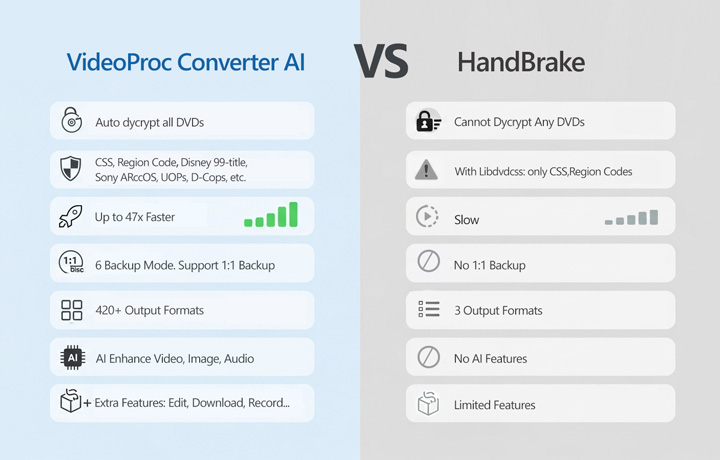
During my testing, I noticed a major limitation: libdvdcss only handles basic CSS and region codes. Most commercial DVDs printed in the last decade use more complex methods.
🛠️ When I tried to rip a newer Disney DVD protected by the 99-title (X-project) DRM and a disc with Sony ARccOS, HandBrake completely crashed. If you have heavily protected DVDs, I highly recommend using VideoProc Converter AI instead. In my side-by-side test, it bypassed the structural protections that HandBrake couldn't handle, and it didn't require me to install any extra .dll files.

How to Download and Install Libdvdcss for HandBrake on Mac
Installing libdvdcss is essential for HandBrake to read CSS-protected DVDs on Mac. To do so, follow the steps below.
Method 1. Install Libdvdcss for HandBrake on Mac Using the Installer
The first method utilizes a downloadable installer package (.pkg) for libdvdcss. This approach is often preferred by users who are not comfortable using the Terminal, as it follows a standard graphical installation process.
Step 1. Download and Install Libdvdcss on Mac
Download libdvdcss.pkg for Handbrake on your Mac computer.
Step 2. Install Libdvdcss on Mac
Double-click the .pkg file you downloaded. This will start a standard macOS installer. Just follow the prompts. This installer is designed to place the necessary file (libdvdcss.2.dylib) into a standard system location: /usr/local/lib/.
Step 3. Address System Integrity Protection
On newer versions, SIP can prevent HandBrake from accessing the file you just installed, or even move it to a quarantine location. To fix these, follow either of the below methods:
Option 1. Temporarily Disable SIP - Use with Extreme Caution!
This is generally not recommended for security reasons, but it will allow the file to work.
- Restart your Mac and hold down the Command + R keys immediately after you hear the startup chime (or see the Apple logo) to enter Recovery Mode.
- Once in Recovery Mode, click Utilities in the menu bar at the top, and select Terminal.
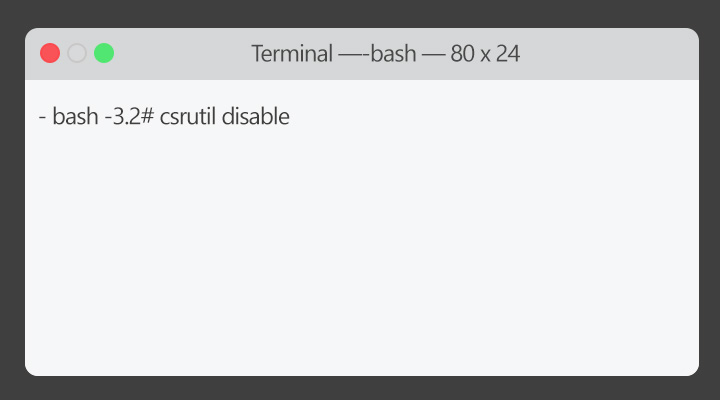
- In the Terminal window, type
csrutil disableand press Enter. - Type
rebootand press Enter.
Note: Disabling SIP reduces your Mac's security. If you use this method, it's highly advisable to go back into Recovery Mode later and run csrutil enable to turn it back on once you're finished ripping.
Option 2. Find the File if it was Quarantined - Safer Approach
Sometimes macOS just moves the file. You can try to find where it went and put it back.
- After running the .pkg installer, open Finder. Click Go > Go to Folder... (or press Shift + Command + G).
- Type in a path where macOS put quarantined items on the pop-up box. /Library/QuarantineRoot/ and /Library/SystemMigration/History/ are two common paths.
- Hit Enter. If you find a folder structure that looks like the original install path (e.g., /Library/QuarantineRoot/usr/local/lib/), look inside. Search these potential quarantine locations until you find the file named libdvdcss.2.dylib.
- Copy this libdvdcss.2.dylib file. Go back to the Go > Go to Folder... menu. This time, type in /usr/local/lib/. (This folder is usually hidden, so "Go to Folder" is the easiest way to get there).
- Paste the libdvdcss.2.dylib file into the /usr/local/lib/ folder. You'll likely need to enter your administrator password to complete this action.
Step 4. Restart HandBrake
Close HandBrake completely and then open it again. Check if it can now read your DVD.
Method 2. Install Libdvdcss for HandBrake on Mac Using Homebrew
Homebrew is a popular package manager for macOS that makes installing command-line tools and libraries like libdvdcss much simpler using the Terminal.
Step 1. Install Homebrew
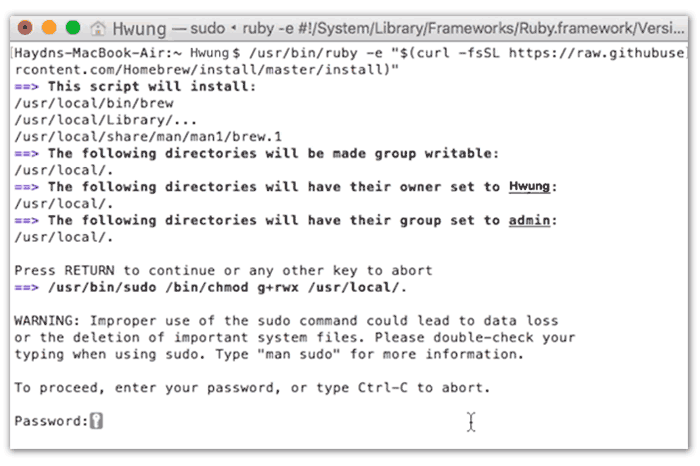
Open the Terminal app. Go to the official Homebrew website (https://brew.sh/) and copy the installation command shown on their homepage. Paste this command into your Terminal window and press Enter. Follow any instructions it gives you.
Step 2. Install Libdvdcss for HandBrake
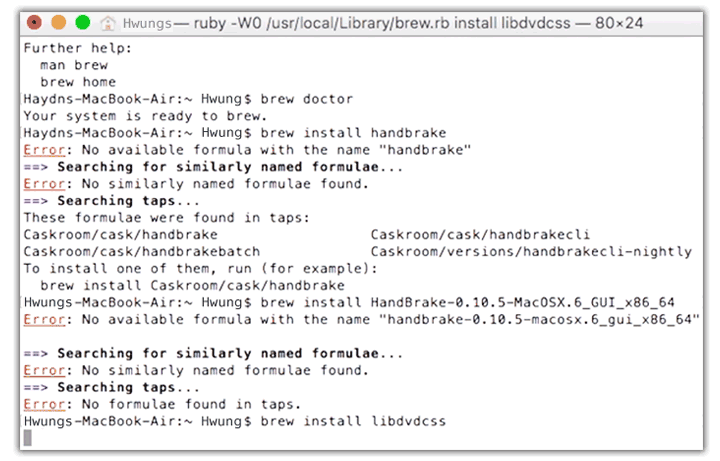
Once Homebrew is set up, simply type the following command into the Terminal and press Enter: brew install libdvdcss
Homebrew will automatically download and install the latest version of libdvdcss for you.
📌 Special Note for Newer Macs (Apple Silicon M1/M2/M3)
If you have a newer Mac with Apple Silicon, Homebrew installs packages in a different location (/opt/homebrew/) compared to older Intel Macs (/usr/local/). HandBrake might still look in the older location. If HandBrake doesn't find libdvdcss after installing with Homebrew, you need to manually copy the file. Here's how:
- Open Terminal.
- Execute this command to copy the library file to the location HandBrake expects: sudo cp /opt/homebrew/lib/libdvdcss.2.dylib /usr/local/lib/
- You'll be asked for your administrator password. Type it in and press Enter.
Step 3. Restart HandBrake
Restart HandBrake. It should now be able to use libdvdcss on your macOS computer.
How to Download and Install Libdvdcss for HandBrake on Windows
The steps to install HandBrake with libdvdcss apply to most recent Windows versions, including 11, 10, 8, and even 7. It's a straightforward process: simply download a file and place it in the right location.
Step 1. Download libdvdcss-2.dll
First, download the libdvdcss-2.dll file for HandBrake on Windows (compatible with Windows NT 4.0 SP4 or later, including versions like Windows 11, 10, and 7).
Step 2. Open HandBrake's Folder
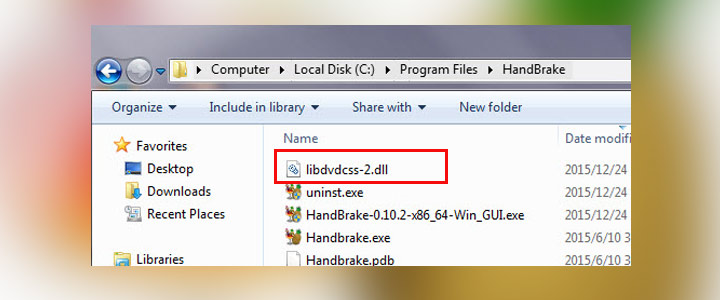
Now, you need to find where HandBrake is installed on your computer. Open File Explorer and navigate to the HandBrake program folder. Typically, it's located here:
- For 64-bit HandBrake: C:\Program Files\HandBrake
- For 32-bit HandBrake: C:\Program Files (x86)\HandBrake
If prompted for administrator permission, just click Yes to proceed.
Step 3. Install Libdvdcss for HandBrake
Once you have the libdvdcss-2.dll file, copy or cut it and paste it directly into the HandBrake program folder you just located.
Step 4. Restart HandBrake
If HandBrake was open while you were doing this, close it completely. Then, open HandBrake again. It should now automatically detect the libdvdcss-2.dll file and be able to read your protected DVDs.
How to Download and Install Libdvdcss for HandBrake on Linux
For most Linux users, this process is usually quite straightforward thanks to built-in package managers. We'll cover the steps for Ubuntu and Debian, which are very common, but the general idea applies to other distributions as well.
Step 1. Open Your Terminal
Launch your Terminal application.
Step 2. Update Your Package Lists
It's always a good practice to refresh the list of available software before installing anything new. Type the command below and press Enter.
sudo apt update
Step 3. Install the Helper Package
Due to the legal considerations we discussed earlier, Ubuntu and Debian don't include libdvdcss directly in their main software sources. Instead, they provide a helper package that knows how to download and install it from a trusted external source. Install this helper package:
sudo apt install libdvd-pkg
If prompted to confirm the installation, type Y and press Enter.
Step 4. Run the Configuration Script
The libdvd-pkg helper needs to run a configuration script to actually download and install the libdvdcss library itself. Use this command:
sudo dpkg-reconfigure libdvd-pkg
Just follow any simple prompts that appear in the terminal. Typically, you just need to confirm that you want it to proceed with downloading and installing libdvdcss for HandBrake.
Step 5. Restart HandBrake
If HandBrake was open, close it completely. Then, launch it again. It should now be able to read your CSS-protected DVDs.
📌 What If You're Using a Different Linux Distribution
The core principle is the same: you need to find and install the libdvdcss package using your distribution's specific package manager.
- Fedora: You'll need to enable the RPM Fusion repository first, then use
sudo dnf install libdvdcss. - Arch Linux: libdvdcss is available in the Arch User Repository (AUR). You would typically use an AUR helper like yay or pamac to install it (e.g.,
yay -S libdvdcss).
If you're on another distribution, check your distribution's official documentation or community forums for the exact command or package name needed to install libdvdcss.
How to Use HandBrake Libdvdcss to Rip Protected DVDs
With libdvdcss successfully installed, HandBrake should now be equipped to handle those DVDs that have CSS copy protection or are region-coded. Let's walk through how to rip your movie or show using HandBrake with Libdvdcss on Mac. The process is similar on Windows 10/11 and Linux.
Step 1. Open HandBrake
Launch the HandBrake application on your Mac computer. HandBrake should automatically detect the DVD you've inserted.
Step 2. Select the DVD Drive
A "Source Selection" window might appear, or you might see your DVD drive listed under "Source" in the main window. Click on the target DVD drive.
Step 3. Choose Your Title(s)
After scanning, HandBrake will show you a list of "Titles" found on the DVD.
- For a Movie: The main movie is almost always the title with the longest duration. Look at the "Duration" column and select the title that corresponds to the full length of the film.
- For a TV Series: You'll likely see multiple titles, each representing an episode. You'll need to select each episode you want to rip individually.
- Use the "Title" dropdown menu near the top of the HandBrake window to select the title you want to work with first.
Step 4. Configure the Output Settings
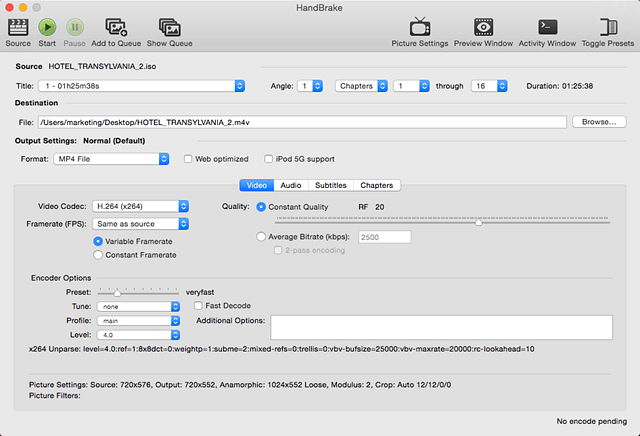
It's time to tell HandBrake how to create your final video file. The easiest method is choosing a Preset from the list on the right (or under the "Presets" menu). I myself often use "Fast 1080p". You can select any preset that suits your needs. Plus, you can explore tabs like Video, Audio, and Subtitles for detailed customization.
Step 5. Set the Save Location
At the bottom of the HandBrake window, you'll see "Save As" and "To:". Click the "Browse..." button next to "To:" to choose where you want to save the ripped file on your computer and what you want to name it.
Step 6. Start Ripping Your DVD
Once you've selected your title, configured your settings, and chosen a save location, you're ready! Click the green "Start" button (or "Start Encode") usually located near the top of the HandBrake window.
💡 Tips for Multiple Titles (like a TV series):
If you selected one episode and want to rip others, click the "Add to Queue" button after setting up the first title's settings and save location. Then, select the next title from the dropdown (Step 4), adjust settings if needed, and click "Add to Queue" again. Repeat for all episodes. When you're ready to start ripping everything in the list, click the "Queue" button near the top, review the list, and click "Start Queue".
Why Handbrake Libdvdcss Not Working Properly
So, you've followed the steps, installed HandBrake, and successfully added libdvdcss to HandBrake. You pop in a DVD, excited to finally rip it... and then you hit a snag. Don't worry, you're not alone! Even with libdvdcss, HandBrake can sometimes struggle with certain discs. This section covers the most common issues you might encounter and what they usually mean. Understanding these problems is key, and sometimes, it points to the need for a different approach altogether. Let's look at the typical roadblocks:
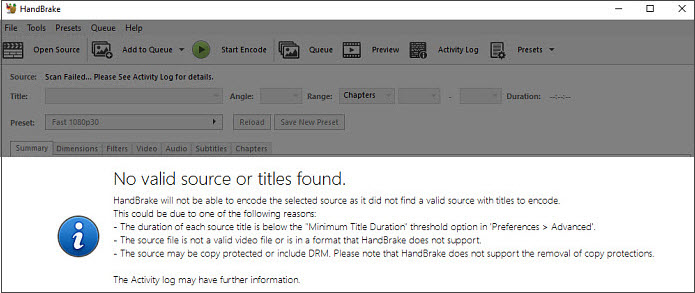
❌1. The Dreaded "No Valid Source or Titles Found" Error
This is a very common message and usually means HandBrake can't properly read the DVD's structure or decrypt its contents.
Possible Reason 1: Libdvdcss is Not Correctly Installed or Located
Explanation: HandBrake needs libdvdcss to bypass basic CSS encryption. If the file isn't in the right place or wasn't installed correctly, HandBrake won't find it.
Solution: Go back to Part 2 and carefully re-verify the installation steps for your operating system. Make sure the libdvdcss.dll (Windows) or the library file (Mac/Linux, check /usr/local/lib especially for M1/M2/M3 Macs) is in the exact location HandBrake expects.
Possible Reason 2: The DVD Has Advanced Copy Protection
Explanation: Libdvdcss is effective against older CSS protection, but many modern DVDs use more complex schemes like ARccOS, RipGuard, Disney X-project (99-title), etc. Libdvdcss simply cannot decrypt these.
Solution: If you've confirmed that libdvdcss is installed correctly and HandBrake still shows this error, it's likely the DVD uses protection that's too advanced for libdvdcss to handle. In this case, you'll need a more capable DVD ripper—like VideoProc Converter AI—which is built to bypass even the latest copy protection schemes.
❌2. HandBrake Selects the Wrong Title
You load the DVD, and HandBrake shows titles, but the one it automatically selects as the main feature is clearly wrong – it might be a short clip, a menu, or just a few minutes long.
Possible Reason: Complex DVD Structure or 99-Title Protection
Explanation: Some DVD protections deliberately create dozens or even a hundred fake titles to confuse ripping software. HandBrake tries to guess the main title, but it's easily tricked by these structures.
Solution: Try to manually identify the correct title by playing the DVD in a standard player and noting the title number, then selecting it in HandBrake.
❌3. HandBrake Crashes During Scanning or Ripping
You start scanning the DVD or begin the rip—and suddenly, HandBrake crashes without warning. This usually means something is going wrong with how the software is interacting with the disc.
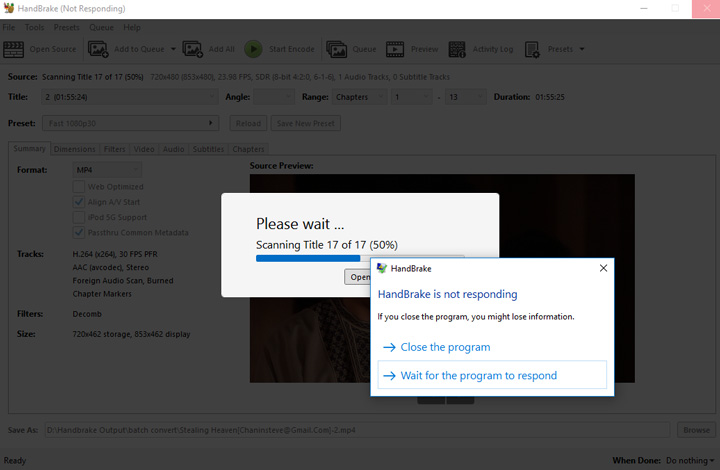
Possible Reason 1. Advanced Copy Protection
Explanation: Just like the "No valid source" error, crashes often happen when HandBrake and libdvdcss run into complex or unusual copy protection. If the software can't properly read the encrypted data, it may simply fail and close.
Solution: Try a more advanced DVD ripper such as VideoProc Converter AI. It can handle encrypted DVDs protected with complex schemes like Disney's 99-title structure and other advanced DRM methods.
Possible Reason 2: Damaged Disc
Explanation: Scratches, smudges, or general wear and tear on the DVD can cause read errors that lead to crashes.
Solution: Try gently cleaning the disc with a soft, lint-free cloth and see if that helps.
Possible Reason 3: Software Issues
Explanation: It could also be due to a bug or compatibility issue between your version of HandBrake, libdvdcss, and your operating system.
Solution: If you're stuck, try using a different version of HandBrake or reinstalling libdvdcss.
❌4. Poor Quality or Errors in the Final Output
The rip finishes, but the resulting video file has glitches, skips, artifacts, or looks significantly worse than the original DVD.
Possible Reason 1: Source Disc Damage
Explanation: If the DVD is scratched or dirty, the data read will be imperfect, leading to errors in the final video.
Solution: Clean the disc carefully. If the damage is severe, the data may be unrecoverable.
Possible Reason 2: Incorrect HandBrake Encoding Settings
Explanation: Choosing settings like a very low bitrate, resolution, or certain encoder presets can result in poor output quality.
Solution: Review your HandBrake output settings. Try using a high-quality preset or increasing the bitrate.
How to Rip Protected DVDs Without HandBrake Libdvdcss
As we've seen, HandBrake combined with libdvdcss can be a good starting point for ripping some DVDs, but it often falls short when faced with advanced copy protection, tricky title structures, or when the libdvdcss installation itself becomes a hurdle. Troubleshooting these issues can be time-consuming and frustrating. This is where VideoProc Converter AI comes in.

VideoProc Converter AI - Rip Any Protected DVDs Easily
- Auto-removes all DVD DRM: Bypass CSS, Region Code, RCE, UOPs, Sony ARccOS...
- Rip your DVD to 420+ formats and device profiles, such as MP4, MKV, MOV and iPhone.
- 6 Backup modes: Digitize your DVD collection with the original content and quality.
- AI-driven! Upscale DVD video to 1080p or 4K with naturally enhanced details.
- Up to 47x faster speed, powered by the world unique level-3 GPU acceleration tech.
- All-in-One: It also converts, compresses, edits, records screen, downloads videos, etc.
 Excellent

Download VideoProc Converter AI and rip your protected DVDs now!
Step 1. Download, install, and run VideoProc Converter AI.
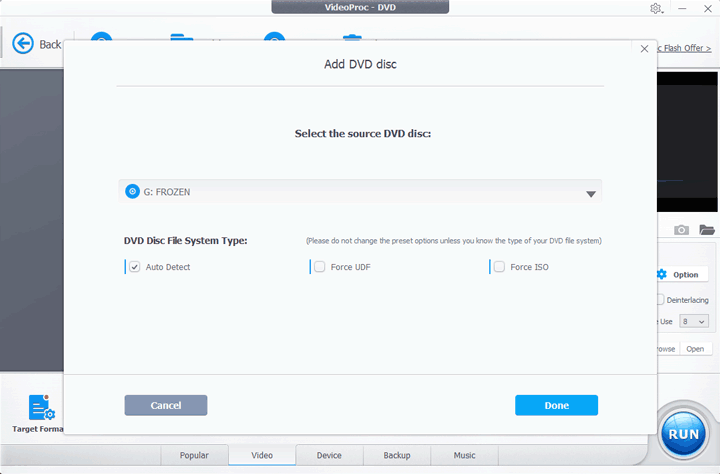
Step 2. Click the "DVD" button in VideoProc Converter AI and select "DVD Disc". The software will automatically detect the disc, analyze its protection, and select the correct main title.
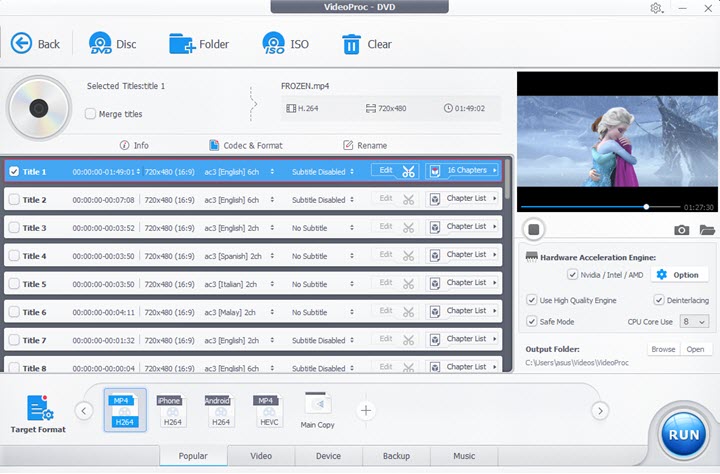
Step 3. Go to the bottom section. You can choose a digital format like MP4, MKV, AVI, and MOV. Alternatively, you can hit the Backup button to get backup options like VIDEO_TS, Main Copy, and Title Copy.
Step 4. Choose the target output folder. Click the "RUN" button. VideoProc Converter AI will quickly rip your protected DVD without libdvdcss.
HandBrake Libdvdcss: What Is Libdvdcss
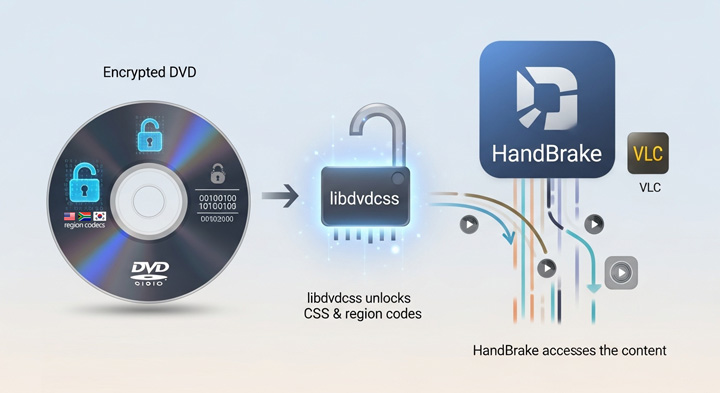
The name libdvdcss stands for "Library for DVD CSS". It's an open-source software library designed to enable other software, such as media players or ripping tools, to read DVDs protected by the Content Scrambling System (CSS).
CSS is a copy protection method that scrambles the disc's data, making it unreadable without the correct decryption key. Libdvdcss works by finding or attempting to determine these keys, effectively "unlocking" the CSS encryption. Beyond CSS, it also provides functionality to bypass DVD region codes, allowing access to discs from different geographic areas regardless of the drive's native region setting.
Here are some key details about libdvdcss for Handbrake:
| Detail | Description |
|---|---|
Full Name |
Library for DVD CSS |
Primary Function |
Decrypts CSS copy protection and bypasses DVD region codes. |
Type |
Small, open-source software library. |
Latest Release |
1.4.3 (Released April 20, 2021) |
Part of |
The VideoLAN project (the same team behind VLC Media Player). |
Used By |
VLC Media Player, HandBrake, Ogle, xine-based players, MPlayer, and other DVD software. |
Cross-Platform |
Works on Windows, macOS, and many Linux distributions. |
Region Support |
Enables support for DVDs from all regions (1-6), particularly effective with RPC1 drives. |
FAQs
1. Is libdvdcss legal?
The legal status of using libdvdcss depends heavily on where you are located. In some countries, such as the US, using tools like libdvdcss to bypass encryption may be illegal under the DMCA. However, in places like Canada and parts of Europe, the legality is more lenient, particularly for personal use. Still, it's important to check local laws before proceeding, as the legal landscape can vary greatly by region.
2.Why is libdvdcss not included in HandBrake natively?
So, why don't the HandBrake developers just include libdvdcss in their standard download? The main reason boils down to legal issues. In many places, especially in the United States under laws like the Digital Millennium Copyright Act (DMCA), bypassing copy protection like CSS is considered illegal. This can be true even if you own the DVD and just want to make a backup copy for yourself. To avoid potential lawsuits and distribution problems, the HandBrake team decided not to include libdvdcss in their official builds. This puts the responsibility of finding and installing this potentially legally restricted component onto you, the user.
3. Can HandBrake use VLC's libdvdcss installation?
On some operating systems (like macOS and Linux), HandBrake can often automatically detect and use libdvdcss if it's installed in a standard system library path, which VLC might use. On Windows, you typically need to place the libdvdcss.dll file directly in the HandBrake program folder.
4. How do I know if libdvdcss is installed correctly for HandBrake?
The best test is to try scanning or ripping a known CSS-encrypted DVD. If HandBrake can successfully read the disc and list the titles without showing the "No Valid Source" error (for basic CSS discs), it's likely installed correctly.
5. What is the primary usage of libdvdcss?
Libdvdcss is a software library designed to access and decrypt DVDs encrypted with the Content Scramble System (CSS). Its main usage is to allow software like media players (VLC) or rippers (HandBrake) to read and process the content of these protected DVDs.
6. Why does HandBrake still fail to rip some DVDs after installing libdvdcss?
Libdvdcss only handles the older CSS protection. Many modern commercial DVDs use more advanced and complex copy protection schemes (like ARccOS, RipGuard, Disney X-project/99-title) that libdvdcss cannot bypass. See Part 4 for more troubleshooting details on these limitations.
7. What's the difference between CSS and other DVD protections?
CSS is an older, relatively simple encryption method. Newer protections (like ARccOS, RipGuard, Disney X-project) are more complex, often designed to confuse rippers by creating fake titles, bad sectors, or tricky structures. Libdvdcss is only effective against CSS.
8. Does libdvdcss work with Blu-rays or 4K UHDs?
No, libdvdcss is specifically designed for DVD (CSS) encryption only. Blu-rays and 4K UHDs use different, much more advanced copy protection methods (like AACS and BD+) that require entirely different software and hardware solutions to decrypt.