New AI features are available
MakeMKV and DVDFab can both handle DVD and Blu-ray backups, but they are built for different types of users and workflows. MakeMKV focuses on straightforward, source-quality MKV extraction, while DVDFab offers a broader set of tools for copying, ripping, converting, compressing, and preparing files for different devices. Below, we compare them across the areas that matter most in everyday use, including output quality, format support, usability, speed, and pricing, to see where each one has the advantage.
- Quick Verdict: MakeMKV or DVDFab
- What MakeMKV and DVDFab Actually Are
- MakeMKV vs DVDFab: Quality, Formats, Speed, Pricing, and More
- Output Quality
- Output Format Support
- Interface, Workflow, and Batch Use
- Process Speed
- Pricing, Beta Keys, and Software Access
- User Reputation and Real-World Feedback
- MakeMKV vs DVDFab: Which One Should You Choose
- Need a Better Alternative to MakeMKV and DVDFab
Quick Verdict: MakeMKV or DVDFab
If you want the short answer, here it is. In general, MakeMKV is the better fit for simple, source-quality MKV backups and media-server libraries, while DVDFab makes more sense if you want MP4 output, smaller files, presets, and more conversion options in one program. If you prefer a lower-cost setup and do not mind an extra step, MakeMKV paired with HandBrake remains a practical middle ground.
| If You Want To... | Better Choice |
|---|---|
Preserve original DVD/Blu-ray quality |
MakeMKV |
Build a Plex, Jellyfin, Kodi, or NAS library |
MakeMKV |
Rip directly to MP4 |
DVDFab |
Reduce file size with less setup |
DVDFab |
Use a free or low-cost workflow |
MakeMKV + HandBrake |
Get a more beginner-friendly process |
DVDFab |
Use Linux |
MakeMKV |
Avoid beta key interruptions |
DVDFab or paid MakeMKV license |
What MakeMKV and DVDFab Actually Are
Before comparing quality, formats, speed, and pricing, it helps to understand what each tool is actually designed to do. MakeMKV is a focused MKV backup tool. DVDFab is a larger commercial disc suite. That difference explains most of the tradeoffs below.
MakeMKV: A Focused MKV Backup Tool
MakeMKV is best understood as a focused disc-to-MKV converter. Its main job is to take the video clips from a DVD, Blu-ray, or supported UHD Blu-ray and save them as MKV files while preserving the original video and audio streams, chapters, track language, audio type, and other metadata. In simple terms, MakeMKV changes the container, not the movie itself. That is why MakeMKV is so popular with home theater users. If you want to back up discs for Plex, Jellyfin, Kodi, NAS storage, or local playback, it gives you a clean way to keep the movie close to the original source without first deciding on compression settings, device presets, or output bitrate.
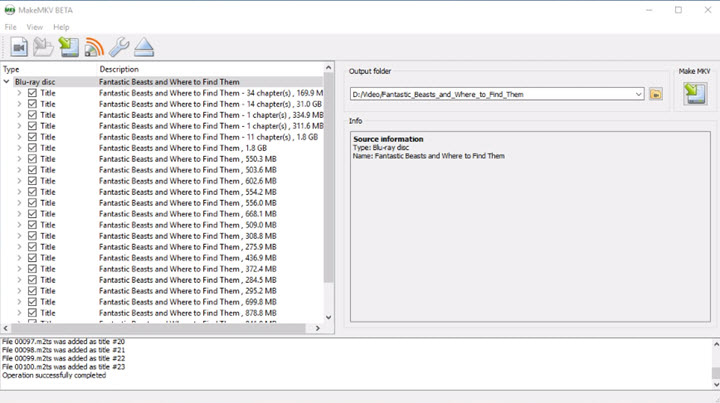
What MakeMKV does well:
- Reads DVD and Blu-ray discs, including supported UHD Blu-ray workflows
- Saves disc content into MKV files
- Preserves video and audio tracks, including HD audio
- Preserves chapters and metadata such as track language and audio type
- Converts quickly because the speed is mostly limited by how fast your optical drive can read the disc
- Can stream decrypted video directly to compatible players without creating an intermediate converted file
- Blu-ray processing has been free during the beta period
But MakeMKV also has clear limits:
- It only outputs MKV
- It does not directly export MP4
- It does not include phone, tablet, smart TV, or game console presets
- It does not compress the movie into a much smaller file
- It does not upscale, enhance, or improve the source quality
- Blu-ray and UHD Blu-ray support can still depend on the disc, drive, firmware, and current software support.
- Free beta use may require users to keep an eye on version updates and beta key validity
💡Keep in mind:
These limits are not necessarily flaws. MakeMKV is not trying to be a full video converter or a polished all-in-one disc suite. It is built for people who want a clean MKV copy of the disc content with as much original information preserved as possible. If you want a small MP4 file for everyday playback, you will usually need to use another tool after MakeMKV, such as HandBrake and VideoProc Converter AI.
DVDFab: A Full Disc Suite for Copying, Ripping, and Conversion
DVDFab is a commercial disc suite built for users who want copying, ripping, compression, conversion, and extra disc tools in one place. Depending on the module, it can create ISO or folder backups, rip DVDs/Blu-rays/UHD Blu-rays to digital formats, compress large discs, create new discs, and add extras such as Cinavia removal, metadata export, menu creation, and AI-based enhancement. The main appeal is convenience: you can handle several disc workflows in one program instead of switching between separate tools.
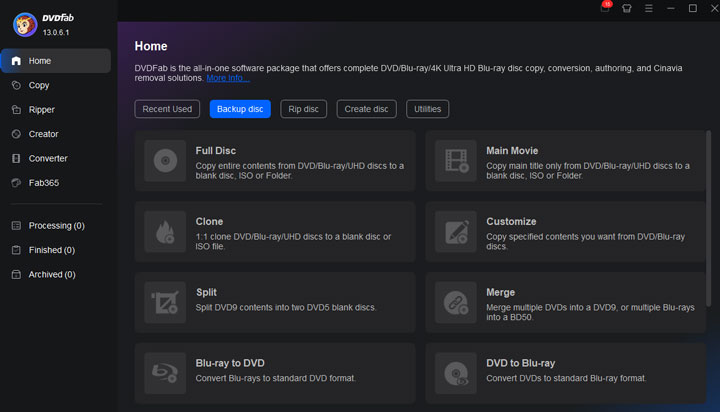
What DVDFab does well:
- Creates 1:1 disc copies, ISO files, or folder backups with its Copy modules
- Supports lossless or passthrough-style ripping to formats such as MKV, MP4, or M2TS
- Converts discs to MP4, MKV, AVI, MOV, WebM, audio formats, and many device profiles
- Compresses large DVDs, Blu-rays, or UHD Blu-rays into smaller files or smaller disc sizes
- Offers presets for phones, tablets, smart TVs, media players, and home theater playback
- Provides rich control over codec, resolution, bitrate, subtitles, audio tracks, and channels
- Includes extra tools such as video editing, metadata/.info output, and AI quality enhancing
- Uses GPU acceleration for supported decoding, encoding, and compression tasks
But DVDFab also has clear limits:
- It is much more expensive than MakeMKV
- Many features are sold as separate modules, which can make pricing confusing
- The All-In-One Pack is more practical for heavy users, but it costs much more
- It can feel heavy if you only need a clean MKV backup
- Compression quality depends on codec, bitrate, resolution, and encoder settings
- User feedback is mixed on customer support, refund experience, and long-term license expectations
💡Simply put: DVDFab is a broad and paid suite for users who want copying, ripping, compression, MP4 output, device profiles, and extra disc tools in one place.
MakeMKV vs DVDFab: Tested for Quality, Speed, Formats, and More
Now that the core differences are clear, the next question is how they compare in actual use. We tested MakeMKV and DVDFab on the same setup and looked at the factors that matter most in practice, including output quality, format support, usability, speed, and pricing. For the speed comparison, we used the same DVDs, optical drive, PC, and destination storage, and compared only workflows that could be tested on reasonably equal terms.
📌1. Output Quality
Both MakeMKV and DVDFab can preserve the original video quality when no re-encoding is involved.
MakeMKV makes this especially straightforward. It remuxes the selected video, audio, subtitle, and chapter streams from a DVD or Blu-ray into MKV without re-encoding the video.
DVDFab can also preserve the original streams through its Copy module, 1:1 backup modes, and passthrough/lossless profiles. The difference is that DVDFab gives you additional options when you do want to change the output.
The quality tradeoff begins when DVDFab re-encodes the video. A smaller MP4 usually comes from lowering the bitrate, resolution, or using stronger compression, and more aggressive settings generally mean more visible quality loss.
📌2. Output Format Support
MakeMKV is limited to MKV output.
DVDFab can also convert discs to MP4, H.264/H.265, compress the video to reduce file size, and create ISO or folder backups through its copy modules.
Thus, if all you need is an MKV archive, MakeMKV is sufficient. If you need other output formats, you will need DVDFab or a similar tool that supports video conversion.
📌3. Interface, Workflow, and Batch Use
MakeMKV and DVDFab feel very different in everyday use. MakeMKV is lighter and more direct, while DVDFab offers more guidance and control at the cost of a busier interface.
MakeMKV: Simple, but Dated
MakeMKV keeps the workflow focused. Load a disc, choose the titles, audio tracks, and subtitles you want, and save them as MKV. You can also process multiple titles at once, which works well for TV episodes or straightforward batch extraction.

What we like
- Lightweight interface with few distractions
- Few settings to configure
- Easy to process multiple titles as MKV
What to know
- The interface looks dated
- Some controls and track selections are not immediately intuitive
- Batch use is mainly limited to MKV extraction
DVDFab: More Guided, but Busier
DVDFab provides more visual guidance and more control over the final output. Copy modes, format profiles, device presets, compression settings, and task queues are built into the same workflow.
This makes it more flexible for repeated conversion or compression jobs, especially when multiple titles need similar output settings.

What we like
- More modern and polished
- Better guidance for format and output settings
- More flexible batch conversion and compression
What to know
- More menus and settings make it feel busier
- Can be overkill for a simple lossless backup
- Upsell-style modules add visual clutter
Bottom line: MakeMKV is simpler for disc-to-MKV work. DVDFab is more practical when your workflow involves multiple formats, compression, or repeated conversion tasks.
📌4. Speed: Which Is Faster
A common claim in MakeMKV vs DVDFab comparisons is that MakeMKV must be faster because it backs up the disc without transcoding. That explanation is incomplete. DVDFab also supports lossless backup and passthrough workflows, so the two programs can be compared while performing essentially the same task. In our tests, their actual lossless backup times were very close.
| Test | Disc | MakeMKV | DVDFab | Faster |
|---|---|---|---|---|
Disc analysis |
DVD 1 (single-title) |
25.42 sec |
12 sec |
DVDFab |
Disc analysis |
DVD 2 (multi-title) |
27 sec |
74 sec |
MakeMKV |
Lossless backup speed |
DVD 1 |
185 FPS |
174 FPS |
MakeMKV, slightly |
Lossless backup speed |
DVD 2 |
176 FPS |
172 FPS |
Comparable |
Rip DVD to H.264 |
— |
Not supported |
Supported |
Not comparable |
✍ What the Results Mean
DVD analysis: DVDFab was faster with the single-title DVD, while MakeMKV was faster with the multi-title DVD.
Lossless backup: MakeMKV was slightly faster in both tests, but the gaps were small. With such a limited sample, we would consider their backup speeds broadly comparable.
Title detection can also affect the total time spent on a disc. MakeMKV occasionally picked the wrong title in our tests, while DVDFab was generally more accurate, though not perfect.

How we tested MakeMKV and DVDFab
To make this comparison more practical, we tested MakeMKV and DVDFab using the same DVDs, optical drive, and PC. We focused on the parts of the workflow that can be compared directly: disc analysis, title detection, and lossless backup speed.
Test setup
- OS: Windows 10 Pro 64-bit
- CPU: AMD Ryzen 5 5600X
- GPU: AMD Radeon RX 6700 XT
- Memory: 48GB DDR4
- Test discs: One single-title DVD and one multi-title DVD
📌5. Pricing, Beta Keys, and Software Access
MakeMKV is the better value if you only need straightforward MKV backups, while DVDFab costs significantly more but includes a much broader set of disc-copying, ripping, conversion, and compression tools. The other key difference is how the two products are licensed.
MakeMKV: Free Beta, but Less Predictable Access
MakeMKV has long been available free during its beta period. Users normally activate the beta with a temporary registration key published through the official MakeMKV forum. The downside is that these keys expire periodically. When either the beta key or an older software version expires, MakeMKV may display a message such as:
"This application version is too old. Please download the latest version or enter a MakeMKV registration key to continue using the current version."
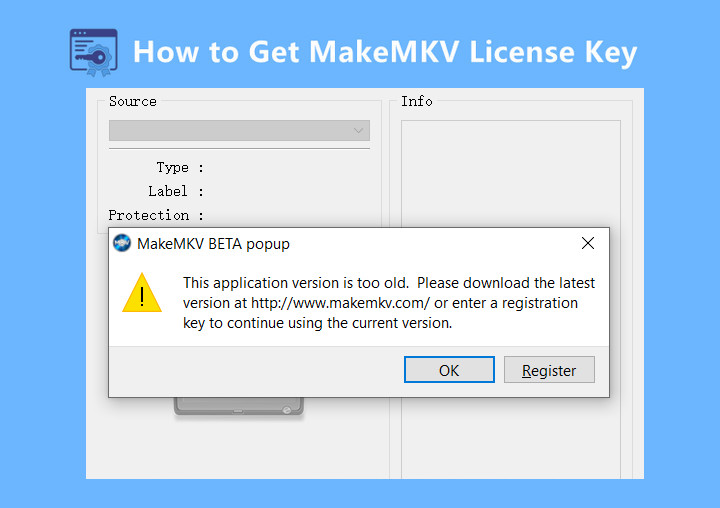
In that case, users generally need to update MakeMKV or obtain the latest official beta key. Permanent licenses have historically been available for users who want to avoid this cycle, although purchasing availability has been inconsistent in 2026. For the latest status, check the official MakeMKV site or see our guide to the MakeMKV registration key.
DVDFab: Much More Expensive, but Conventional Licensing
DVDFab uses a traditional paid-license model, but pricing can become complicated because major functions are divided into separate products. You can purchase individual modules such as DVD Ripper, Blu-ray Copy, or UHD-related tools, or buy an All-In-One package that combines a much larger set of features. At the time of writing:
- DVDFab All-In-One Lifetime: about $279.99
- Individual lifetime modules: roughly $59.99–$139.99, depending on the product

This makes DVDFab considerably more expensive than MakeMKV, especially if you only need lossless disc backups. The price becomes easier to justify if you also need direct MP4 conversion, compression, multiple copy modes, UHD tools, or other functions that MakeMKV does not provide.
MakeMKV vs DVDFab: Which One Should You Choose
The best choice depends less on which program has more features and more on what you want to end up with after ripping the disc.
| Your Goal | Better Choice | Why |
|---|---|---|
Build a Plex, Jellyfin, Kodi, or NAS library |
MakeMKV |
Creates straightforward, source-quality MKV files while preserving the original video, audio, subtitles, and chapters. |
Create smaller MP4 files for phones, tablets, or TVs |
DVDFab |
Can rip, encode, and compress directly to MP4/H.264/H.265 without requiring a second program. |
Preserve original disc quality |
MakeMKV or DVDFab Copy |
MakeMKV is ideal for MKV remuxes; DVDFab Copy adds options for full-disc, ISO, and folder backups. |
Use a low-cost workflow |
MakeMKV + HandBrake |
Use MakeMKV for extraction and HandBrake for compression or MP4 conversion, at the cost of an extra step. |
Want a guided all-in-one workflow |
DVDFab |
Combines disc analysis, ripping, conversion, compression, and output presets in one application. |
Use Linux |
MakeMKV |
MakeMKV supports Linux, while DVDFab is primarily available for Windows and macOS. |
Only need straightforward MKV backups |
MakeMKV |
More focused and far less expensive if you do not need conversion or additional disc tools. |
Need multiple disc tools in one suite |
DVDFab |
Better suited to users who need ripping, copying, conversion, compression, and other disc-related modules in one ecosystem. |
User Reputation and Real-World Feedback
User feedback is one of the clearest differences between MakeMKV and DVDFab. MakeMKV has a simpler, more stable reputation. DVDFab gets more mixed reactions because it offers more features, but also comes with higher cost, heavier software, and more licensing concerns.
| Tool | Positive Feedback | Common Complaints |
|---|---|---|
MakeMKV |
Simple, reliable, lightweight, strong for Plex/Jellyfin/Kodi backups |
MKV only, large files, beta key interruptions, needs HandBrake for MP4/compression |
DVDFab |
More convenient, direct MP4 output, copy/rip/compress in one program |
Expensive, module-based pricing, online activation, mixed support/refund feedback, UHD issues |
What Users Say About MakeMKV
Typical positive comments are short and direct:
- 👍 "Best piece of software I've ever purchased." - by @geekboy on reddit.com
- 👍 "Simple, well supported and free while in beta." - by @jessestevensf1 on reddit.com
The complaints are mostly practical:
- ❌ Output files are large
- ❌ MP4 export requires another tool such as HandBrake
- ❌ Beta keys or version expiration can interrupt free use
What Users Say About DVDFab
DVDFab gets praise for convenience, especially when users want fewer steps:
- 👍 "The biggest benefit is one click rip/convert. Whereas MakeMKV is a 2 step process." - by @Plex on reddit.com
But the negative feedback is more noticeable than with MakeMKV:
- ❌ Higher price
- ❌ Separate modules for different features
- ❌ Online activation concerns
- ❌ Refund and support complaints
- ❌ Heavier software experience
- ❌ Some UHD or drive-specific failures
One user described DVDFab as the "big name" in this space but also "definitely pricey." Another user on Doom9 argued that DVDFab is less attractive as a long-term investment because it "requires online activation."
MakeMKV vs DVDFab: Which One Should You Choose
The easiest way to choose between MakeMKV and DVDFab is to look at your final goal, not just the feature list.
| Your Goal | Better Choice | Why |
|---|---|---|
Build a Plex, Jellyfin, Kodi, or NAS library |
MakeMKV |
It is simple, clean, and good at creating high-quality MKV archives with original tracks and subtitles. |
Create a smaller MP4 for iPhone, Android, smart TV, or tablet |
DVDFab |
It can export directly to MP4 and offers device-friendly presets. |
Keep the best archive quality |
MakeMKV or DVDFab Copy |
MakeMKV is easier for MKV archives, while DVDFab Copy is better for 1:1 disc, ISO, or folder backups. |
Use a free workflow |
MakeMKV + HandBrake |
Rip with MakeMKV first, then compress or convert the MKV file with HandBrake. |
Avoid manual settings |
DVDFab |
It gives you more guided profiles, output settings, and conversion options in one program. |
Use Linux |
MakeMKV |
DVDFab is mainly for Windows and macOS, while MakeMKV also supports Linux. |
Only rip a few discs to MKV |
MakeMKV |
It is cheaper and more focused. |
Need several disc tools in one suite |
DVDFab |
It is more expensive, but more practical if you need ripping, copying, converting, and extra modules. |
In short, choose MakeMKV if you mainly want a clean MKV backup or a media server archive. Choose DVDFab if you want a more convenient way to create MP4 files, reduce file size, or handle multiple disc-related tasks in one program. Choose MakeMKV + HandBrake if you want a free workflow and do not mind the extra conversion step.
Need a Better Alternative to MakeMKV and DVDFab
Like the simplicity of MakeMKV, but want more practical features such as DVD to MP4 ripping, 1:1 DVD backup, one-click file size reduction, and AI upscaling at a lower price? Try VideoProc Converter AI. It gives DVD-focused users a simpler way to rip, back up, convert, compress, and enhance media without paying for a large disc suite. It can handle homemade DVDs and protected DVDs you own, create 1:1 DVD backups with titles, chapters, and menu information preserved, convert DVD content to MP4 and 420+ formats for better compatibility, and compress video files by up to 90% of the original size.
Performance is another advantage. With Level-3 GPU acceleration, VideoProc Converter AI can process media up to 47x faster than real-time playback. Batch processing is also supported, which is useful when you need to rip, convert, or compress multiple files without repeating the same settings one by one. What makes it more useful for older DVD collections is its AI Super Resolution feature. After ripping a DVD, you can upscale low-resolution footage to 1080p or 4K, reduce visible quality loss, and make old videos look clearer on modern screens.
VideoProc Converter AI - Best Alternative to DVDFab/MakeMKV
- DVD Decryption – Disney 99-titles, UOPs, ArccOS, and more advanced schemes.
- 1:1 DVD Backup – Preserve titles, chapters, menu information, and selected tracks.
- More Format – Rip DVD content to MP4, MKV, MOV, AVI, HEVC, and 420+ formats.
- AI Super Resolution – Upscale low-resolution DVD footage to 1080p or 4K.
- Batch Processing – Rip, convert, or compress multiple files without repeating settings.
 Excellent

Learn More about the DVD Converter and explore more fancy features in VideoProc Converter AI!