


KEY TAKEAWATS:
Before diving into the full reviews of 4K video editing, here is the quick verdict based on performance, 4K format support, and hardware requirements:
- Best Overall for Smooth 4K Editing: VideoProc Vlogger (Free, supports Level-3 Hardware Acceleration, handles HEVC/10-bit effortlessly).
- Best for Professional Color Grading: DaVinci Resolve (Industry-standard but requires high-end GPU).
- Best for AI-Powered Enhancements: VideoProc Converter AI (Upscale 1080p to 4K and improve video quality, with rough-editing tools).
- The 4K Reality Check: Editing 4K UHD requires massive CPU/GPU power. If your computer lags, prioritize software with Full Hardware Acceleration to avoid crashes.
Today, 4K is the baseline. From the latest iPhone's 10-bit Dolby Vision to DJI drones and GoPro's 120fps high-frame-rate footage, we are swimming in Ultra HD data. However, a frustrating "Performance Gap" remains: while capturing 4K takes a click, editing those massive HEVC or ProRes files often leads to stuttering previews, overheating fans, and the dreaded "Software Not Responding" screen, even on decent mid-range PCs.
In 2026, the criteria for the "best" 4K video editing software has shifted from mere feature lists to efficiency and intelligence. Users now prioritize three critical factors:
- AI-Driven Workflow: Can the software use AI to upscale 1080p to 4K, auto-frame social media crops, or remove background noise without manual masking?
- True Hardware Acceleration: Does it utilize full GPU acceleration (Nvidia/AMD/Intel) to handle 4K 10-bit HDR rendering without taxing the CPU to 100%?
- Low-End Hardware Friendliness: Can it provide a smooth "lag-free" experience on average laptops or older desktops through optimized proxy workflows and smart caching?
To save you hours of trial and error, we have tested and categorized the top 4K video editors on the market. Whether you need a pro-grade powerhouse or a lightweight AI-powered tool for a slow computer, you'll find the perfect match below.
Part 1. Comparison Chart of the Best 4K Video Editors
| Software | Supported System | Best For | AI Features | Price / Watermark |
|---|---|---|---|---|
| Windows, Mac (M1-M5 Native Support) | Smooth 4K on average PCs | None | Free (No Watermark) |
|
| Windows, Mac | AI Upscaling, Enhancing & Fixing | AI Super Resolution, Frame Interpolation, Stabilization, Image AI, Audio AI | Free trail; $34.95/year  | |
Adobe Premiere Pro |
Windows, Mac | Professional Ecosystem | AI Text-based Editing | $22.99/month (annual, billed monthly) |
DaVinci Resolve |
Windows, Mac, Linux | Cinema Color Grading | Magic Mask / AI Tracking | Free (UHD) / $295 |
CapCut (Desktop) |
Windows, Mac | Viral Social Content | Auto Captions / Trends | Free / $19.99/month or $179.99/year |
Final Cut Pro |
Mac |
Mac Power Users |
AI Object Tracker | One-time Buy: $299.99 |
Movavi Video Editor |
Windows, Mac | Intuitive Storytelling | AI Silence Removal | Trial (Watermarked)/$54.95/year or $79.95 for lifetime |
iMovie |
Mac, iOS | Basic Mac Projects | Storyboard Templates | Free |
Lightworks Pro |
Windows, Mac, Linux | Precision Trimming | Proxy Workflow AI | $27.99/month, $279.99/year, $419.99 for lifetime |
Vegas Pro |
Windows only | Audio-Visual Power | AI Audio Repair | $269.99 |
VSDC Video Editor |
Windows only | Low-Spec Windows | AI Art Filters | Free (No Watermark) |
Shotcut |
Windows, Mac, Linux | Open-Source Liberty | AI Speech-to-Text | Free & Open Source |
Everyone's proficiency, computer set-up, and goals for 4K video editing software are different. We have tested all the popular 4k-capable editing software for various skill levels, each excels at some or all of the following aspects:
- Hardware Acceleration: it is a must-have to enhance 4K editing and exporting. It's desirable to support both video decoding and encoding to get polished quality output, especially for highly-compressed (hence computing intensive) h265/HEVC videos.
- Smooth Timeline Scrubbing: with which one can swiftly skim through multiple 4k clips, edit precisely, and seamlessly try out various arrangements to make the biggest impact on the viewer with the best frames.
- Real-time Rendering: the ability to show the editing changes in real-time can help you make editing decisions simultaneously and spark out more inspiration when playing around with effects and parameters. 4K content imposes more challenges here.
- Feature-set for Various Editing Goals: no matter you want to simply and quickly edit GoPro, DJI, iPhone 4K videos, or take full advantage of 4K HDR, 10 bit, 4:2:2, 120/240 high FPS, slow-motion, VFR (variable frame rate – widely used in iPhone 4K), go color grading and stack up VFX, audio FX, you will find tools here suitable for the goal.
- Free or Comparatively-priced: we avoid free-but-flawed tools, and welcome free-yet-powerful ones for hobbyists, advanced users, or novices. Paid tools are also examined by features, catering for serious learners, pros, studios, and businesses.
Part 2. Top 12 Free or Paid 4K Video Editing Software
While online editors are convenient for quick social clips, they often crumble under the weight of high-bitrate 4K files. To handle Ultra HD footage without the frustration of upload limits or browser crashes, you need the dedicated processing power of desktop software.
Below, we've deep-dived into the top 12 4K video editing applications of 2026. We've evaluated each based on its AI capabilities, 4K rendering speed, and hardware demands to help you find the smarter, faster way to bring your vision to life.
#1. VideoProc Vlogger - The Go-to Free Solution for Smooth 4K Editing
Best for: Vloggers, content creators, and beginners who need lag-free 4K/high-FPS editing on average PCs.
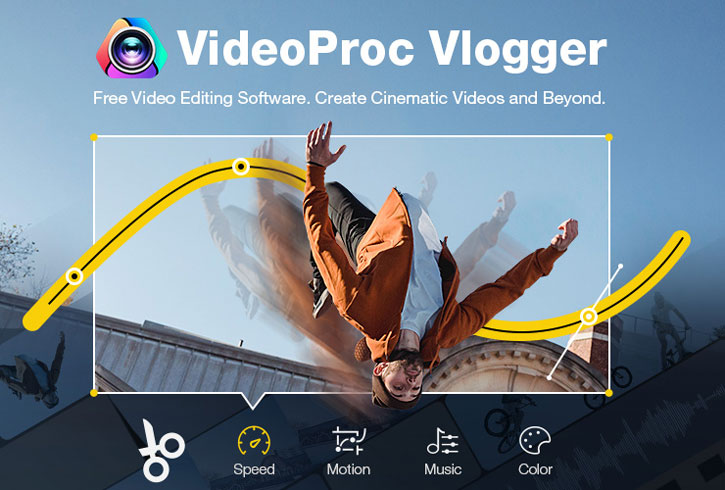
VideoProc Vlogger is a free video editing software designed especially for 4K 30/60/120fps, HEVC/H264, and higher-quality videos on both Windows and Mac. It accepts both importing and exporting videos in 4K resolutions. Any kind of footage, including high bitrate and high frame rates from GoPro, DJI, iPhone, and professional Panasonic/Canon cameras, can be edited without freezes and stutters.
Virtually all post-production needs of a creator can be met in a single program. You can use this HEVC video editor to split, merge, add subtitles, adjust speed, apply filters and add background music. Further, you can create a sports video with the speed ramp presets, edit to the beat, create camera movements, use chroma key, make picture-in-picture videos, and realize color correction and grading, and so on.
Level-3 Hardware Acceleration, GPU-based real-time rendering, and scaling algorithm based on edge direction interpolation make VideoProc Vlogger the fastest and most powerful video editing software for 4K and large video files.
VideoProc Vlogger can make full use of NVIDIA, Intel, and AMD graphics cards for acceleration. Furthermore, it runs on Mac M1, M1 Pro, M1 Max, M1 Ultra, M2, M2 Pro, M2 Max, M2 Ultra natively. According to our test,
"when exporting a 5-minute 4K@30FPS footage, it renders 26-30FPS on M1 with Hardware Acceleration enabled and 15-20 FPS without Hardware Acceleration, delivering an enhancement of up to 300%."

VideoProc Vlogger - Best Free 4K Video Editor Software Overall
- 100% free and clean. Edit 4K/5.3K/8K/HDR and large videos fast, smoothly and easily.
- Lower requirement on computer set-up than most other 4K/HEVC video editors.
- Full Hardware Acceleration, real-time rendering, smooth 4K timeline scrubbing.
- Easy to start, powerful to deliver pro-looking videos: LUTs, chroma key, composition, speed ramping, keyframe customization, lens correction (4K GoPro), VFX, audio FX, etc.

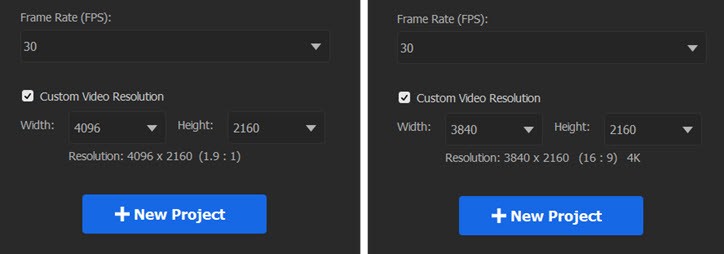
Besides using the default 4K resolution profiles, from VideoProc Vlogger Version 1.4 and onward, users can also create a new project at a custom resolution. It is one aspect that makes VideoProc Vlogger the best 4K video editor for videos recorded at different 4K resolutions.
For instance, if your camera shoot DCI 4K (4096 x 2160), then you can create a 4096x2160 resolution project, so that the aspect ratio stays the same (1.9:1 widescreen). Alternatively, if your camera records 4K UHD video (3840 x 2160), then you can use the 3840x2160 (16:9) 4K profile when creating the new project.
To learn more about the difference between DCI 4K and 4K UHD (also known as 2160p), you can read this in-depth article on 4K resolutions, including what is 4K, its application and development.
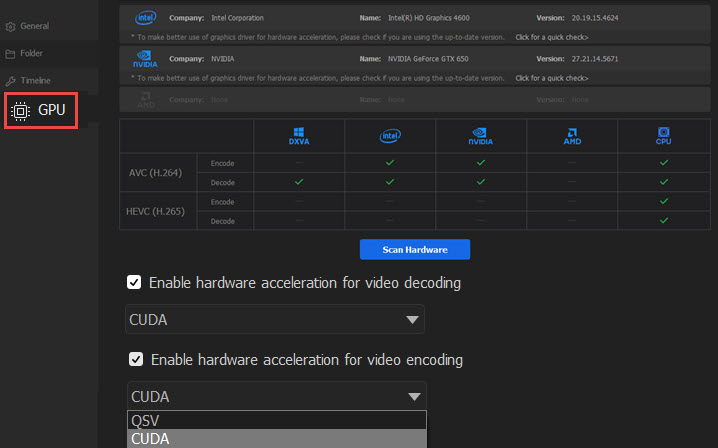
4K video editing is computing-intensive and can occupy lots of resources. To relieve the burden on CPU, VideoProc Vlogger supports Hardware Acceleration for video decoding and video encoding. After importing 4K videos into the timeline, you can go to Menu > Settings to manage the GPU Acceleration option.
Comment from a VideoProc Vlogger user:
"I tried HDR10, 4K, Dolby Atmos in containers like MKV, MP4. VideoProc Vlogger supports everything perfectly which is a huge advantage. It supports Hardware Encoding which results in high speed export so that too is a benefit. It has got all the basic editing tools within reach and is not difficult to learn even for beginners."
Pros:
- Fast and smooth in editing 4K UHD videos.
- Both import and output 4K resolution, supporting multi-track.
- Create cinematic videos through a simple process.
- Friendly to beginners.
Cons:
- Insufficient filters and effects in the current version.
Tips:
If your computer is very old and slow, and you only need to make simple edits such as cutting, splitting, cropping, merging, rotating, and stabilization to your 4K videos, then VideoProc Converter AI is a good option. It is friendly to make simple video adjusting, processing, and conversion on a slow and old computer.
#2. VideoProc Converter AI - Best for AI 4K Upscaling & Quality Enhancement
Best for: Creators who need to AI-upscale legacy footage to 4K, fix noisy/blurry footage, stabilize shaky clips, or boost video quality through Super Resolution.
VideoProc Converter AI is a one-stop video program capable of editing, converting, compressing, and AI-enhancing videos on both Windows and macOS. Beyond its robust transcoding engine, it now features a specialized AI toolkit designed to improve video quality. Whether you’re working with grainy 1080p clips or low-frame-rate mobile videos, this tool can intelligently transform them into high-quality 4K visuals.
Specifically, its AI Super Resolution models (like Gen Detail and Real Smooth v3) can upscale videos by 400%, turning blurry, noisy, and old footage into crisp 4K 2160p. The AI Frame Interpolation can boost 24/30fps footage to a buttery-smooth 120fps or create stunning 20x slow-motion without any artifacts. Coupled with AI Stabilization, it turns shaky handheld or GoPro shots into steady, professional-looking sequences.
Under the hood, VideoProc remains a speed king. Its unique Level-3 Hardware Acceleration technology fully utilizes Intel, NVIDIA, and AMD GPUs. This allows it to process and compress massive 4K HEVC/H.264 files up to 47x faster than real-time, all while maintaining a perfect balance between file size and visual fidelity.
VideoProc Converter AI - The 4K Video Editor/Converter/Enhancer
- It has a full set of editing features to trim, cut, split, rotate, compress, adjust, etc.
- Smoothly handles 4K 60fps, HD 240/120fps, UHD HEVC/H.264/VP9 and other videos.
- Quickly edits 4K videos from GoPro, Sony, Panasonic, Canon, iPhone, DJI, etc.
- It customizes and output Ultra-HD videos to fit any device or platform.
- AI-upscale videos to 4K, and enhance your source videos/audio/image for editing.
- All-in-one: edit, upscale, enhance, convert, compress, download, and record.
Pros:
- Seamlessly elevates SD/HD footage to 4K with natural detail restoration.
- Fixes shaky footage, removes noise, and suppresses background hum with AI.
- Level-3 GPU acceleration ensures zero CPU bottlenecking during 4K transcoding.
- Reduces 4K/8K file sizes by over 90% without visible quality loss.
- A 7-in-1 combo for enhancing, converting, editing, compressing, recording, downloading, and DVD ripping.
- Perfect balance between easiness and functionalities.
Cons:
- It's a linear-editing tool that lacks a multi-track timeline, making it a "pre-processing/post-editing" tool rather than a full creative editor.
#3. Adobe Premiere Pro - The Industry Gold Standard for Professionals
Best for: Professionals, film students, and serious creators who need a deep, AI-integrated ecosystem for high-end 4K production.
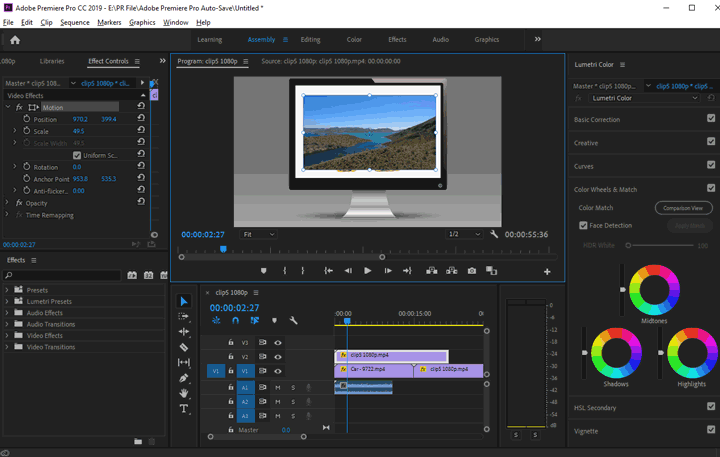
Adobe Premiere Pro remains the most dominant force in the professional editing world. In 2026, it has transitioned into an AI-first powerhouse, integrating Adobe Firefly and Sensei AI to automate tedious tasks. From "Text-Based Editing" (where you edit video by simply deleting words in a transcript) to AI-powered "Generative Extend" that adds frames to clips, Premiere Pro is designed to maximize creative speed for those who have mastered its steep learning curve.
For 4K and 8K workflows, Premiere Pro offers unparalleled precision. However, this power comes with high demands. To edit 4K UHD smoothly, Adobe recommends 32GB of RAM and a high-end GPU. Despite its prowess, highly compressed 4K HEVC from iPhones or Long-GOP footage from GoPro drones can still trigger performance issues. Users occasionally encounter the frustrating HEVC codec missing error or severe playback lag, often requiring third-party transcoding to maintain a stable workflow.
Pros:
- Industry-leading features like AI Speech Enhancement and Auto-Reframe.
- Pro-Level Ecosystem: Flawless dynamic linking with After Effects and Photoshop.
- Best-in-class tools for complex multi-camera shoots and remote collaboration.
Cons:
- Expensive for beginners and hobbyists who cannot master all its feature sets.
- High requirements on hardware make it a challenge to even launch up on slow computers.
- Extra apps like After Effects required for some features.
#4. DaVinci Resolve 18 - Hollywood-Grade Color & AI Power
Best for: Aspiring colorists and professional creators who want elite-level 4K color grading and AI-driven post-production.
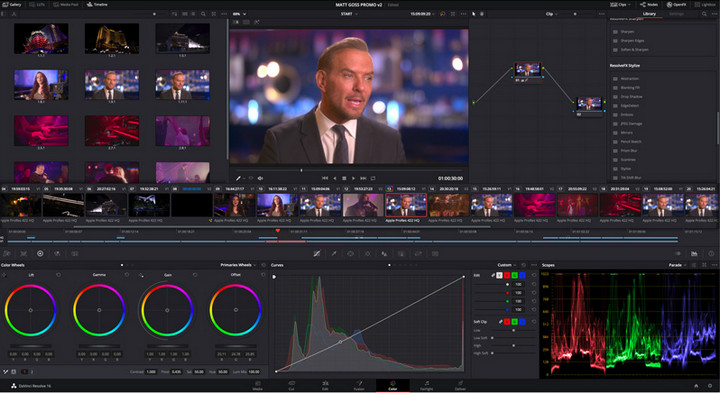
DaVinci Resolve has become a juggernaut in the industry, blending professional editing, color correction, and visual effects into a single powerhouse. In 2026, its DaVinci Neural Engine (AI) has taken center stage, offering sophisticated features like Magic Mask, AI-based voice isolation, and incredibly accurate object tracking. For those aiming for a "cinematic" 4K look, its color grading suite remains the undisputed gold standard used by Hollywood studios.
However, 4K editors must understand the nuances between the Free and Studio versions. While the free version allows for UHD 4K (3840 x 2160) export without watermarks, it does not support DCI 4K (4096 x 2160) - a potential deal-breaker for high-end filmmakers. Crucially, the GPU hardware acceleration for H.264/H.265 (HEVC) encoding and decoding is a Studio-exclusive feature on Windows. This means that while the Studio version ($295) is a performance monster that utilizes multiple GPUs, the free version may feel significantly slower and more CPU-heavy when scrubbing through dense 4K timelines.
Furthermore, essential 4K "rescue" tools, such as AI-powered Noise Reduction and Lens Correction (crucial for removing the fisheye effect from GoPro or drone footage), are locked behind the Studio version's one-time payment.
Pros:
- One of the few professional editors that offers high-quality 4K export for free without a watermark.
- Industry-leading tools for HDR 10-bit color grading and Dolby Vision.
- Incredible AI tools for automatic depth mapping, face refinement, and smart re-framing.
- All-in-One Suite: Integrates Fusion (VFX) and Fairlight (Audio) seamlessly.
Cons:
- Requires a high-performance GPU with at least 8GB of VRAM for comfortable 4K workflows.
- DCI 4K, GPU acceleration (Windows), and Noise Reduction require the $295 upgrade.
#5. CapCut (Desktop) - Best for Viral Social Media Content
Best for: TikTokers, YouTubers, and social media influencers who need to produce trendy, high-quality 4K videos in record time.
CapCut for PC has completely disrupted the editing landscape by bringing professional-grade 4K power to the masses. No longer just a mobile app, its desktop version is a formidable tool for 2026's "creator economy". It excels at turning raw 4K footage into viral-ready content thanks to its massive library of trending templates, auto-generated captions, and AI-powered "Smart Cutout" features. If your goal is to post a polished 4K vlog to YouTube Shorts or TikTok within minutes, CapCut is arguably the fastest path to getting it done.
The genius of CapCut lies in its accessibility. It handles 4K 60fps files surprisingly well, offering a smooth preview experience even on relatively modest hardware. It also simplifies the vertical video workflow, allowing you to auto-reframe 4K horizontal footage for social media with a single click. However, while it is packed with AI magic like "AI Image Upscaling" and "Script to Video", it lacks the deep manual control found in Premiere Pro. For instance, its color grading is limited to filters and basic adjustments, and you won't find complex multi-cam or advanced keyframing options here.
Pros:
- Directly integrates with TikTok's music library and trending effects.
- One-click auto-captions (supporting 20+ languages) and AI-background removal are massive time-savers.
- Surprisingly lightweight and efficient at rendering 4K vertical or horizontal videos.
- Offers a generous free tier with high-quality 4K export (though some "Pro" features require a subscription).
Cons:
- Lacks advanced color science, complex audio mixing, and professional collaborative tools.
- Many effects and AI features require an active internet connection to process.
#6. Final Cut Pro - The Ultimate Choice for Mac Power Users
Best for: Mac-based creators and independent filmmakers who want elite 4K performance within the Apple ecosystem.
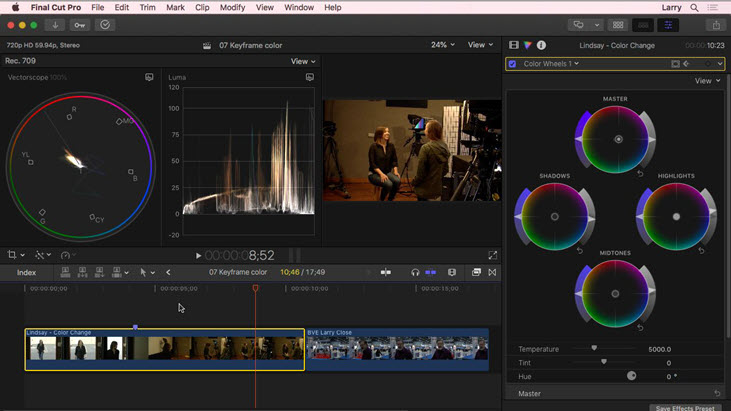
Final Cut Pro is the definitive professional editing tool for macOS. Unlike the subscription-heavy model of its rivals, it remains a one-time purchase, making it a favorite for 2026's independent creators. With the latest updates optimized for Apple Silicon (M3/M4 chips), it offers a legendary 4K editing experience—allowing you to scrub through multiple streams of 4K ProRes or even 8K footage with zero lag. Its magnetic timeline and background rendering mean you can stay in the creative flow without waiting for the "processing" bar.
In 2026, FCP's deep integration with the Apple hardware ecosystem is its greatest strength. It provides industry-leading support for iPhone’s Cinematic Mode and 10-bit HDR video, allowing you to adjust depth-of-field and focus points long after the shoot. For 4K editing, while 8GB of RAM is the minimum, we recommend 16GB or more to truly harness its power for complex graphic animations and 360-degree video. With the Object Tracker AI, you can now easily sync titles or effects to moving objects in a 4K frame with a single click.
Pros:
- Unmatched rendering and playback speed for 4K/8K on MacBook Pro and Mac Studio.
- No monthly subscription fees required.
- Native handling of Dolby Vision and high-bitrate ProRes footage.
- A fast, fluid editing experience that eliminates sync issues.
Cons:
- Not available for Windows or Linux users.
- The magnetic timeline can be confusing for those used to traditional track-based editors like Premiere.
#7. Movavi Video Editor - Ultra-Intuitive 4K Storytelling
Best for: Beginners and hobbyists who want to turn 4K footage into polished stories in minutes without a steep learning curve.
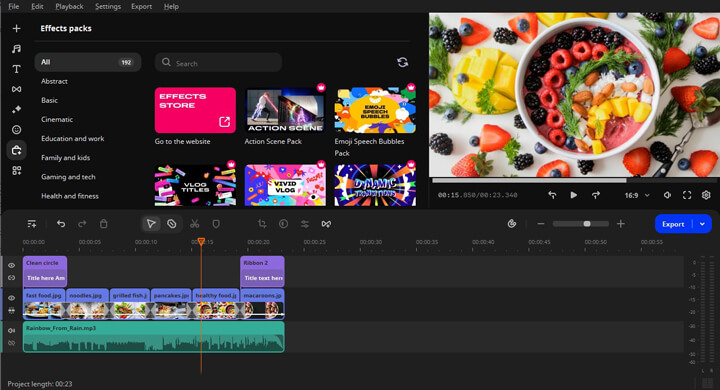
Movavi Video Editor remains the gold standard for "stress-free" editing in 2026. It is specifically designed for users who find professional suites like Premiere Pro overwhelming. Despite its simple drag-and-drop interface, it packs a punch when handling 4K resolution. The software's lightweight architecture ensures that even on mid-range laptops, scrubbing through high-definition timelines remains fluid and responsive.
The 2026 version leans heavily into AI to eliminate the "grunt work" of video production. Its AI Silence Removal automatically cuts out awkward pauses in vlogs, while the AI Motion Tracking allows you to attach captions or stickers to moving objects in a 4K frame with pinpoint accuracy. Additionally, it now supports the AV1 codec and enhanced GPU acceleration, resulting in 4K export speeds that are up to 1.5x faster than previous generations. For those who want a "pro" look with zero effort, its expanded library of 10,000+ themed effects and AI-generated subtitles offers an instant upgrade to any project.
Pros:
- User-friendly with simple drag-and-drop controls.
- One-click AI background removal, noise reduction, and automatic subtitle generation.
- Optimized for modern hardware, providing impressive 4K export speeds with AV1 support.
- Direct access to a massive store of professional intros, LUTs, and transitions.
Cons:
- Lacks advanced trimming modes (like slip/slide) and multi-cam editing required for complex productions.
- While affordable, many premium effects and some AI features require an ongoing subscription.
#8. iMovie - Best Free & Simple 4K Editor for Apple Users
Best for: Mac users and beginners who need a clean, ad-free environment for basic 4K storytelling.
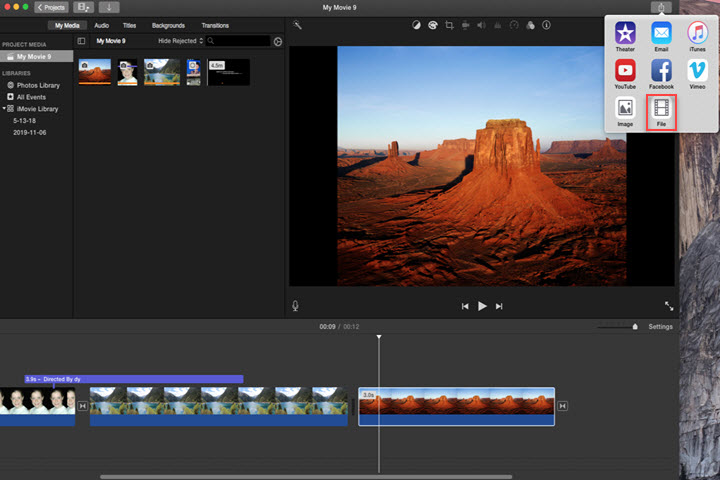
iMovie remains the gold standard for "zero-cost" entry into 4K editing on macOS. Since it comes pre-installed and deeply optimized for Apple Silicon, it offers a buttery-smooth experience that many paid tools struggle to match. For novices, its "Magic Movie" and "Storyboard" features are lifesavers, allowing you to assemble a 4K project with professional-looking transitions and titles in just a few clicks. It’s the perfect starting point before moving on to more complex suites like Final Cut Pro.
However, this 4K free video editing software limitations are becoming more apparent for modern creators. While it handles 4K resolution beautifully, it still lacks native support for 4K 120fps or 240fps timelines—a major hurdle for GoPro and drone users. Its export options are also quite rigid; you have little control over bitrate or advanced encoding settings, which often results in unnecessarily large file sizes. If you need dynamic reframing, precise speed ramping, or more advanced AI tools like motion tracking, iMovie might feel a bit too restrictive.
Pro Tip:
If you find iMovie's 30/60fps limit frustrating or need more creative freedom (like custom speed ramping and 120fps support) while staying 100% free, VideoProc Vlogger is the perfect step up. It bridges the gap by offering professional-level control without the watermark or the Mac-only restriction.
Pros:
- No subscriptions, no watermarks, and no hidden "Pro" features.
- Start editing on your iPhone or iPad and finish the project on your Mac.
- Exceptional 4K playback performance on M1/M2/M3/M4 chips.
- Includes world-class trailers, templates, and royalty-free soundtracks.
Cons:
- Struggles with high-FPS (120/240fps) slow-motion workflows.
- Very limited control over file compression and output formats.
- Not available for Windows users.
#9. Lightworks Pro - Cinema-Style Editing and Precision Trimming
Best for: Independent filmmakers and dedicated hobbyists who want a professional, "Hollywood-style" editing feel with advanced trimming and multi-cam tools.

Lightworks has been used to produce films like Pulp Fiction, The King's Speech and The Wolf of Wall Street. A free version was made available to the public in 2013. For studios and independent filmmakers that go along with the paid plan, it is a nice 4K video editor with many output options.
The free version supports export 720p video for YouTube and Vimeo, and 4K output is available in the paid plan (LWKS Create and Pro version). Users can enjoy multi-cam editing, over 100 presets, a set of transitions and effects, and fast trimming features with keyboard controls.
In terms of interface and editing philosophy, Lightworks resembles that of Avid for industry professionals, and therefore requires a steep learning curve if you are from the Final Cut Pro or Premiere Pro environment. For beginners and casual users, the time and effort invested in learning Lightworks may not be rewarding.
Pros:
- There is a free version enough for home editing.
- Fast trimming with keyboard control.
- Support node-based composition to create stunning effects.
Cons:
- Mastering the program is intimidating.
- The free version is limited in export formats and resolutions (720p).
#10. Vegas Pro - Professional Audio Integration and High-Speed Windows Workflow
Best for: Power users interested in 4K video editing, 4K blu-ray creation and DVD authoring, and small scale video production companies.
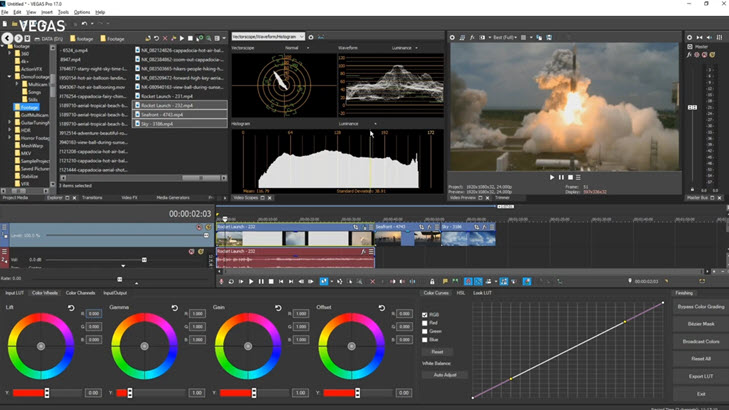
Vegas Pro is a big rival of famous video editing software such as Adobe Premiere Pro and Final Cut Pro. It comes with all features a professional editor needs to create music videos, movies, TV shows, etc. Sony Vegas Pro is more competitive for its ability to apply amazing elements, visual special effects, 3D titling & compositing. The editor also supports input/output 4K and HEVC, ProRes, AVC, etc. More importantly, Vegas Pro takes advantage of hardware acceleration like Intel Quick Sync Video to edit and render faster.
Pros:
- Large effects and transition package.
- A wide range of export formats.
- Intel QSV support.
Cons:
- The price is too high for non-professionals.
- Complicated to begin with.
#11. VSDC Video Editor - Semi-Pro Features on Low-Spec Windows PCs
Best for: Intermediate users with some editing knowledge or beginners willing to trade time and efforts for the lower price tag, as it takes time to navigate and master in VSDC due to its UI design.
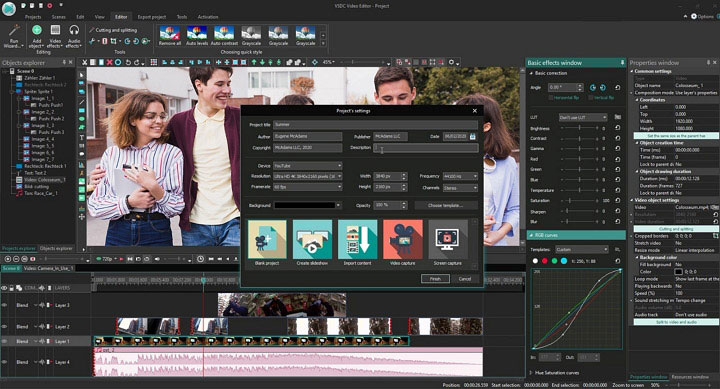
VSDC also has a free and a pro version at $19.99, both support 4K. The free VSDC has many features not available in other free 4K UHD editors, like 4K stabilization, picture-in-picture mode etc. However, since hardware acceleration is not supported in the free version, it is not practical for slow computers and general laptops to export and edit 4K videos. Adaptive background remover and motion tracking are locked behind the paywall too.
Pros:
- A wide range of import and output video formats, including H.265.
- Good for home users.
Cons:
- Hardware acceleration is only available in the paid version.
- The interface can be confusing to the uninitiated.
- No full-screen preview mode, which is a dealbreaker for 4K footage.
#12. Shotcut - An Open-Source Editor with Cross-Platform Flexibility
Best for: Intermediate, semi-pros, Linux users looking for free 4K video editors, and anyone seeking for portable app. Similar as VSDC, its UI design is difficult to follow for beginners.
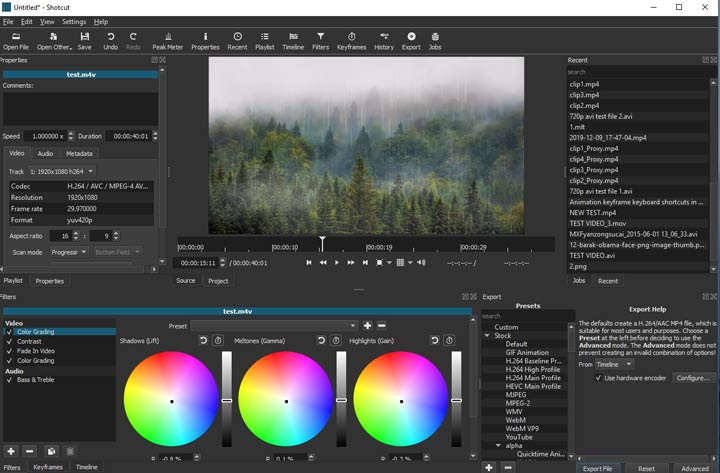
Shotcut is a free video editor that supports 4K resolutions. This free 4k editing program has many features beneath the plain interface. It supports cutting, splitting, merging and trimming video, adding effects, titles, and text. There are also advanced features like 3D text, color correction, overlay, and more. You will need to spend a little time figuring them out. The editor supports various formats like H.264, MP4 and the 4K format HEVC for 4K output. See how to use Shotcut - tutorial for beginners
Pros:
- A wide range of supported formats.
- Powerful features for a free editor.
Cons:
- Lack of support tutorials.
- Lack of profiles for YouTube or social media.
Part 3. What Computer Can Edit 4K Videos
Only with the help of the best 4K video editor, this is not enough. We also need the qualified hardware configuration of the computer. So to put it more bluntly, what kind of hardware, like the RAM, can help us edit 4K videos much more smoothly?
The RAM I/O performance
I/O (Input/Output) performance refers to the input and output of data, or the flow of data per second. The amount of data in 4k is very large, 4 times bigger than that of HD. Obviously, it would be a big challenge for the RAM. So we need to make sure that the RAM is powerful, and with great I/O performance. But how to decide this? When we choose the RAM for 4K editing, we can simply check its frequency and dual-channel feature.
This page gives detailed information about the best PC build for 4K video editing.
1. RAM
Many people say that memory is one of the most important computer requirements for video editing. We are not going to deny it. Especially for the low-configuration computers, the most important part that needs to be upgraded is just its RAM. But how much memory do we need for 4K editing anyway? The more the better?
The requirements of computer hardware vary greatly when using different 4K editors.
However, the memory capability is not all about the ability of RAM for 4K processing. We need to check more other specs about the RAM.
2. RAM frequency
In addition to requiring large memory, RAM with better I/O performance also requires a higher frequency. The higher the frequency, the better the I/O performance of the memory. The same amount of memory, such as the 8GB ones, some are much cheaper than others, and some are quite expensive. One big reason lies in the frequency. Generally, for 4K editing, it is OK to choose the 2666MHz or 2933MHz memory.
3. Dual-channel memory
The dual-channel feature can also upgrade the memory I/O performance. The benefit of dual channels is that the memory speed can be multiplied. Because dual-channel memory increases bandwidth, and hence, it improves data processing.
But you need to notice these,
- The motherboard should support the dual-channel.
- The CPU must also support the reading of dual-pass memory, such as 8700K, 9900K, and 3900X.
- You need two memories. Choose the same model of RAMs to avoid incompatibility.
Surely, the computer hardware configurations are not just RAM. There also include GPU, CPU, motherboard, hard disk, etc. which we will need for 4K editing. And if you want to learn more, here we have prepared a detailed page about hardware for 4K video editing, to which you can refer.
If you have high computer configurations, use renowned editors like Premiere Pro for any 4K or HD videos. But for slow and old computers, advanced editors make things times slower. VideoProc Vlogger is suitable for regular computers, as it relies less on CPU and RAM. You don't need to close all programs down. Instead, it allows extra juice for other activities running at the same time.
Part 4. 4K Video Editing Tips
Editing a 4K video should be nothing special. You can do it without a 4K monitor, or without a powerful computer. But some users grumble at stutters, crashes, and computer glitching out when importing, editing, playing back or rendering their large 4K projects on some video editing software. Here are some tips on how to edit videos smoothly on slow computers:
1. Do not install the large professional NLE system on your Disk C.
You should ensure the system disk have sufficient space to be efficient. Otherwise, your computer will not run smoothly.
2. Choose a video editing software that has lower requirements on your hardware.
From the review above, VideoProc Vlogger (for Windows and Mac), iMovie (for Mac, iOS), Vegas (for Windows), Corel VideoStudio, Lightworks (for Linux, macOS, Windows), Shotcut (for Linux, macOS, Windows) and VSDC (for Windows) meet this criterion. Among them, VideoProc Vlogger is free and light and has a low requirement for hardware. It provides frame-by-frame precision when editing footage, and handy templates and filters to use in 1-click. You can learn more tips on how to edit 4K videos in the simplest way.
Note: Some software has a version to run on a 32-bit computer, but it is not suggested to edit a 4K video in a 32-bit system or program.
3. Turn on hardware acceleration.
Since 4K video editing relies heavily on graphics processing, you should make good use of the NVIDIA, AMD/ATI, or Apple Metal graphic card power on your computer. For example, it is suggested to turn on your Hardware Acceleration on Windows 11/10 when editing the 4K video. By moving all graphics rendering from the Central Processing Unit to the Graphics Processing Unit, it will get faster and achieve better performance. Better still, most editing programs have the ability of hardware acceleration. Just choose a suitable one. For your reference, VideoProc can make FULL use of your CPU and GPU resources, and you don't need to do any settings.
4. Split your 4K video into clips and edit them one by one.
If your computer is very old and slow. This method is recommended if all the three above are not working. Cutting your lengthy video into pieces and merge them after you complete the editing. This can avoid the crashes and data loss somehow.
5. Downsample your 4K video to 1080p or 720p.
This may be the last resort. But don't worry if you plan to upload the 4K video to YouTube, Instagram or other social media platforms. 1080p is enough for social sharing and reviewing on a mobile device.
Part 5. 4K Video Editing FAQ
1. How much RAM do I need to edit a 4K video?
- 16GB of RAM: Good for editing 1080p – 4K 8bit Projects, with minor usage of background programs.
- 24GB RAM: At least is OK for 4K material editing, and if your budget is sufficient, 32GB, and even 64GB would be much better.
- 32GB of RAM: Good for any type of editing with heavy use of background hogs, such as editing large images in Photoshop.
- 64GB or more: Recommended for editing 8K footage in 10bit or more and RAM-hogging programs such as After Effects/Cinema 4D.
2. Is there any 4K video editor online?
Yes, there are some 4K video editors online, such as Kizoa. Although most of them seem to support 4K resolution as input, seldom of them can output real 4K quality. The image quality will be downgraded automatically. 4K video file is so large in size that the requirement of your internet connection speed is very high. So it is not suggested to edit an UHD video online.



