
 New AI features are available
There are many situations where you might need to extract subtitles from a video. For example, you need to repurpose a video, transfer subtitles from one video to a higher-quality version, use subtitles for language learning, or even quote information from a video for an article or other content. Fortunately, extracting the subtitles from MKV, MP4, or videos in other formats can be done quickly and easily, without the need for technical skills or advanced software. In this post, I'm going to share with you 5 easiest methods to extract subtitles from videos.
A quick note on copyright and fair use: When extracting subtitles from video files, it's essential to be mindful of copyright laws. Extracting subtitles for personal use, study, or accessibility typically falls under fair use. However, redistributing subtitles from copyrighted content, especially for commercial purposes, can violate copyright laws. Always ensure you have permission to use and modify the content, particularly if you intend to share or sell it.
What Type of Subtitles Are You Extracting
The subtitle extraction method can vary based on several factors, including the video format and, most importantly, the type of subtitles. When extracting subtitles from a video, it's essential to first identify the kind of subtitles involved. Below are the main types you'll encounter:
Hardcoded Subtitles
These are permanently "burned into" the video and cannot be turned off. Movies or videos downloaded from online sources often use hardcoded subtitles, especially if the video is in a foreign language or if subtitles are necessary for understanding the content. Since these subtitles are part of the video image itself, they are not stored separately, and special tools like Optical Character Recognition (OCR) may be needed to extract the text.
Soft Subtitles
Soft subtitles are typically stored as separate files (such as SRT, ASS, or VTT) and can be toggled on or off within most video players. These are often used in digital video files such as movies, TV shows, and videos from streaming platforms. You'll find soft subtitles in videos that allow users to select from multiple languages, and they're commonly used for videos that you download from sites like Netflix, Amazon Prime, or Vimeo.
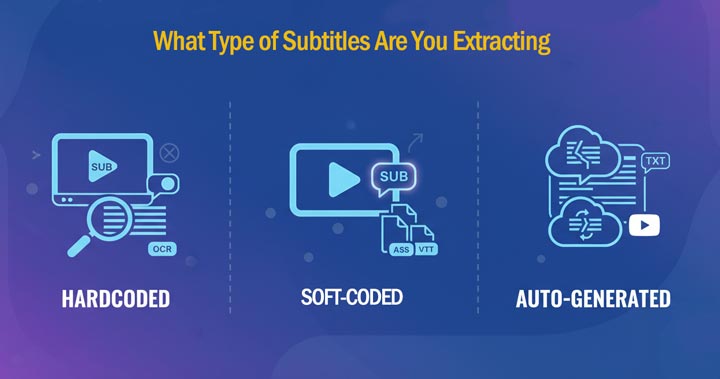
Auto-generated subtitles
Auto-generated subtitles are created automatically by platforms like YouTube or Vimeo using speech recognition technology. These subtitles are not embedded as separate subtitle tracks in the video file, and are typically used to provide accessibility to those with hearing impairments or to translate spoken language. YouTube, for instance, generates these subtitles automatically for videos based on the audio content.
5 Methods to Extract Subtitles from Videos
Method 1. 1-Click to Extract Subtitles from Videos with VideoProc Converter AI
For users who need to quickly extract embedded subtitles from multiple videos, VideoProc Converter AI offers an efficient and easy solution. This powerful tool can read and extract SRT or ASS subtitle tracks from videos without the need for re-encoding, making it fast and hassle-free. In our tests, extracting subtitles from a 2-hour 4K video took only a few seconds. Even better? It allows you to extract subtitles from online videos by simply using the video link. With support for multiple language tracks, you can easily extract subtitles in your desired language and have them ready for editing or translation. Check some of its highlight features:
- Extract SRT/ASS from MP4, MKV, AVI, VOB, MOV, WebM, and more.
- Support soft-coded, hard-coded, and multi-language online subtitle tracks.
- Lossless subtitle extraction without re-encoding the original video.
- Rich extra features: convert, compress, AI-enhance media quality...
- 47x real-time faster, accelerated by Level-3 GPU acceleration.
Step 1. Download, install, and run VideoProc Converter AI. Hit Video Converter > +Video to import the video file.
Step 2. Hit Toolbox > Export Subtitle. Alternatively, hit Target Format to find the option of Export Subtitle.
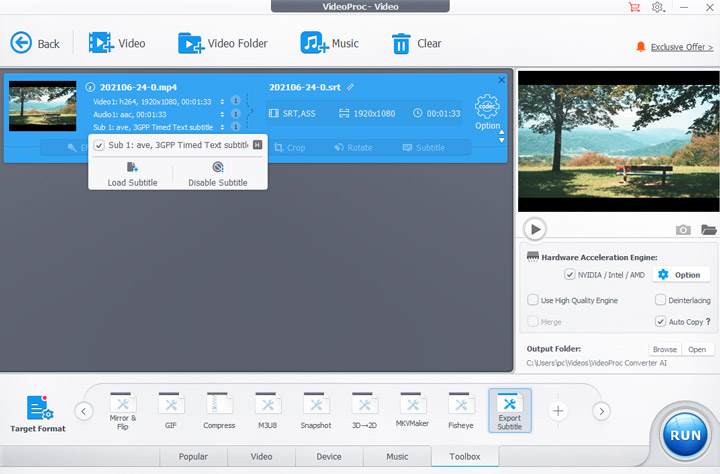
Step 3. Choose your preferred format (SRT or ASS). Click Done > RUN. VideoProc Converter AI will extract the subtitles from your video files and save them as an SRT or ASS file as needed.
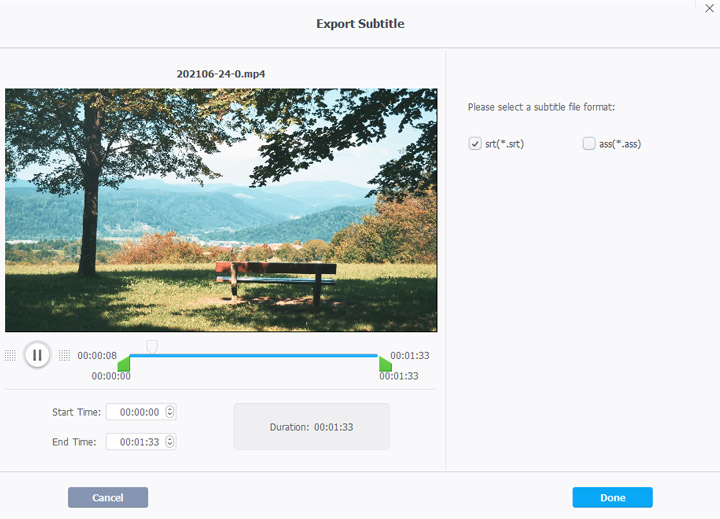
Tips: If you need to extract subtitle from part of a video, just drag the green knobs to choose the desired section.
Method 2. Extract Subtitles from Videos Online with SubtitleTools
SubtitleTools is a handy option for extracting softcoded subtitle file from a video holds on your computer. It supports popular video formats like MP4, MKV, WebM, and AVI, making it versatile for different video types. For premium users (priced at $79.99 for a lifetime license), SubtitleTools offers additional features, including the ability to clean up formatting tags, convert uppercase text to lowercase, and manage subtitle content more effectively.
Additionally, if you've extracted image-based subtitles, such as PGS (.sup) or VobSub (.sub/.idx), the tool allows you to convert them into text-based formats like SRT using dedicated converters like sup to srt or sub/idx to srt, making it easier to edit and manipulate subtitles for various purposes. This makes SubtitleTools a great choice for both casual users and more advanced subtitle management tasks.
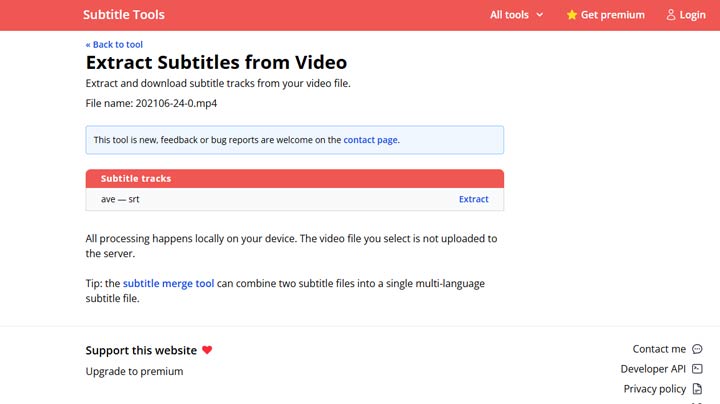
Step 1. Navigate to the subtitle extraction page. Click on Choose File and select the source video file for uploading to this online subtitle extractor.
Step 2. Click Extract and then hit Download to save the extracted subtitle file from the video onto your computer.
Method 3. Extract Subtitles from Online Videos with DownSub
DownSub is a free, user-friendly online tool designed for extracting subtitles directly from videos hosted on popular streaming sites like YouTube, iQiyi, Hotstar, Dailymotion, and over 50 other video platforms. You're allowed to save the download subtitles in all major formats, including SRT, VTT, and TXT. The best part? Whether the video offers dual or multiple languages, you can easily select and download subtitles in your preferred language, making it a perfect tool for multilingual content or language learners.
Step 1. Open the official page of DownSub. Paste the URL of the video you want to extract text from onto the address bar.
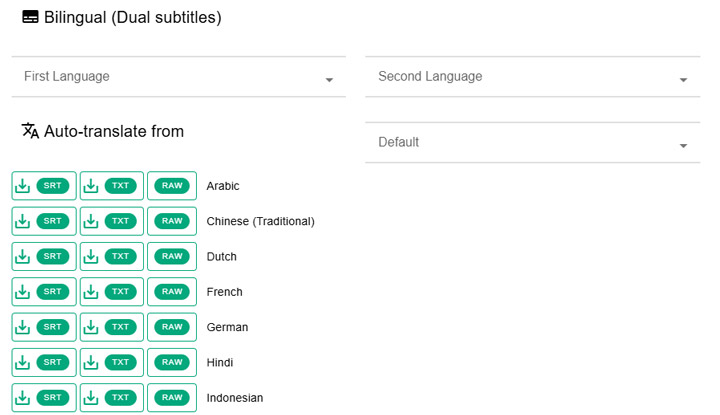
Step 2. Hit Download. The site will present you with a list of available subtitle languages.
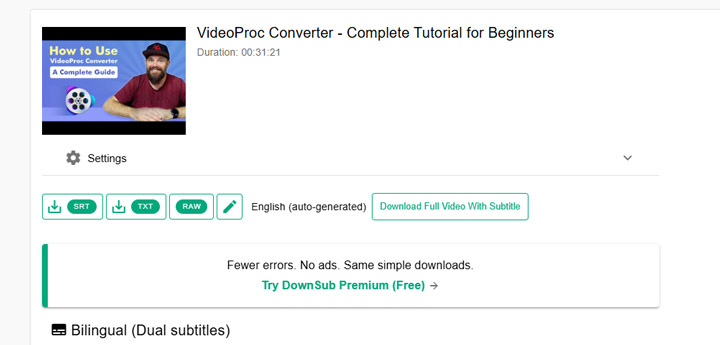
Step 3. Click the SRT button next to your preferred language, and the file will download instantly.
Method 4. Extract Subtitles from Video with SubExtractor
SubExtractor is one of the most powerful option for extracting subtitles from videos. In addition to supporting soft subtitles, it also helps you detect and extract burned-in subtitles—those permanently embedded in the video. You can then save them as editable SRT, VTT, or ASS files. While SubExtractor uses AI to recognize text from video images, it's not flawless. SubExtract still struggles with special characters or tricky fonts, occasionally leading to errors. Another annoying thing is it lacks advanced editing, syncing, and proofreading features, which makes it ideal for quick extractions of hardcoded subtitles but less suitable for professional workflows or detailed fine-tuning.
Step 1. Visit the SubExtractor website and click the Upload button to select your video.
Step 2. Click Vision, then draw a box around the area where the subtitles appear in the video. For subtitle extraction based on audio, click Audio instead. Click Process Video to start analyzing and extracting the hardcoded subtitles.
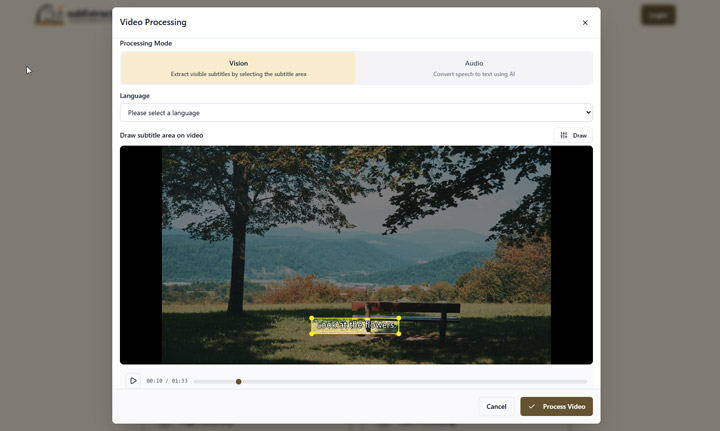
Step 3. Once the extraction is complete, click the Download icon to save your subtitles in SRT or PDF format.
Method 5. Extract Subtitle from Video with FFmpeg
FFmpeg is a powerful tool for extracting subtitles due to its ability to directly access video streams, making the process fast and precise. It supports a wide variety of subtitle formats (like SRT, VTT, ASS) and video containers (MP4, MKV, AVI), all while preserving video quality by avoiding re-encoding. However, the major drawback is that FFmpeg lacks a graphical user interface (GUI), which can make it difficult for beginners to use. For those who are not familiar with command-line tools, the setup and command syntax can feel overwhelming. While it's perfect for advanced users and batch processing, new users may find the learning curve steep, and it may not be the best choice for those looking for a more intuitive, GUI-based solution.
Step 1. Install FFmpeg on your system if you haven't already. You can follow the FFmpeg installation guide for detailed instructions on how to set it up.
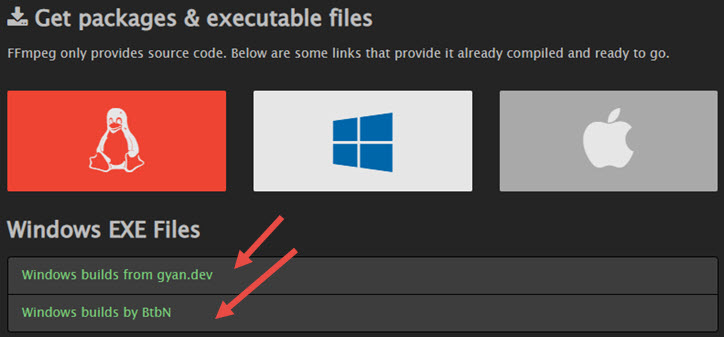
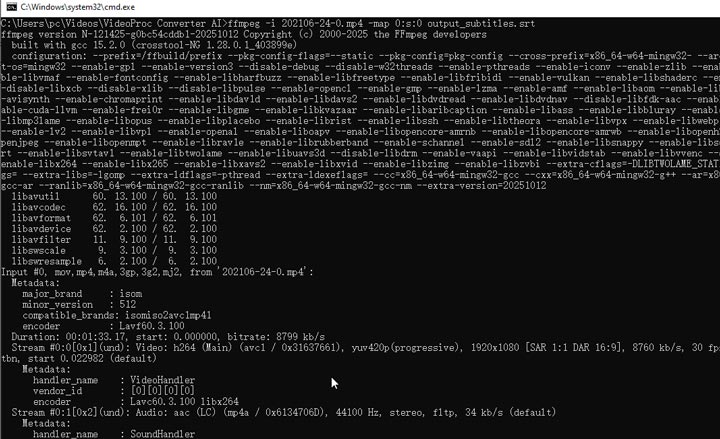
Step 2. Open your terminal (on macOS/Linux) or command prompt (on Windows). Navigate to the folder containing the video file by using the cd command.
Step 3. Enter the following command to extract subtitles:
ffmpeg -i input_video.mp4 -map 0:s:0 output_subtitles.srt
Tip: Replace input_video.mp4 with your actual video file name and extension. Adjust output_subtitles.srt to the desired subtitle file format (e.g., SRT, VTT).
How to Check the Subtitle Types in a Video
While you can also use Windows Media Player or your web browser to check subtitles in videos, these media players might not be compatible with all formats, resolutions, or codecs. To avoid any compatibility issues, we recommend using VLC as your go-to tool for checking subtitle types. The fastest and easiest way to check your subtitle type is by using VLC Media Player.
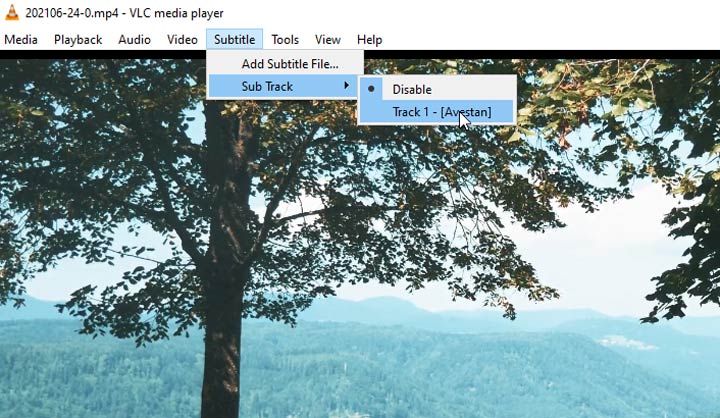
Step 1. Right-click anywhere on the video screen and navigate to the Subtitle menu.
Step 2. Hover over "Subtitle Track".
Soft Subtitles: If you see a subtitle track listed (e.g., "Track 1", "English"), these are soft subtitles. Hardcoded Subtitles: If the subtitle menu is empty or shows "Disable", but you still see subtitles on-screen, these are hardcoded subtitles.
Tips:
- If you see subtitles labeled "CC" or "English (CC)" in a video but cannot toggle them on or off in VLC, these are likely auto-generated subtitles. These subtitles are created automatically by platforms like YouTube, using speech recognition technology.
FAQs
1. Why is my extracted subtitle showing weird characters?
This is almost always a UTF-8 encoding issue. Different software programs save text files using different character maps. To fix this, open your subtitle file in a basic program like Notepad or TextEdit. Click Save As, change the encoding format to UTF-8 in the drop-down menu, and save the file again.
2. Can I convert VTT to SRT?
Yes, you can easily convert VTT files to SRT. For a quick fix, you can sometimes just rename the file extension from .vtt to .srt on your computer, and most modern video players will still read it. If that fails, there are dozens of free, safe online subtitle converters where you can upload the VTT and download a perfectly formatted SRT in seconds.
3. Why is the extracted subtitle out of sync?
Out-of-sync subtitles usually happen due to a frame rate mismatch. For example, the video might play at 24 frames per second, but the subtitle file was timed for 30 frames per second. You can fix this easily by using free software like Subtitle Edit to synchronize the file or adjust the frame rate to match your video exactly.




