
 VideoProc Converter AI
 New AI features are available


 Listed in
 An open source video upscaler becomes especially appealing when old videos meet modern 4K screens. If you have ever tried to watch an old DVD on a 4K monitor, you know the frustration immediately. The image looks blurry, blocky, and washed out, and every compression artifact feels magnified on a high-resolution display. A quick Google search for solutions usually leads to many AI video upscalers that look impressive, but most of them are commercial and come with high prices.
This is where open-source video upscalers stand out. Built by the community and designed to run locally, they let you enhance low-resolution footage such as 90s anime, classic DVDs, or personal home videos to 1080p or even 4K, without subscriptions or cloud uploads. To help you choose the right tool, I tested the most popular open-source video upscalers and shared the best options based on my hands-on results.

Which Open-Source Video Upscaler Performed Best in Our Tests
We tested more than 20 open-source video upscalers and narrowed them down to the six strongest options for this guide. Among these finalists, SeedVR2 delivered the best overall restoration quality in our testing. It recovered fine textures and missing details more convincingly than the other tools, particularly on heavily degraded footage. Its generative approach can occasionally reinterpret small details, however, so users who prioritize strict source fidelity may prefer a more conservative upscaling model.
Our Picks by Priority
| If You Care Most About... | Choose |
|---|---|
Maximum restoration quality |
SeedVR2 |
A practical end-to-end workflow |
Video2X |
Consistency across moving frames |
FlashVSR |
Faithful anime detail |
Real-ESRGAN AnimeVideo-v3 |
Lighter anime batch processing |
Real-CUGAN |
These recommendations are based on our own test footage and hardware rather than project claims alone. Individual results can vary with the source, model settings, GPU, and output resolution.
- How I Tested These Open Source Video Upscalers
- What Is an Open Source Video Upscaler
- How Open-Source Video Upscaling Technologies Differ
- Top 6 Open Source Video Upscalers
- SeedVR2 — High-Quality Diffusion Video Restoration
- FlashVSR — Diffusion-Based Video Upscaling for Better Temporal Consistency
- Real-ESRGAN — Frame-Based Restoration for Real-World Footage
- Real-CUGAN — Anime Upscaling with Adjustable Denoising and Sharpening
- Video2X — Multi-Engine Video Upscaling in One Workflow
- REAL Video Enhancer — A Full-Featured Open-Source GUI for Video Enhancement
- My Open-Source Video Upscaler Test Results
- Other Open-Source Video Upscaling Models Worth Knowing
- What to Consider Before Choosing an Open-Source Video Upscaler
- Open Source vs VideoProc Converter AI
- FAQ
💡 How I Tested Open Source Video Upscalers
To keep the evaluation as consistent as practical, I used the same source footage and target output wherever the tools supported comparable workflows. Most tools were tested on my local PC (Intel i5-11400F, 16GB RAM, NVIDIA RTX 3060, Windows 11), while SeedVR2 and FlashVSR were run on cloud GPUs because their ComfyUI/research-style setups and GPU requirements were too demanding for my local test machine.
I used five source clips during testing. For the main comparison, I used Clips 1 and 2 and targeted 4K output whenever possible. I chose them because live-action footage and animation represent two of the most common upscaling scenarios. Clips 3–6 were used as additional checks on landscapes, noisy footage, and older cartoon sources.
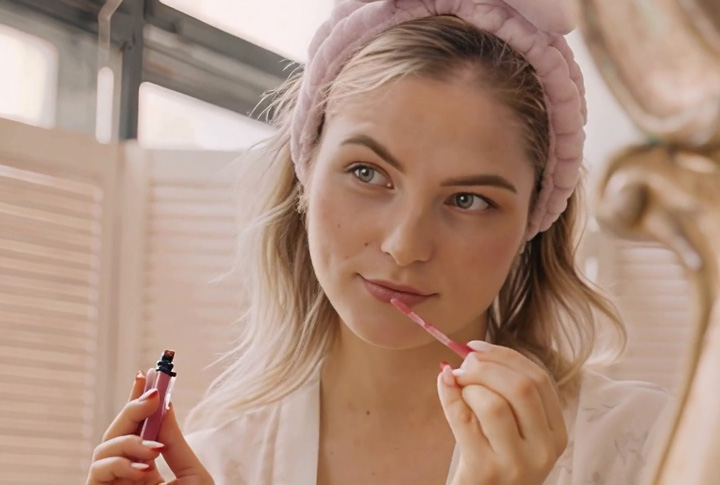
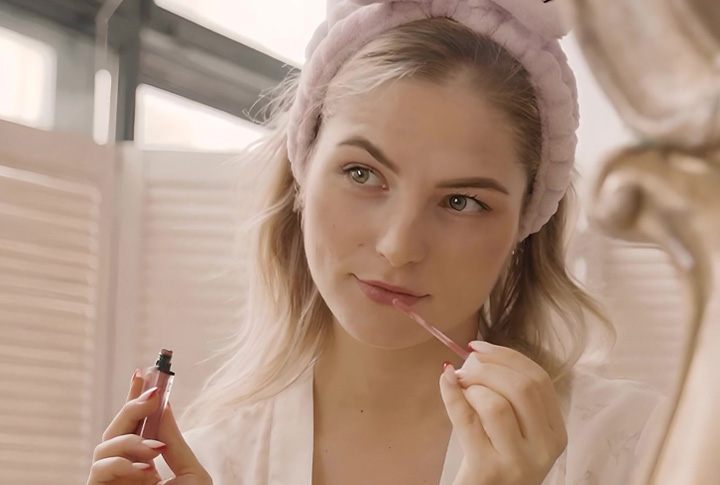
- Clip 1: 1920×1080, 25fps, 9.96s, live-action footage of a woman applying lip gloss (Pexels).
- Clip 2: 624×624, 24fps, 6s, anime clip created with Midjourney.
- Clip 3: 640×368, 11.012s, cartoon footage (Archive.org).
- Clip 4: 1280×720, 24fps, 12.48s, winter landscape (Pexels).
- Clip 5: 640×360, 9s, footage with noise added in Premiere (Pixabay).
What I evaluated: I focused on how much useful detail each upscaler recovered at 4K, how faithful the result stayed to the source, temporal consistency, and visible artifacts. I also recorded processing time, setup, stability, and ease of use as practical factors.
There are still a few limits to keep in mind: This was a real-world test rather than a controlled lab benchmark. I focused on the model variants and configurations most relevant to each tool's intended use rather than trying to exhaust every possible model, backend, and precision setting. SeedVR2 and FlashVSR also had to run on cloud GPUs, so processing times are best treated as reference points rather than a strict speed ranking.
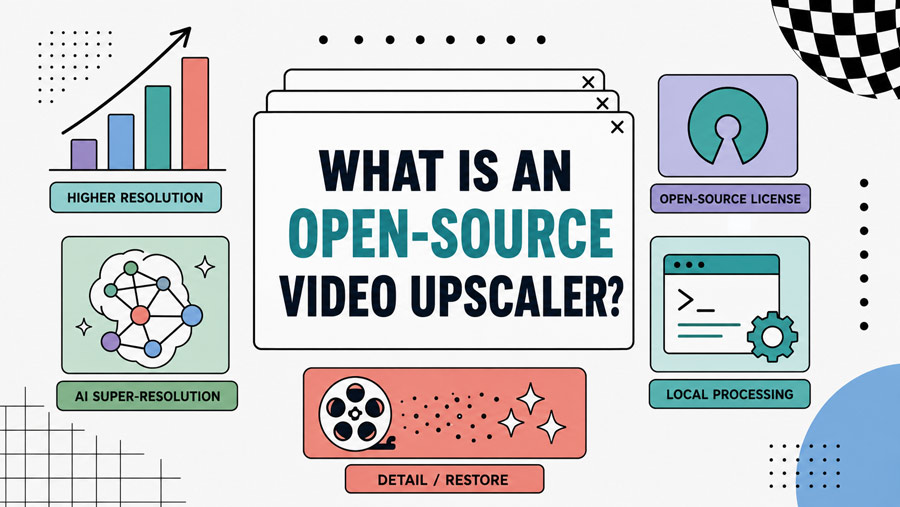
What Is an Open Source Video Upscaler
An open source video upscaler is a tool or model that increases the spatial resolution of video while making its source code available under an open-source license. Instead of simply enlarging each frame with conventional resizing, many modern upscalers use super-resolution models to reconstruct sharper edges, textures, and other details as the video is scaled to a higher resolution.
Depending on the project, an open source video upscaler may also include denoising, deblurring, compression cleanup, or broader video restoration features. Some process frames independently, while newer video-specific models also use information across multiple frames to improve temporal consistency. Open-source options range from individual AI models and command-line tools to desktop GUIs and multi-model processing frameworks.
How Open-Source Video Upscaling Technologies Differ
The underlying restoration technology has a large effect on how an upscaler behaves. Some methods favor clean and predictable reconstruction, while others generate much richer detail at the risk of changing what was actually present in the source.
| Technology | What It Does Well | Main Trade-off | Examples |
|---|---|---|---|
CNN / CUNet |
Clean, stable reconstruction |
More conservative with missing detail |
Real-CUGAN |
GAN-based |
Sharp, perceptually rich detail |
Can introduce artificial textures |
Real-ESRGAN |
Diffusion-based video restoration |
Strong detail recovery and temporal consistency |
Heavy processing and possible hallucinated details |
SeedVR2, FlashVSR |
Real-time / lightweight |
Very fast upscaling and playback |
Limited restoration of badly degraded footage |
Anime4K |
CNN-based models tend to be relatively conservative. They are useful when clean edges and stable reconstruction matter more than aggressively rebuilding missing textures.
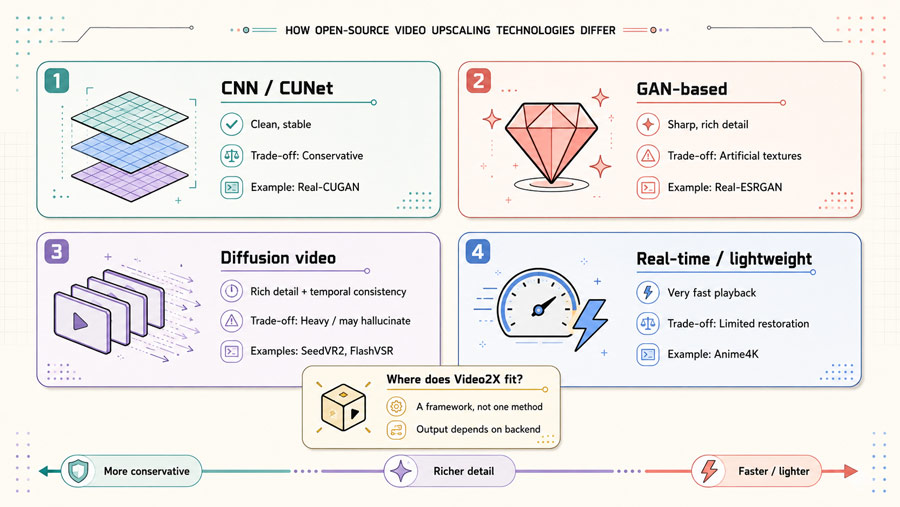
GAN-based models push harder toward perceptual sharpness. This can make low-quality footage look significantly more detailed, but some of that detail may be reconstructed rather than literally recovered.
Diffusion-based video models go further. SeedVR2 and FlashVSR can rebuild much richer textures while also taking video consistency into account. In my testing, this produced some of the strongest results, but it also increased the risk of small details being reinterpreted.
Real-time upscalers such as Anime4K prioritize speed. They are better suited to playback and lightweight enhancement than deep restoration of severely degraded footage.
Video2X sits outside these categories because it is not tied to one restoration method. It can run different engines, so its final output depends largely on the model or algorithm selected.
Top 6 Open Source Video Upscalers
1. SeedVR2 — High-Quality Diffusion Video Restoration
Best for: Power users who want the strongest detail restoration and are willing to trade speed and strict source fidelity for better-looking output.
Upscale ratio: Flexible target resolution; SeedVR2 is designed to restore videos at arbitrary resolutions rather than using fixed 2x or 4x model scales.
SeedVR2 is an open-source diffusion-based video restoration model developed by ByteDance Seed. It uses a one-step diffusion transformer to restore high-resolution video while keeping information consistent across frames. Unlike frame-based models such as Real-ESRGAN, SeedVR2 was built specifically for video restoration and processes temporal information as part of the model.
What makes SeedVR2 interesting is how much detail it can reconstruct from poor source material. The model starts from a pretrained diffusion transformer and uses adversarial post-training against real data. It also uses adaptive window attention, which adjusts to different output resolutions and helps avoid visible patch boundaries when restoring high-resolution video.
That strong generation ability is also where SeedVR2 can get into trouble. The developers themselves note that the model may generate unpleasant details under heavy degradation and can over-generate or over-sharpen footage that is already relatively clean. In other words, more detail does not always mean more faithful detail.
The official ComfyUI implementation currently offers 3B and 7B models, with FP16, FP8, and GGUF variants. The 3B models are faster and use less VRAM, while the 7B versions favor higher quality at a higher memory cost. BlockSwap, VAE tiling, and model quantization can also make SeedVR2 usable on GPUs with much less memory than the full FP16 models normally require.
Pros
- Strong detail recovery on low-quality and degraded footage.
- Maintains temporal consistency across video frames.
- Offers 3B and 7B models with FP16, FP8, and GGUF variants.
- Supports BlockSwap, VAE tiling, and CPU offloading for lower-VRAM GPUs.
- Can process videos at flexible target resolutions rather than fixed upscale ratios.
Cons
- Can generate details that were not present in the original footage.
- May over-sharpen or over-interpret relatively clean sources.
- High-quality 7B and FP16 models require substantial GPU memory.
- Processing is still demanding, especially at high resolutions and large batch sizes.
- Setup and optimization are considerably more involved than with GUI-based upscalers.
System Requirements
- 8GB VRAM or less: GGUF models with BlockSwap and VAE tiling.
- 12–16GB VRAM: FP8 models with memory optimization as needed.
- 24GB+ VRAM: FP16 models for the best quality and speed without heavy offloading.
- Software: Python 3.12+; PyTorch 2.0+ is recommended for torch.compile.
How SeedVR2 Performed in My Testing
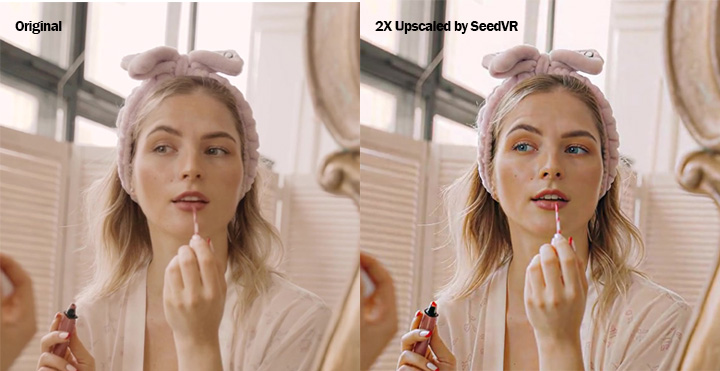
Of all the open-source video upscalers I tested, SeedVR2 gave me the strongest overall restoration quality. Fine textures were noticeably clearer, and it recovered details from low-quality footage that the more conventional upscalers tended to smooth over or leave unresolved. It also kept details fairly stable across frames, without the obvious flickering I often associate with frame-by-frame restoration.
SeedVR2 Video Upscaling Result 1
SeedVR2 Video Upscaling Result 2
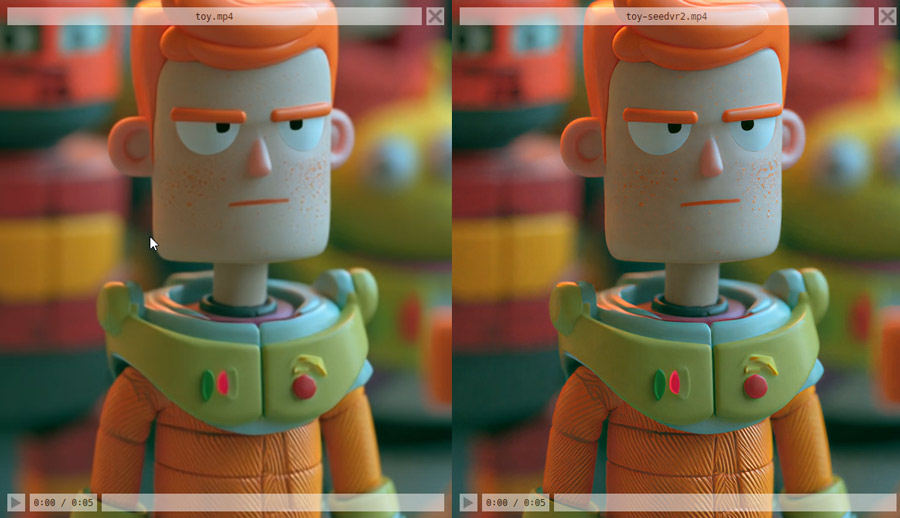
The downside showed up when I looked closely at faces. In one comparison, the eye color shifted slightly after processing, and some facial textures had a subtle AI-generated look. The image was clearly sharper, but not every reconstructed detail was faithful to the original. Regardlessly, this was still the best-looking result in my tests overall, but it also showed why SeedVR2 needs a little caution: it is very good at reconstructing missing detail, but sometimes it reconstructs more than the source can actually justify.
2. FlashVSR — Diffusion-Based Video Upscaling for Better Temporal Consistency
Best for: Users who needs stable details across moving frames, especially in footage with frequent motion or camera movement.
Upscale ratio: Primarily designed and optimized for 4x video super-resolution.
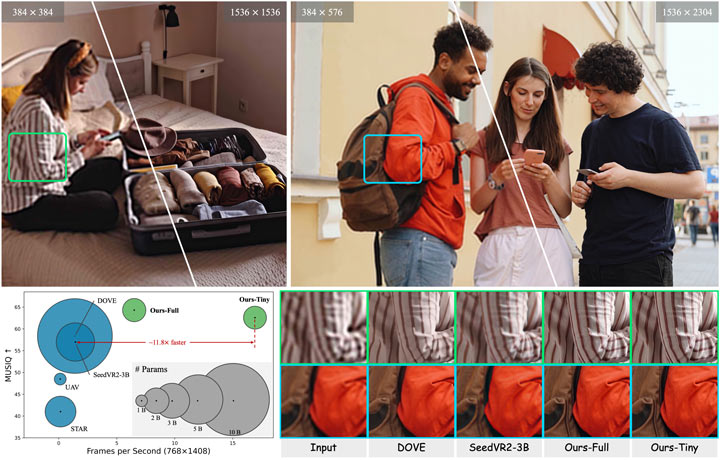
FlashVSR is an open-source diffusion-based video super-resolution model built to improve both detail restoration and frame-to-frame consistency. Unlike image upscalers such as Real-ESRGAN, which are usually applied to video one frame at a time, FlashVSR is designed specifically around video and processes temporal information as part of the restoration.
It uses a one-step streaming diffusion pipeline rather than running a long multi-step diffusion process on every clip. The model also uses Locality-Constrained Sparse Attention to reduce unnecessary computation while keeping useful spatial and temporal information, along with a smaller conditional decoder to speed up reconstruction. The official implementation reaches about 17 FPS on 768×1408 video using a single A100 GPU, although that number should not be treated as typical performance on consumer graphics cards.
FlashVSR is mainly designed for 4x upscaling. The developers specifically recommend the 4x setting for better quality and stability, so I would not present 2x and 3x as equally supported target modes.
Pros
- Maintains details more consistently across moving frames.
- Reduces flickering, texture popping, and other temporal artifacts.
- Uses a one-step diffusion pipeline instead of slow multi-step diffusion inference.
- Designed to scale to high-resolution and long-video processing.
- FlashVSR v1.1 improves stability, fidelity, and robustness over the initial release.
Cons
- Much more difficult to install and run than GUI-based upscalers.
- Requires Python, model weights, and a separate Block-Sparse Attention backend.
- Official consumer-GPU compatibility and performance are not well documented.
- Its generative restoration can occasionally reconstruct fine details incorrectly.
- Results may differ between the official implementation and third-party ComfyUI integrations.
Official Setup Notes
- Python: 3.11.13 is used in the official setup.
- Attention backend: Block-Sparse Attention must be installed separately.
- Officially tested GPUs: A100 and A800; H200 also runs but with more limited sparse-attention acceleration.
- Consumer GPUs: The official project does not publish a reliable minimum VRAM requirement, and compatibility/performance on cards such as RTX 40/50 series is not officially guaranteed.
How FlashVSR Performed in My Testing
FlashVSR produced some of the strongest temporal consistency in my tests. Fine textures stayed more stable as objects moved between frames, and the video showed less of the flickering or texture shifting that can appear with frame-by-frame upscalers.
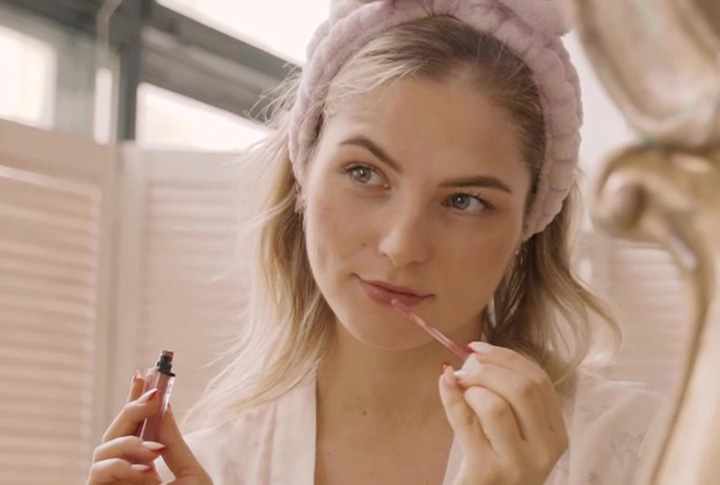
The restored details generally looked natural, but FlashVSR was not always faithful to the source. In one of my test clips, the lipstick area was reconstructed incorrectly and looked slightly unnatural after upscaling. Real-ESRGAN handled the same area more realistically.

Tip: Use the official FlashVSR implementation when possible. The developers warn that some third-party implementations omit or modify the Locality-Constrained Sparse Attention module, which can noticeably affect quality at higher resolutions.
3. Real-ESRGAN — Frame-Based Restoration for Real-World Footage
Best for: Upscaling and restoring old home videos, compressed live-action footage, and other kinds of real-world video.
Upscale ratio: 2x, 3x, and 4x; the Python version also supports arbitrary final scaling through additional resizing.
Main models: RealESRGAN_x4plus, RealESRGAN_x2plus, realesr-general-x4v3, RealESRGAN_x4plus_anime_6B, and realesr-animevideov3.
Real-ESRGAN is an open-source image and video upscaling model built for the kind of blur, noise, compression, and mixed degradation found in real-world footage. For video, it works on individual frames rather than analyzing motion across a sequence, which makes it quite different from newer video restoration models such as SeedVR2 or FlashVSR.
The reason Real-ESRGAN handles degraded material well is largely in how it was trained. Rather than relying on simple bicubic downscaling to create low-resolution training images, it uses a more complex synthetic degradation process that combines blur, resizing, noise, JPEG compression, and other artifacts that better resemble real source material. The GAN part also affects the way the output looks. Real-ESRGAN is designed to recover perceptually convincing textures instead of simply producing a smoother enlarged frame. When it works well, details such as skin, fabric, grass, brick, and hair can look much sharper and less plastic. The trade-off is that some of those details are reconstructed rather than literally recovered from the source, so the model can occasionally create textures that were never there.
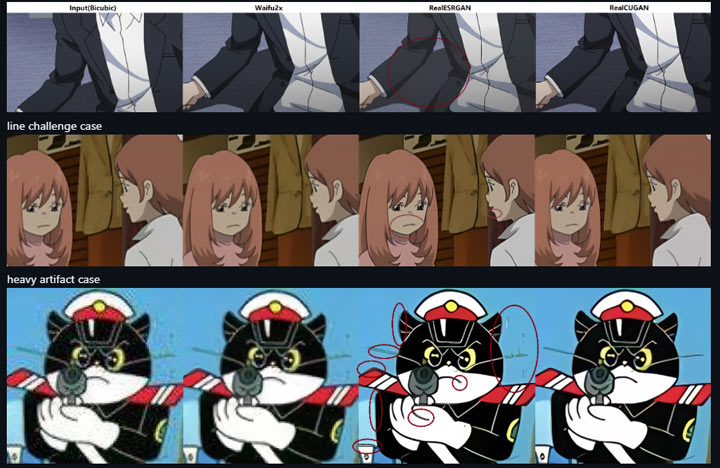
Real-ESRGAN includes several models designed for different types of footage. For the real-world footage test, I used Real-ESRGAN Plus, while realesr-animevideov3 was used for the anime and animation tests. The anime model supports 1x, 2x, 3x, and 4x upscaling, and the developers have also published direct comparisons with Waifu2x and Real-CUGAN.
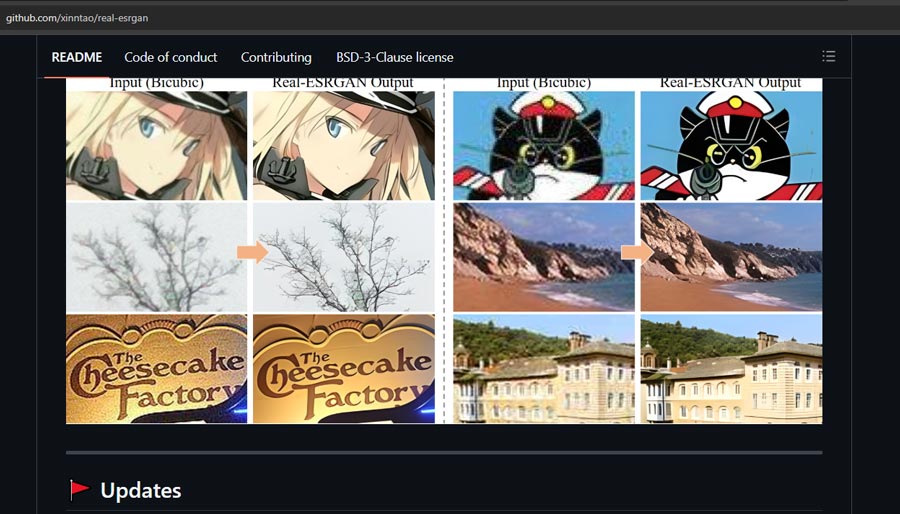
Official Real-ESRGAN comparisons with other models:: realESRGAN AnimeVideo-v3 vs Real-CUGAN, realESRGAN-anime vs Waifu2
Pros
- Good at restoring natural textures such as skin, fabric, grass, and brick.
- Provides separate models for general footage and anime.
- realesr-general-x4v3 includes adjustable denoising strength.
- The ncnn Vulkan version works with Intel, AMD, and NVIDIA GPUs without requiring CUDA or PyTorch.
- Supports tiled inference for high-resolution frames and GPUs with limited memory.
Cons
- Can reconstruct incorrect textures or details when the source is heavily degraded.
- Processes video frame by frame, so it does not directly model temporal consistency between frames.
- High-resolution upscaling can be very slow, especially with the Python implementation.
- The standalone ncnn video workflow requires separate frame extraction and video reconstruction with FFmpeg.
System Requirements
- Python version: Python 3.7 or newer and PyTorch 1.7 or newer.
- Portable ncnn Vulkan version: Available for Windows, Linux, and macOS with Intel, AMD, or NVIDIA GPUs; CUDA and PyTorch are not required.
How Real-ESRGAN Performed in My Testing
I tested Real-ESRGAN on three different clips, and the results varied quite a bit depending on the footage and model.
REAL-ESRGAN Video Upscaling Test Result 1
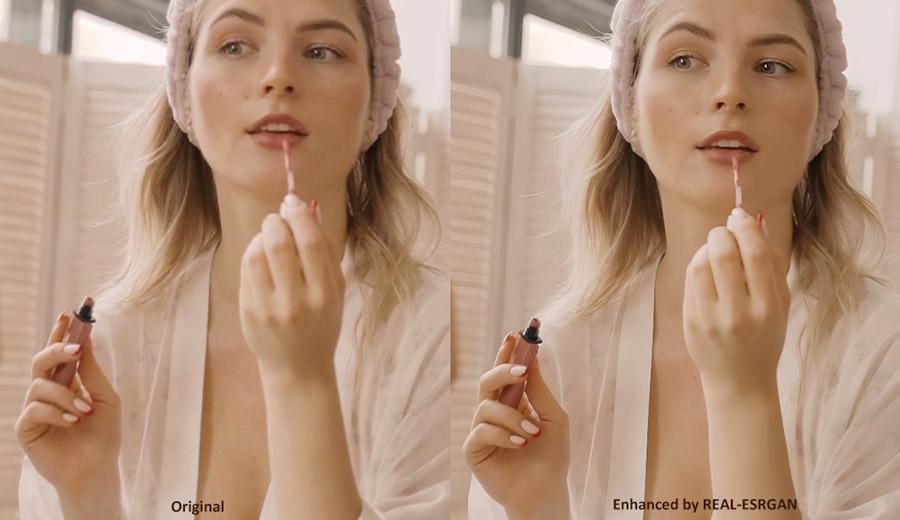
The clip took over 2 hours to upscale. This may have been partly because the source footage was already 1080p, but compared with the other open-source video upscalers tested in this article, the processing time was exceptionally long. The final result still looked fairly natural overall, although the subject's skin appeared slightly over-smoothed.
REAL-ESRGAN Video Upscaling Test Result 2
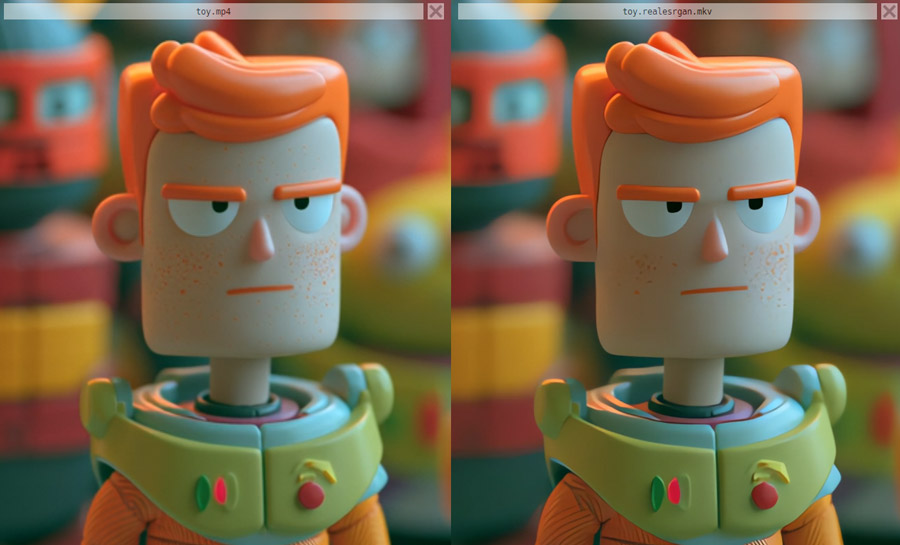
For Clip 2, I used realesr-animevideov3, and the enhancement took about 31 seconds to complete. The improvement in image quality was relatively subtle, and the difference was not especially noticeable.
REAL-ESRGAN Video Upscaling Test Result 3
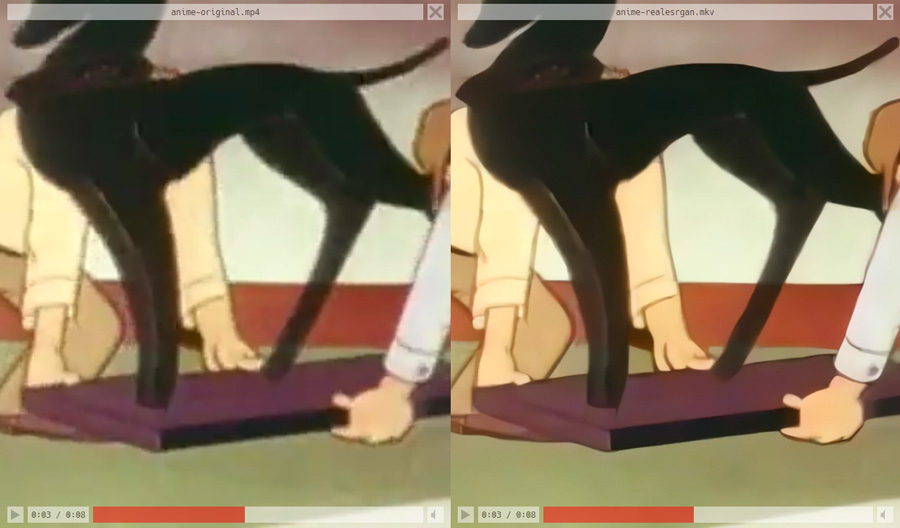
For Clip 3, I also used realesr-animevideov3, and the enhancement took around 32 seconds. The enhanced video was still a little blurry, but the result looked natural overall, which I preferred to a sharper but more artificial-looking image.
Tip: Test a short section before processing the whole video. Real-ESRGAN can produce a very different balance of sharpness, denoising, and reconstructed texture depending on the model and source.
4. Real-CUGAN — Anime Upscaling with Adjustable Denoising and Sharpening
Best for: Users restoring low-resolution anime and cartoons who want clean linework and more control over denoising and sharpening.
Upscaling ratio: 2x, 3x, and 4x.
Real-CUGAN is an open-source AI super-resolution model developed specifically for anime images. It was trained on a million-scale anime dataset and uses the same CUNet architecture as Waifu2x-CUNet. Unlike general-purpose restoration models, its training and model weights are tuned around the characteristics of animation, including line art, flat-color regions, textures, and common compression artifacts.
One useful part of Real-CUGAN is that it gives you more control over how aggressively the image is processed. The official models support multiple enhancement strengths at 2x, 3x, and 4x, while the ncnn Vulkan version also exposes different denoise levels. This makes it easier to use a lighter setting on relatively clean animation or stronger processing on noisy and compressed sources.
Real-CUGAN's developers also compared it directly with Waifu2x-CUNet and Real-ESRGAN Anime6B. In their examples, Real-ESRGAN applied noticeably stronger sharpening and could alter lines or bokeh, while Real-CUGAN was designed to retain textures and blurred regions more conservatively. This is a developer-provided comparison rather than an independent benchmark, but it lines up with some of the differences I saw in my own anime tests.
Pros
- Designed specifically for anime and other 2D artwork.
- Supports 2x, 3x, and 4x models with multiple enhancement strengths.
- Keeps line art and flat-color regions clean in low-resolution animation.
- Supports adjustable denoising and tiled processing.
- The ncnn Vulkan version runs on Intel, AMD, NVIDIA, and Apple Silicon GPUs without CUDA or PyTorch.
Cons
- Not well suited to realistic faces, skin, or other natural textures.
- Stronger settings can make linework look slightly over-sharpened.
- Choosing the right denoise and enhancement level takes some experimentation.
- It processes frames as images, so it does not directly use temporal information across video frames.
Minimum System Requirements
- Original CUDA version: CPU with SSE4 and AVX support; CUDA 10.0+ for the light version or CUDA 11.1+ for the heavy version; at least 1.5GB VRAM for NVIDIA GPUs.
- ncnn Vulkan version: Available for Windows, Linux, and macOS on Intel, AMD, NVIDIA, and Apple Silicon GPUs; CUDA and PyTorch are not required.
How Real-CUGAN Performed in My Testing
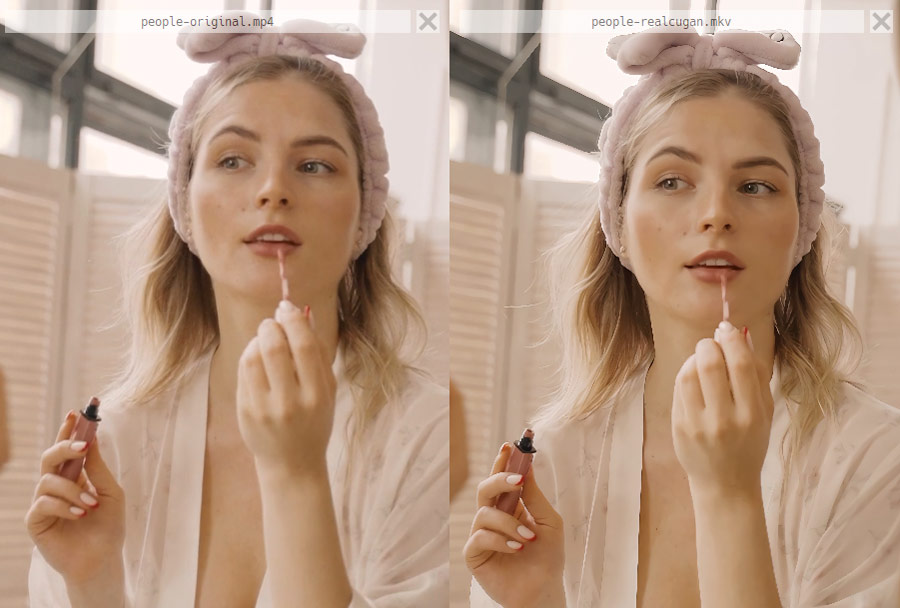
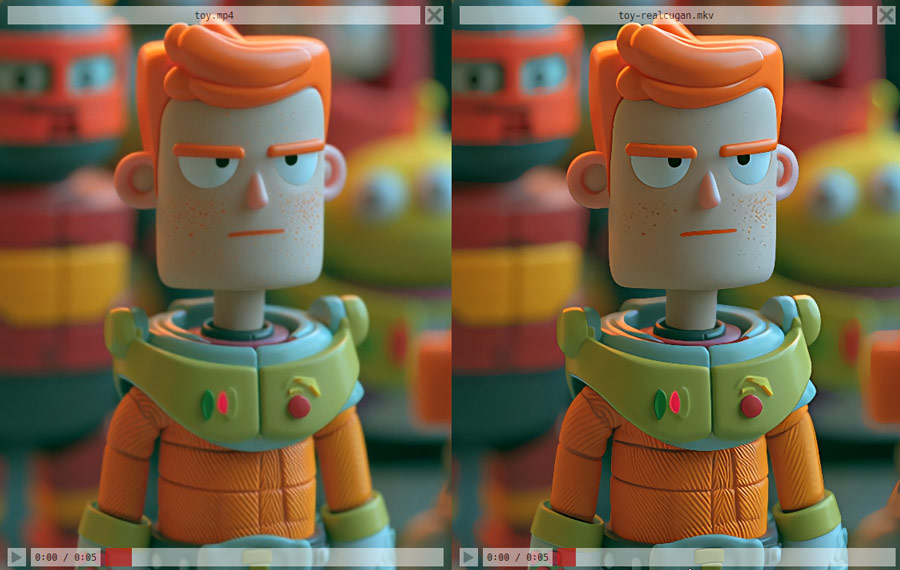
Real-CUGAN delivered solid results on my low-resolution 2D cartoon footage. Lines stayed clean, flat-color regions were handled well, and the output remained fairly consistent without introducing many obvious artifacts.
Real Cugan Video Upscaling Result 1
Real Cugan Video Upscaling Result 2
Real Cugan Video Upscaling Result 3
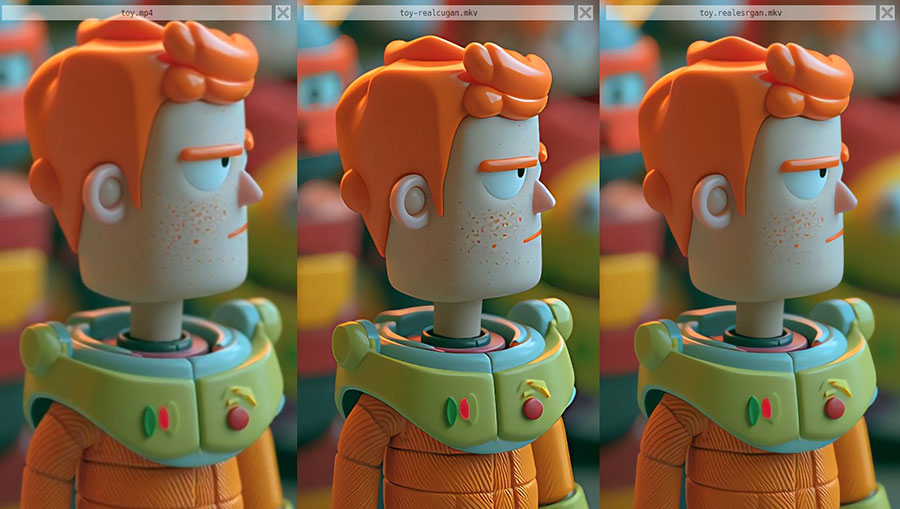
Where I noticed the difference was in finer details. Real-CUGAN can push edges a little too hard, giving some parts of the image a slightly over-sharpened look. Let's compare the results from Real-CUGAN and Real-ESRGAN, you'll understand what I mean.
Note:
I used the Real-CUGAN implementation in Video2X, which provides three variants: Pro, Nose, and SE. Among them, only the SE model supports 4× upscaling. With a 1080p source video, Real-CUGAN was noticeably slower overall:
- Real-CUGAN SE — Clip 1: 6m 23s
- Real-CUGAN SE — Clip 2: 2m 22s
- Real-CUGAN SE — Clip 3: 48s
The Nose and Pro variants only support up to 2× upscaling, so I used SE for the 4× tests. Overall, though, the results were pretty good. Real-CUGAN is mainly designed for anime, but it also handled live-action footage surprisingly well.
5. Video2X — Multi-Engine Video Upscaling in One Workflow
Best for: Users who want to try multiple open-source upscaling engines in one local workflow.
Upscale ratio: 2x, 3x, 4x, and higher (depends on the selected engine and model).
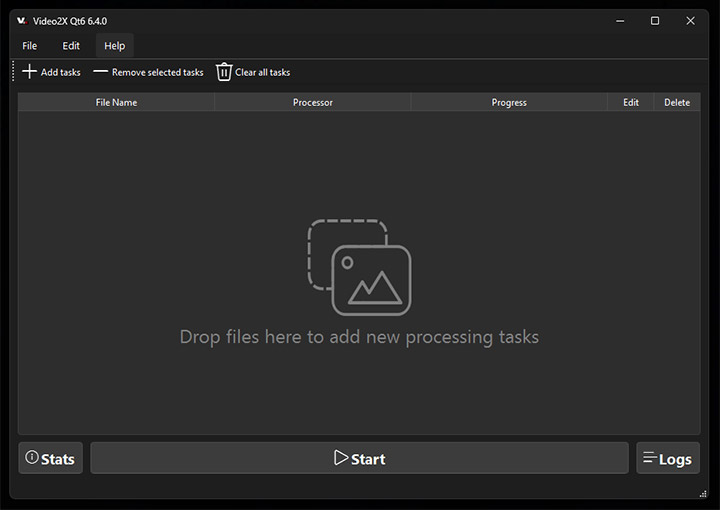
Video2X is an open-source video upscaling and frame interpolation framework that supports multiple processing engines, including Real-ESRGAN, Real-CUGAN, and Anime4K. It handles much of the video processing around those engines, including decoding, upscaling, frame interpolation, and encoding, so you do not have to build a separate workflow for each model. The GUI makes these tools easier to access, but it still feels fairly technical. You need to know which engine to use, what scaling factor to choose, and how you want the output encoded. There are also plenty of model and processing options to work through, and in my testing, there was no real-time preview to check the result before starting a full render.
Behind the scenes, Video2X uses FFmpeg libraries to handle video decoding and encoding while passing frames through the selected upscaling or interpolation engine. Its main advantage is that it keeps these steps inside one workflow instead of making users build and manage the processing chain themselves. For large frames or 4K output, GPU memory can quickly become a limitation. Some supported engines, such as Real-ESRGAN, offer tiled processing that splits large frames into smaller sections before upscaling them, which can reduce VRAM usage and make high-resolution processing possible on more modest GPUs.
Pros
- Integrates video decoding, upscaling, and encoding into one workflow.
- Supports multiple engines, including Real-ESRGAN, Real-CUGAN, and Anime4K.
- Supports frame interpolation with RIFE in addition to video upscaling.
- Handles high-resolution processing without writing intermediate frame files to disk.
Cons
- The number of scaling, encoding, and performance settings can be confusing for beginners.
- The GUI feels dated, with no real-time preview and plenty of technical terminology.
- Performance can vary widely between engines, making processing time less predictable.
Minimum System requirement
- CPU (AVX2 required): Intel Haswell (Q2 2013) or newer; AMD Excavator (Q2 2015) or newer.
- GPU (Vulkan required): NVIDIA Kepler / GTX 600 series (Q2 2012) or newer; AMD GCN 1.0 / Radeon HD 7000 series (Q1 2012) or newer; Intel HD Graphics 4000 (Q2 2012) or newer.
How Video2X Performed in My Testing
Video2X remained stable across the test videos and handled high-resolution processing reliably. The backend model had a much greater impact on output quality and render time than most settings within Video2X itself. Since these upscalers were tested separately, this section focuses more on Video2X as a workflow and processing tool rather than judging image quality again.
6. REAL Video Enhancer — A Full-Featured Open-Source GUI for Video Enhancement
Best for: Users who want a GUI for AI upscaling, denoising, and decompression without setting up each model manually.
Upscale ratio: Depends on the selected model; the bundled models mainly include 2x and 4x options.
Project status: Archived in July 2026.
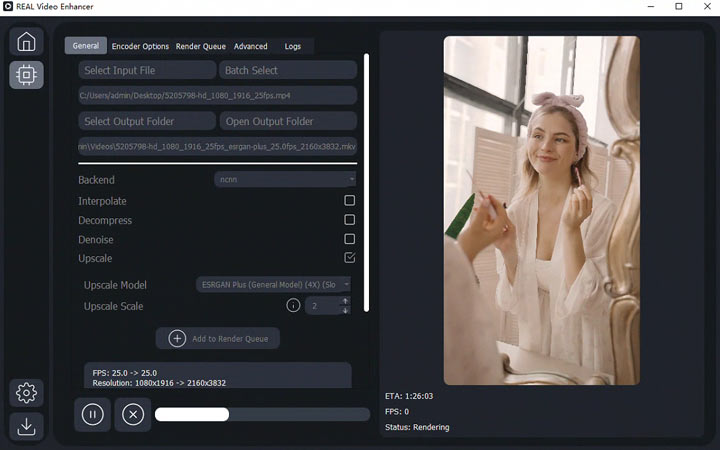
Real Video Enhancer is a desktop GUI that brings several open-source video enhancement tools into one application. It supports video upscaling and frame interpolation, along with separate models for denoising and decompression. Compared with more technical tools like Video2X, I found its interface cleaner and easier to work with, especially when setting up several videos or changing models and output settings.
The application also gives you more control than a basic model wrapper. You can choose different inference backends, adjust the output format and encoding settings, and use models aimed at different types of footage. Current builds support NCNN for Vulkan GPUs, TensorRT for NVIDIA RTX cards, and PyTorch for CUDA or ROCm hardware. It also handles scene changes during interpolation and includes a preview of the latest rendered frame.
The main downside now is not the interface but the project itself: REAL Video Enhancer was archived by its developer on July 13, 2026 and is currently read-only. It still works, but I would treat it as an existing option rather than a first choice for users who want an actively maintained open-source upscaler.
Pros
- Clean GUI with upscaling, interpolation, denoising, and decompression in one application.
- Supports multiple upscale and interpolation models.
- Supports NCNN, TensorRT, and PyTorch inference backends.
- Includes scene-change detection and a rendered-frame preview.
- Offers detailed output and encoding controls.
Cons
- The project was archived in July 2026 and is no longer actively maintained.
- Backend installation and detection can occasionally fail.
- Model and backend compatibility varies depending on the GPU.
- Some newer restoration models are not supported.
Minimum System Requirements
- CPU: Dual-core 64-bit processor.
- GPU: Vulkan 1.3-capable device.
- VRAM: 4GB for NCNN.
- RAM: 16GB.
- Storage: 1GB free for NCNN.
- OS: Windows 10/11 64-bit or macOS 14+; Linux builds are also available.
How REAL Video Enhancer Performed in My Testing
Of the open-source GUIs I tested, REAL Video Enhancer felt like one of the most complete. I liked being able to upscale, denoise, decompress, and change output settings without moving between separate tools.
For my winter landscape test, I used a Nomos8K model. It improved the clarity of the low-resolution details while keeping the overall image fairly natural.


The installation was a little bit troublesome. During setup, this open source video upscaler failed to recognize its inference backends, and I had to reinstall it before they appeared correctly. This is also mentioned in the project's own FAQ, which notes that its PIP and portable Python setup can sometimes cause backend installation problems.
The version I originally tested did not give me a useful preview before processing. Newer builds later added a preview showing the latest rendered frame, so I would update that part of my earlier assessment rather than continue listing “no preview” as a current limitation.
My Open-Source Video Upscaler Test Results
Because the tools use different architectures and models, I do not think reducing everything to labels such as “Fast,” “Medium,” or “High” is especially useful. Wherever possible, I prefer to show the actual processing results from my tests.
| Tool / Model | Test Setup | Processing Time (Approx.) | What Stood Out |
|---|---|---|---|
SeedVR2 (VAE FP16) |
Cloud PC |
Clip 1: 8 min |
• Strong restoration on heavily degraded footage |
FlashVSR v1.1 |
Cloud PC |
Clip 1: 7 min |
• Strong temporal consistency |
Real-ESRGAN |
Local PC |
Clip 1: 2h20min (realesr-plus) |
• Natural-looking quality improvement |
Real-CUGAN |
Local PC |
Clip 1: 6min23 sec (realcugan se) |
• Clean lines and flat colors |
REAL Video Enhancer |
Local PC |
Clip 1: 18min (Nomos8K) |
• Good overall clarity |
✍ A note on these results: This table is meant as a practical reference rather than a controlled benchmark. Most tools were tested on my local PC, while SeedVR2 and FlashVSR were run on cloud GPUs because their ComfyUI/research-style setups are much harder to run locally and can require substantially more GPU memory. I also tested one or a few model variants from each project rather than every available model and configuration, so the processing times should not be read as a direct speed ranking.
This is also part of the reality of open-source video upscaling. Results can change a lot with the model, backend, GPU, precision, denoise level, tiling, and source footage. My tests show what worked for me, but you may still need to try a short clip yourself to find the best combination. That flexibility is valuable, but it can take a fair amount of setup, testing, and processing time.
Other Open-Source Video Upscaling Models Worth Knowing
The six tools above are the ones I chose to focus on, but there are several other important open-source video restoration models worth knowing about. For example,
- BasicVSR++ remains an important reference for temporal video restoration because it makes better use of information propagated across neighboring frames.
- RealBasicVSR focuses more heavily on real-world degradation, including noise and artifacts that can interfere with temporal restoration.
- EDVR is an older but influential multi-frame super-resolution method. It is still useful as a technical reference, although newer approaches are more relevant if the goal is choosing a practical tool today.
- Anime4K solves a somewhat different problem. It is excellent for lightweight anime playback and real-time enhancement, but I would not compare it directly with heavy restoration models such as SeedVR2.
What to Consider Before Choosing an Open-Source Video Upscaler
1. Start with the source footage
The best model for anime is not necessarily the best one for faces, old camcorder footage, landscapes, or heavily compressed video. I saw enough variation in testing that I would choose the model around the footage rather than expect one upscaler to handle everything equally well.
2. Decide whether you want more detail or more faithful detail
This matters more with generative restoration models. SeedVR2 produced the strongest detail recovery in my tests, but it also occasionally changed small details that were unclear in the source. A sharper image is not always a more accurate reconstruction.
3. Pay attention to temporal consistency
Frame-based upscalers can produce excellent individual images but still show flickering or changing textures in motion. If that is a major problem in your footage, a video-specific model such as FlashVSR or SeedVR2 may make more sense.
4. Consider the setup, not just the model
A portable Vulkan executable, a GUI such as Video2X, a Python project, and a ComfyUI workflow are very different experiences. The best model on paper is not always the best option if getting it running takes more effort than the restoration job itself.
5. Test the processing time before committing to a long video
AI upscaling can be extremely slow. In my Real-ESRGAN test, roughly 10 seconds of 1080p footage took about 2 hours and 20 minutes to upscale to 4K. Thus, always test a short section before processing an entire movie, episode, or batch.
Try This User-Friendly Alternative to Open-Source Video Upscalers
Open-source video upscalers can deliver impressive results, but they often take a lot of time and technical effort to get right. Depending on the tool, you may need to work with command lines, ComfyUI workflows, separate model files, and repeated parameter tuning, and some offer little or no useful preview before processing. Even after everything is running, finding the right model and settings for a particular video can still take plenty of trial and error, especially with demanding AI models.
That is why I also tested a simpler alternative: VideoProc Converter AI. It puts the models, GPU acceleration, and output controls into one desktop workflow, making it much easier to start upscaling without dealing with the usual open-source setup process.
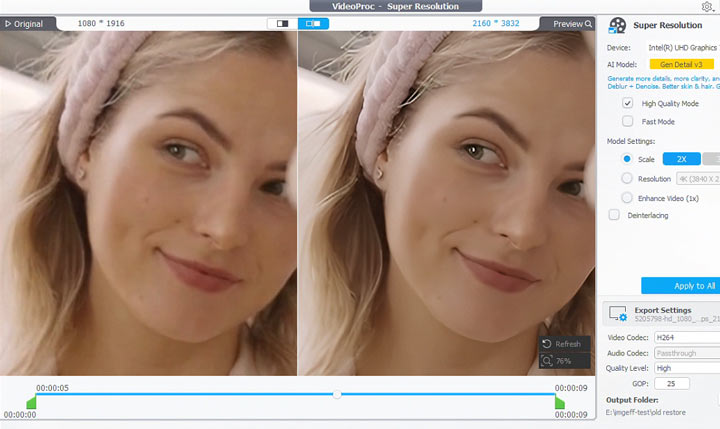
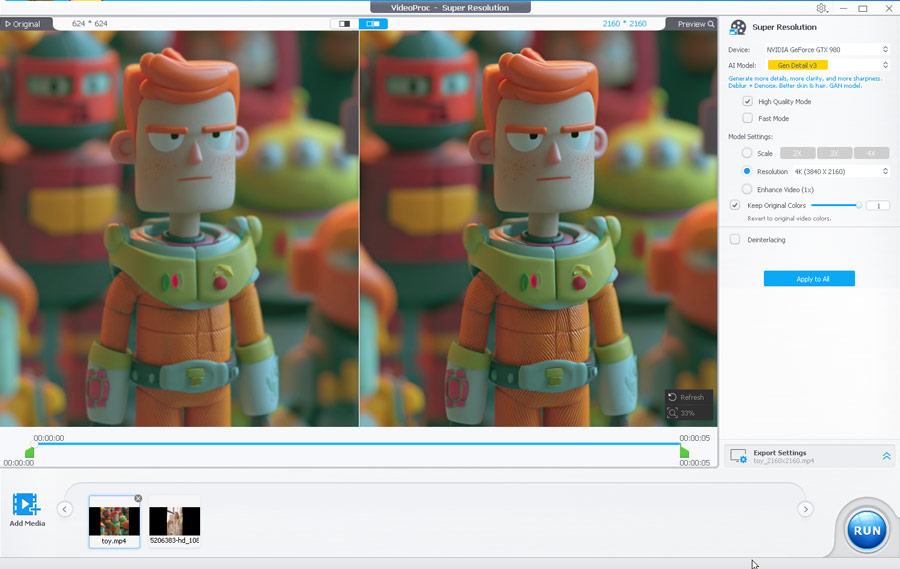
In my testing, it was noticeably faster in my actual workflow. Using the same source footage, its Gen Detail model completed the 4K upscale in about 6.5 minutes on my local PC. For reference, SeedVR2 took around 6–8 minutes on a cloud GPU, while Real-ESRGAN took about 2 hours and 20 minutes on my local machine. The hardware and models were different, so this is not a controlled speed benchmark, but VideoProc still delivered one of the fastest results in my testing while running entirely on my local PC, with far less setup.

VideoProc Converter AI - EasierVideo Upscaling for Everyday Users
- 1-click Upscaling! No need to install Python, manage CUDA, build ComfyUI workflow...
- Upscale and enhance videos by 2x/3x/4x of the origianl resolution to reach up to 4K.
- 4 deep-trained AI models for upscaling different types of footage with the best result.
- Rich AI features: Denoise, deblur, stabilize, frame interpolate, photo enhance/colorize.
- All-in-one tool: Edit, convert, compress, download videos, deinterlace, rip DVDs, etc.
 Excellent

See the before & after results after upscaling video in VideoProc Converter!
VideoProc Converter AI Video Upscaling Result 1
VideoProc Converter AI Video Upscaling Result 2
FAQ
What is the best open-source video upscaler?
For overall restoration quality, SeedVR2 produced the strongest result in my tests. It recovered more fine detail than the other tools I tried, although its generative restoration occasionally changed details that were unclear in the original footage.
What is the best open-source video upscaler for anime?
In my direct comparison, Real-ESRGAN AnimeVideo-v3 preserved fine animation details better than Real-CUGAN. Real-CUGAN is still useful when you want adjustable denoising and a more conservative anime-focused model.
Which open-source video upscaler has the best temporal consistency?
FlashVSR and SeedVR2 are better suited to this than frame-based image upscalers because they are designed specifically around video restoration. FlashVSR performed particularly well at keeping moving textures stable in my tests.
Is Video2X an AI upscaling model?
No. Video2X is a video upscaling and frame-interpolation framework that can run different processing engines. The backend model you select has a much larger effect on final image quality than Video2X itself.
Can open-source video upscalers run offline?
Many can. Once the required program, models, and dependencies are installed, tools such as Video2X and portable ncnn implementations can process videos locally without uploading the footage to a cloud service.
Do I need an NVIDIA GPU?
Not always. Vulkan/ncnn implementations of tools such as Real-ESRGAN and Real-CUGAN can also run on supported AMD and Intel GPUs. More research-oriented PyTorch projects may have stricter GPU or CUDA requirements.
How much VRAM do I need for AI video upscaling?
There is no universal minimum. VRAM usage depends on the model, source resolution, output resolution, precision, batch size, and whether the tool supports techniques such as tiling, quantization, or CPU offloading.
Can AI upscaling really restore missing details?
It can reconstruct plausible detail, but it cannot know with certainty what was originally there. This is especially important with generative restoration models: a result may look much sharper while still altering a face, texture, eye color, text, or another small detail.
Should I use an open-source or paid video upscaler?
Choose open source if you want maximum model choice, experimentation, and control. A commercial desktop upscaler is generally a better fit if you care more about setup time, a consistent GUI, and processing videos without managing individual models and dependencies.



