
 New AI features are available
If you've ever exported a video, you've probably noticed a baffling list of codecs. Two of the most common are Apple ProRes and H.264. These codecs compress raw video into a manageable file by throwing away data, but in very different ways. To put it simply, ProRes is optimized for smooth post-production workflows, whereas H.264 is optimized for small file sizes and universal playback.
But why is it like this? Below, we'll examine why the ProRes vs. H.264 comparison is as described, from technical details to practical usage in various scenarios. This way, we can help you clearly see when to choose which codec.
Technical Comparison: How Each Codec Works
1. Compression Algorithm
ProRes is part of a family of high-quality intra-frame codecs created by Apple. Each frame is compressed independently, similar to saving a series of high-quality JPEGs. This makes decoding very simple; an editing program can jump to any frame instantly because it doesn't have to reconstruct it from neighbouring frames.
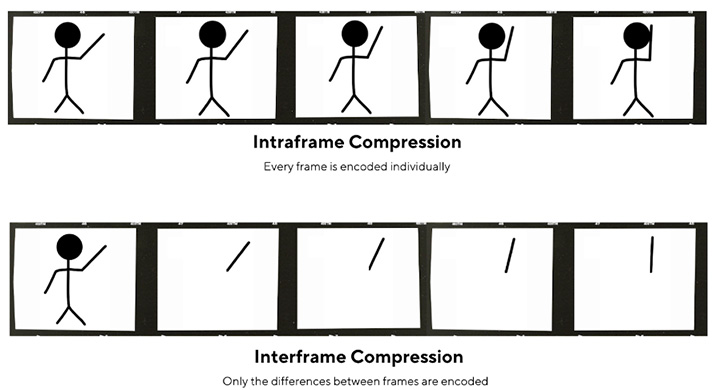
By contrast, H.264 uses inter-frame compression. It stores a full I-frame periodically and then uses motion estimation to encode only the differences between frames in between (P and B frames). This approach squeezes video into much smaller files but increases decoding complexity.
2. Bit Depth and Chroma Subsampling
ProRes supports deeper color precision and chroma fidelity, making it suitable for high-end imaging and color grading. The 422 variants record 10-bit color with 4:2:2 chroma sampling, while the 4444 versions offer even deeper color and an optional alpha channel.
H.264, in typical use, is limited to 8-bit color depth and 4:2:0 chroma subsampling to reduce file size. There do exist H.264 profiles that support 10-bit depth. However, such high-profile H.264 implementations are far less common and not broadly supported for playback.
3. File Size and Bitrate
The difference in compression method shows up clearly in the bitrate. ProRes produces large files by design, while H.264 is extremely efficient at compressing video to a lower bitrate for a given quality.
Typical data rates for ProRes are on the order of 100-200 Mbps for 1080p HD and much higher for 4K. H.264 can deliver decent HD quality in the range of 5-10 Mbps and very good quality around 15+ Mbps.
| Example Scenario | ProRes 422 Bitrate | H.264 (High Profile) Bitrate |
|---|---|---|
1080p HD @ 30 fps (approx) |
~150 Mbps |
~8-15 Mbps |
4K UHD @ 30 fps (approx) |
~500-700 Mbps |
~35-45 Mbps |
4K UHD @ 60 fps (approx) |
~1000+ Mbps |
~53-68 Mbps |
Those numbers translate to a difference of tens or even hundreds of gigabytes on a one-hour video. For general users, that huge gap in file size is often the deciding factor.
4. Picture Quality
For most viewers, a well-encoded H.264 clip can look surprisingly similar to ProRes. The reason professionals still love ProRes is that it preserves more data for heavy color grading and visual effects. Banding or blocky compression artifacts are far less likely when working with 10-bit 4:2:2 or 4:4:4 footage. H.264's usual 8-bit 4:2:0 sampling can show banding in skies or gradients when you push the colors during editing.
Performance in Workflows: What Should You Use
Because of their differing characteristics, ProRes and H.264 tend to be used at different stages of video workflows. Your choice between the two should be based on your specific needs.
1. For Recording on Camera
If you are a filmmaker or event shooter, the choice of codec on your camera has a direct impact on recording time and image quality. ProRes gives you a “digital negative” that's ready for editing without any transcoding and retains maximum color information. Use ProRes when image quality is critical and you have fast, high-capacity media.
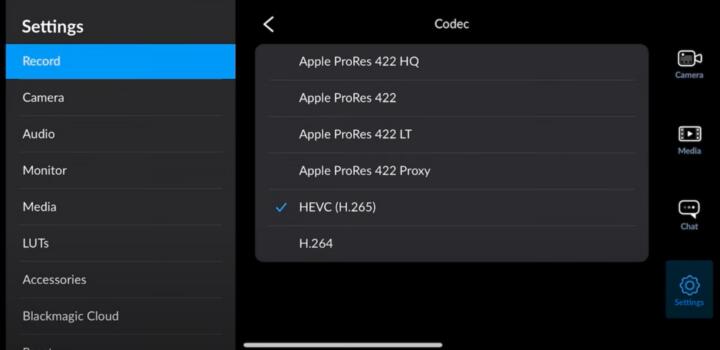
Most consumer and prosumer cameras default to H.264 because it stretches limited storage far further. You can record hours of footage to an SD card without worrying about running out of space. Unless you need the extra latitude in post, H.264 is fine for most everyday shooting.
2. For Editing and Post-Production
This is where ProRes truly excels. In a professional editing workflow, video is often captured to an intermediate format like ProRes before heavy editing. It's intra-frame, and editing software can jump to any frame because each frame is independent. Color correction, multi-layer composites and effects are much easier to apply.
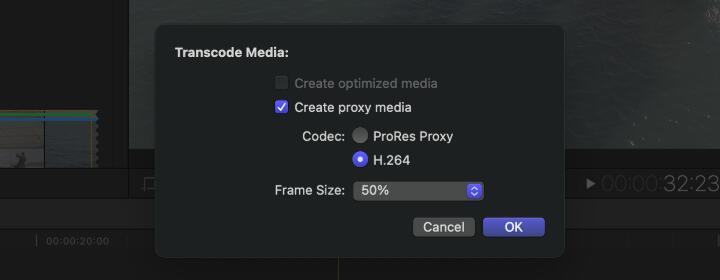
H.264, on the other hand, is harder to edit directly as discussed earlier. It can certainly be edited natively for simple projects, and many simpler edits are done straight with H.264 in your NLE. But when projects become complex or long, editors often transcode the footage to ProRes Proxy to speed up timeline performance.
3. For Delivering and Playback
For broadcast, film festivals and professional hand-offs, ProRes is often the accepted delivery format because it preserves maximum quality and can be transcoded to other formats later without generation loss. H.264, however, is used as a distribution format to the end viewers. It balances quality and bandwidth and plays back on virtually any device. Virtually all streaming video on the internet has used H.264 extensively. And many streaming services even maintain multi-codec ladders, such as AV1 or VP9.
4. For Uploading to Platforms
For uploading, H.264 is the norm. Platforms like YouTube recommend H.264 video in an MP4 container for uploads. A high-bitrate H.264 export will look great on streaming sites and save you hours of upload time.
But YouTube does accept ProRes files as uploads if one chooses. Some creators actually upload ProRes, and it can yield marginally better end quality because YouTube will compress whatever you send it. However, a one-minute 4K ProRes clip can exceed 4 GB, making uploads impractical for most creators.
5. For Archiving and Preservation
For long-term archival, many professionals still choose ProRes. Its higher bit depth and minimal compression mean you can re-open or convert the video years later without noticeable degradation. By contrast, H.264 is generally not ideal for archiving masters. An 8-bit H.264 copy may show artifacts and banding if you try to re-grade it in the future.
Pros and Cons at a Glance
The table below breaks down the key advantages and disadvantages of Apple ProRes and H.264. This side-by-side summary highlights how each codec performs in real-world use.
| Codec | Strengths | Limitations |
|---|---|---|
Apple ProRes |
|
|
H.264 (MPEG-4 AVC) |
|
|
A Practical Helper for Everyday Workflows
If you work with video long enough, you eventually hit a familiar problem. Maybe you filmed in ProRes and now need a lightweight H.264 file to share, or you shot in H.264 and want something easier to edit without your timeline choking. This is where video converters make life easier.
VideoProc Converter AI fits neatly into this part of the workflow. Instead of opening a full editing program or dealing with complicated encoder panels, you can drag in your footage, pick ProRes or H.264, and let it handle the rest. It uses full hardware acceleration, so conversions finish much faster than real time, even with 4K or 8K files.

VideoProc Converter AI - Best ProRes & H.264 Converter
- Support 420+ codecs and formats, including ProRes, H.264, HEVC, etc.
- Intuitive interface; 1-click ProRes presets for different use cases
- Customizable codec, bitrate, frame rate, resolution, quality, profile, etc.
- Fast batch conversion with Level-3 Hardware Acceleration
- All-in-one: DVD backup, recorder, compressor, AI tools, etc.

Bottom Line
For most people, the choice of ProRes vs H.264 is simple: use ProRes when you need the highest possible quality and are willing to pay the price in storage and processing; use H.264 when you need small files that play back anywhere.
Many workflows combine the two: shoot and edit in ProRes to maintain quality and ease editing, then export an H.264 version to share with clients or upload online. If you often mix footage from different devices or switch between ProRes and H.264, having a tool like VideoProc Converter AI will save time and keep the process smooth.




