
 New AI features are available
Subtitles help more people enjoy your videos. They enhance understanding, improve information retention, boost literacy, and allow people to watch videos in noisy environments or without sound.
If you ever want to add subtitles to your video, an SRT file is a great option. It's a plain text file widely supported by media players and social platforms. You can easily create one yourself.
Here, we'll explain what SRT files are and how to make an SRT file using different tools. Whether you are adding captions for viewers who are hard of hearing or translating your content into another language, understanding how to build an SRT file will make your video more accessible and searchable.
What Is an SRT File
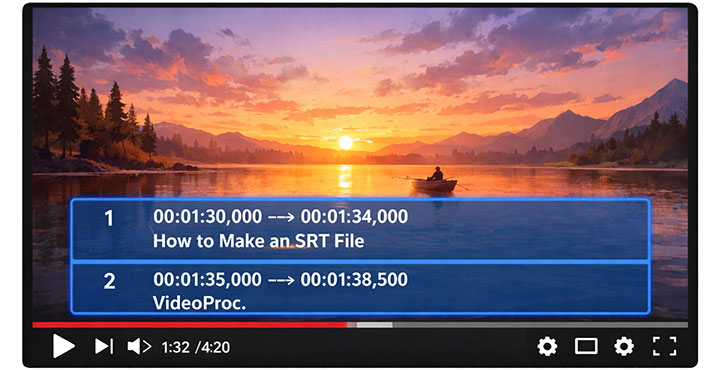
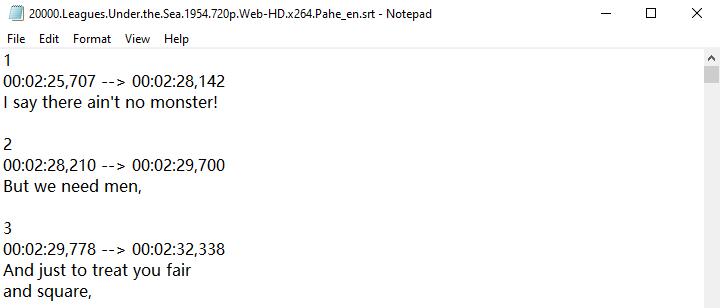
An SRT file, short for SubRip Subtitle, is a plain-text file that pairs timing information with the words spoken in your video. Each subtitle is numbered, followed by start and end times and the text itself, separated by blank lines. So you see, an SRT file has a simple, rigid structure. Each subtitle entry consists of these parts:
- A sequence number starting from 1 and incrementing with every subtitle
- Timecodes in the format HH:MM:SS,mmm --> HH:MM:SS,mmm
- One or two lines of subtitle texts for each time code
- A blank line containing no text after each subtitle
Here is a small example:
1
00:00:01,000 --> 00:00:04,000
This is the first subtitle.

2
00:00:05,000 --> 00:00:07,500
And this is the second.
Regardless of the tool you use, this example shows what your SRT file should look like. The sequence numbers tell the player which caption comes first. The timecodes indicate when the caption appears and disappears on screen. Hours, minutes, and seconds always have two digits, and milliseconds have three digits. Each block is separated by a blank line to let players detect the boundaries.
Make an SRT File Manually
Since SRT files are essentially text files, you can naturally create an SRT file from text using a plain text editor, such as Notepad on Windows, TextEdit on macOS, or Microsoft Word. You just need to make sure it meets the SRT format requirements.
Creating an SRT file manually requires no special software. It is ideal for short videos or precise phrasing. But on the other hand, it can be time-consuming because you must type every subtitle and measure timing yourself.
- Create a new formatting-free text file using a plain text editor.
- Type 1 as the sequence number, then press Enter.
- Enter the start and end timecodes in the format HH:MM:SS,mmm --> HH:MM:SS,mmm.
- Write one or two short lines of the subtitle text on the line after the timecodes.
- Press Enter to leave a blank line before the next entry.
- Continue numbering (2, 3, 4, …), add timecodes and text for each subtitle in order.
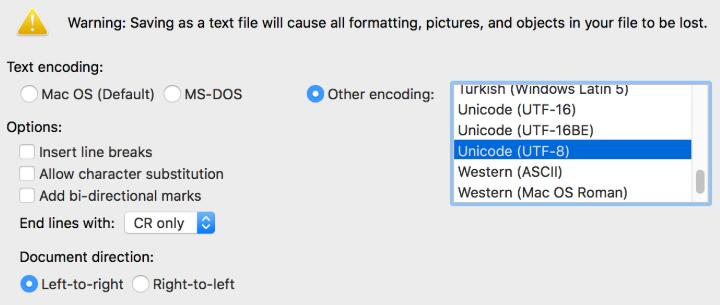
- When finished, save the document with a .srt extension and select UTF-8 encoding.
If you choose a rich-text word processor like MS Word, go to File > Save As > Plain Text > Save when you finish editing, and then select Unicode (UTF-8) as the text encoding in the File Conversion dialog box. UTF-8 provides universal character support and is the only SRT format supported by YouTube.
VideoProc Converter AI - Post-Subtitle-Creation Editor



- Extract existing subtitle tracks from MP4, MKV, NOV, etc.
- Add an existing SRT file and embed it as soft or hard subtitles
- Search for subtitles online with a build-in subtitle downloader
- Adjust the position, font, color, and size for the subtitles
- Best export quality. Fastest speed. Lowest CPU usage

Make an SRT File with a Subtitle Editor
Dedicated subtitle editors make creating SRT files faster and less tedious. Subtitle Edit is a popular free and open-source program for Windows. This software lets you load your video and work with subtitles using a visual timeline and preview, so you do not need to guess timecodes.
Subtitles are listed in order. You can type or paste the text and drag the boundaries on the timeline to adjust start and end times. The software ensures sequence numbers and formatting remain correct.
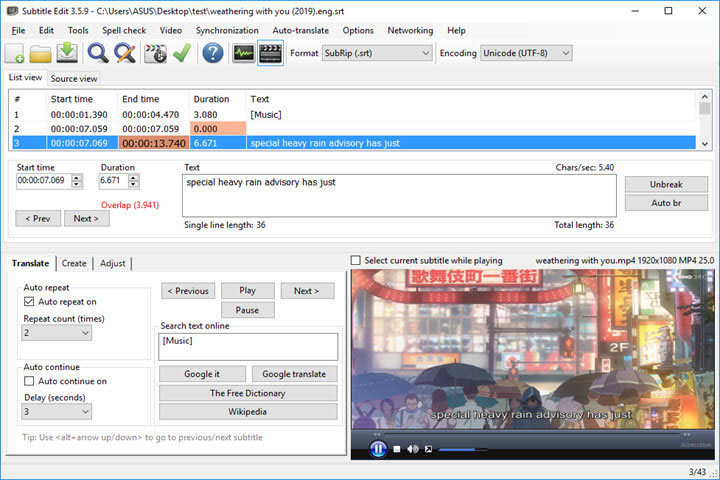
Here's how to make an SRT file from scratch using Subtitle Edit.
- Go to the Video menu in the top menu bar to open your video file.
- Play the video and pause at the moment a line of dialogue begins.
- Create a new subtitle track by clicking the "Insert new subtitle at video pos" button under the Create tab.
- The program automatically inserts a line with a start time, an auto-suggested duration, and an end time.
- Type the caption text in the Text box.
- Adjust the end time by pressing the "Set end time" button while the video plays.
- Repeat the process to add more lines.
- When finished, choose "File > Save as…", select "SubRip (.srt)", and save.
Besides creating new subtitles, Subtitle Edit allows you to extract, adjust, and translate existing subtitles, as well as convert between different formats. It also includes speech-to-text and text-to-speech functions.
There is a learning curve, but it becomes increasingly useful as you become more proficient. It is ideal if you need full control over wording and timing, or when working on long projects.
Create an SRT File Online with AI
AI transcription has made it much easier and quicker to create SRT files. ElevenLabs has an AI subtitle generator to transcribe media and produce subtitle files. It uses speech recognition to automatically create time-stamped transcripts from your video, often with impressive accuracy. It also provides web-based editors where you can review text and adjust timing before saving.
- Visit ElevenLabs in your browser.
- Click the "Upload Video & Generate Subtitles" button to open a video.
- Wait for the upload to complete and then select the subtitle language.
- Click "Generate subtitles".
- Read through each caption and correct any mis-heard words or punctuation.
- Export your subtitles in SRT format.
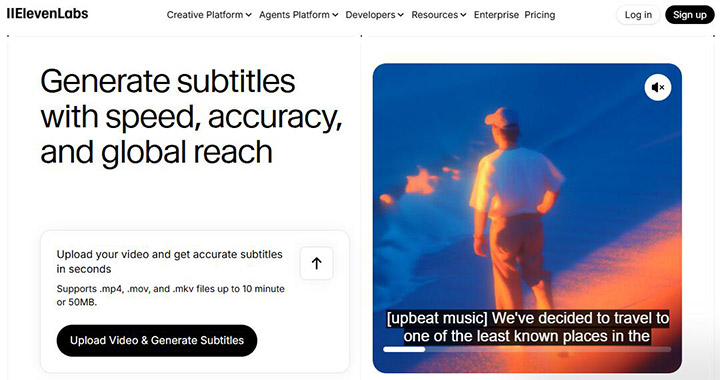
ElevenLabs supports MP4, MOV, and MKV files up to 10 minutes or 50MB. It's ideal when you have long videos to caption and don't want to install software.
While AI dramatically reduces the manual work required, it may mishear words or set poor timing. You still need to review and correct the results. Even advanced speech recognition can make mistakes or misalign captions, so it's best to use it as a first draft and then polish the captions afterward.
SRT Formatting Best Practices
Quality subtitles follow certain formatting guidelines to ensure they are easy to read and professionally presented. Here are some best practices to keep in mind when making SRT subtitles, whether manually or with software.
- Keep lines short and readable: aim for around 32 to 40 characters per line.
- Pace captions for around 21 characters per second of display time.
- Display short lines for 1-2 seconds and longer ones for 2-6 seconds.
- Break text at natural linguistic pauses so that each line forms a coherent segment.
- Follow standard punctuation and casing.
- Save your SRT file as UTF-8 to avoid display issues with special characters.
- Proofread your subtitles for spelling, grammar, and timing errors.
- Review before release.
By following these best practices, your SRT file will meet professional standards and provide a smooth viewing experience.
Conclusion
That's all about how to make an SRT file. It's easier than it looks.
You can type one from scratch with nothing more than a text editor, take advantage of a subtitle editor for better precision, or rely on AI services for speed. Whichever route you choose, always follow best practices for timing and formatting. Finally, proof-read and test your file to ensure viewers see clean and synchronized subtitles. With a well-crafted SRT file, your videos will be accessible and engaging for audiences around the world.




