VideoProc Converter

 New AI features are available

 Listed in
 Video restoration software has become a genuinely useful way to breathe new life into digitized home videos, old film archives, and even low-quality DVD rips. Only a few years ago, upscaling 480p or 720p footage to 4K or cleaning up heavy analog grain would have required a suite of expensive tools and serious technical expertise. Today, those professional-grade results are achievable on a standard desktop PC, allowing anyone to preserve aging visual history with surprising clarity.
However, as the market expands, it is important to realize that not every AI video restoration tool is created equal. In my testing, the quality of the original source footage always sets the "ceiling," but the software you choose determines exactly how close you get to that limit. Using the exact same clip across different platforms can produce wildly different results; one program might deliver a clean, cinematic finish, while another might introduce distracting flicker or that dreaded "waxy" skin effect that makes faces look unnatural.
To move past the marketing claims, I spent weeks testing a range of programs across three common problem types: grainy 8mm analog film, unstable VHS footage, and heavily compressed digital files. These scenarios allowed me to evaluate detail recovery, processing speed, and artifact control in real-world conditions. From there, I narrowed the field down to the 8 best video restoration software options of 2026 that consistently prioritize a natural, high-fidelity output over artificial sharpening.
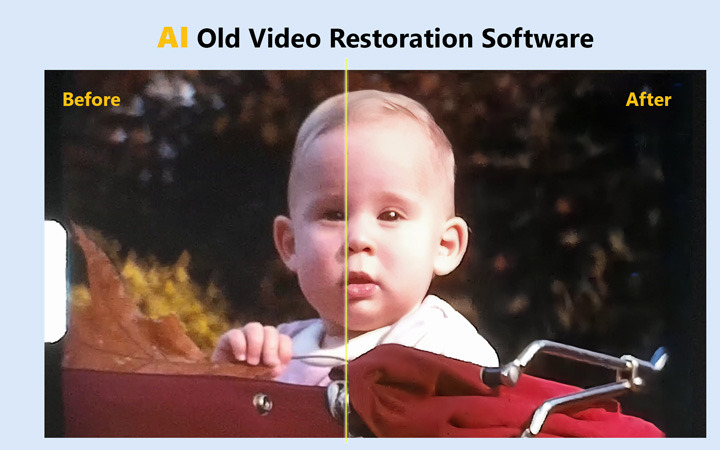
Note: Unlike many other posts on similar topics that use fake before-and-after results to promote their video restoration software and undermine others, all the results shown in this post (before and after) are authentic, with no editing, retouching, or added effects. I resize the images for consistency, but this does not affect the quality of the results.
- Can Video Restoration Software Really Restore Your Old Videos
- How I Tested These AI Video Restoration Software
- How Source Quality Impacts Restoration Results
- 8 Best AI Video Restoration Tools of 2026 (Full Review)
- How to Get the Best Video Restoration Results
- Hardware Recommendations
- The Science Behind AI Video Restoration
- FAQs
Can Video Restoration Software Really Restore Your Old Videos
For a long time, the answer was "not really." Early video restoration software was largely limited to basic color correction and rudimentary noise reduction. These tools could "clean" a clip by adjusting brightness or removing some grain, but they couldn't actually recover lost detail. To the naked eye, these videos still looked like low-quality relics, just slightly more polished, as the technology lacked the intelligence to "understand" what was missing from the frame.
Thankfully, Now We Have AI Video Restoration Software
When AI video restoration first became available, the results were often inconsistent. Early tools often struggled with fine details, smoothing away subtle textures in faces, grass, and fabric and leaving footage looking waxy, flat, and overly processed. Thankfully, video restoration software has matured significantly in 2026. By using learned visual patterns, the best video restoration software can now intelligently fill in missing information and reconstruct realistic skin textures, hair, and sharp edges that were lost in low-resolution footage. This can produce much greater clarity while preserving a more natural look and more of the original footage’s appearance.

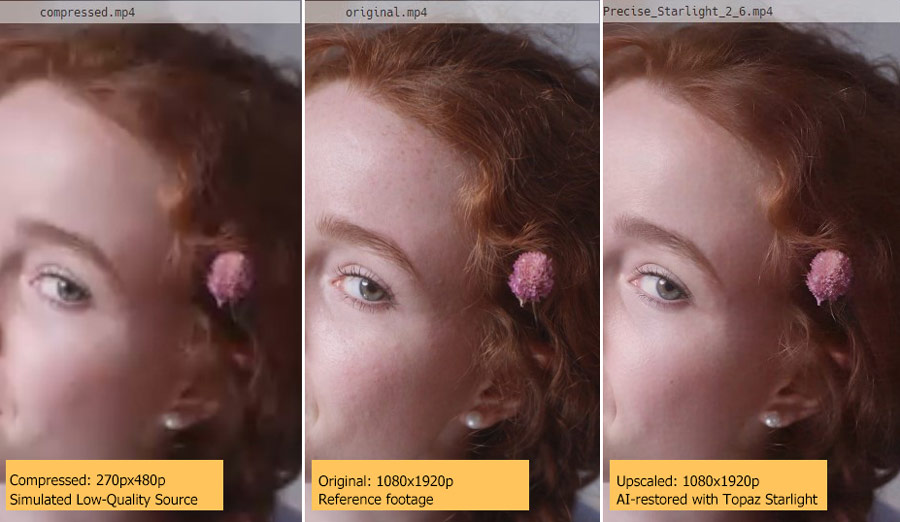
That said, AI video restoration software still has limits. When an old video is extremely blurry and very little original detail remains, tools like Topaz Starlight may have to infer some missing details from the limited visual information available. The result can look much clearer, but clearer does not always mean perfectly accurate. A person’s face, for example, may appear sharp and realistic after restoration, yet look slightly different from how they actually looked.
How I Tested These AI Video Restoration Software
To identify the best video restoration software for revitalizing archives and home movies, I subjected each program to a rigorous side-by-side comparison. To ensure a fair assessment, I tested every tool under identical real-world conditions, focusing on how they handled the specific challenges of aging footage.
Test environment: Intel (R) Core i5-11400F CPU, 16GB RAM, NVIDIA GeForce RTX 3060, Windows 11.
Test footage:I used two distinct types of source material to push the software to its limits. First, I used a 12-second clip of a little boy from Pexels to evaluate how the software handles upscaling and detail retention in relatively clean footage. To supplement this, I used several historical clips from Archive.org to test how the tools manage more severe challenges like analog noise, frame instability, and heavy film grain.
5 Evaluation Criteria: I evaluated each video restoration software based on the following:
- Visual Cleanup & Artifact Removal: I assessed how well the video restoration software enhance the overall video quality, specifically its ability to upscale resolution while neutralizing noise, blur, and blocky compression artifacts.
- Natural Detail Recovery: Whether the output preserves real textures or introduces an overly smooth, "waxy" look.
- AI Artifacts & Errors: I tracked how often the models generated "hallucinations," such as distorted facial features or warped backgrounds, which can occur when the AI over-interprets the source.
- Performance & Speed: I measured the time required, since processing speed matters for larger video collections.
- Practical Value: Finally, I considered the overall cost-to-performance ratio. Often, an affordable or user-friendly AI video restoration tool can provide more practical value for home users than complex, expensive professional suites.
Before Restoring Old Videos: How Source Quality Impacts Results
During my testing, one thing became very clear: while modern video restoration software can now "reconstruct" missing details, the quality of your source footage still determines the outcome. The better the input, the more the AI can rely on actual visual data rather than "guessing." When you start with a higher-quality file, it is much easier to achieve a perfect balance between modern 4K clarity and a look that remains faithful to the original person or scene.
Interlaced Footage
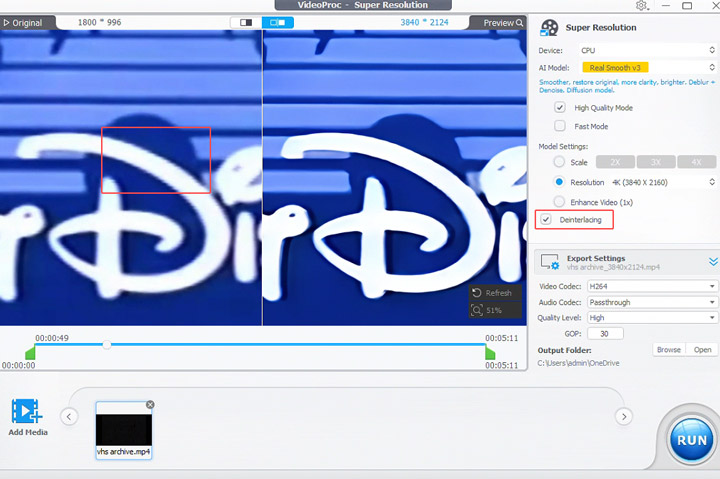
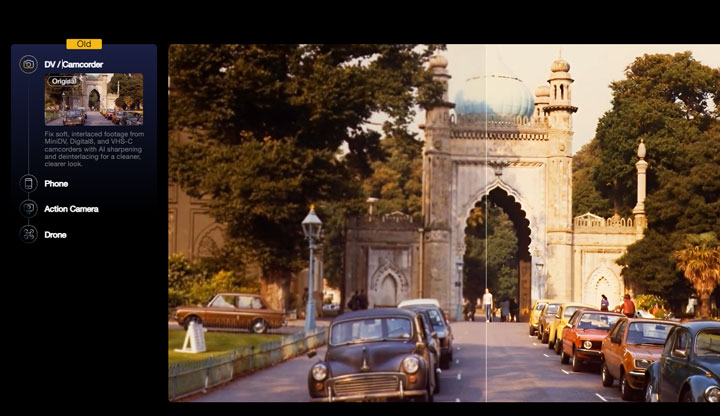
Many videos from the 1990s and early 2000s, like camcorder tapes or broadcast TV, are interlaced. This often results in jagged edges on modern screens. Before applying any AI video restoration, these clips must be properly deinterlaced to smooth the motion. Using the deinterlacing features in tools like VideoProc Converter AI ensures that the restoration models see a clean, progressive frame. Without this step, the AI may misinterpret interlaced lines as actual textures, leading to distracting flickering or "combing" artifacts in the final 4K output.
Compression Artifacts
Compression damage like blocky pixelation and muddy textures forces video restoration software to "hallucinate" or invent missing details. When the AI has to fill in too many blanks, you risk the "uncanny valley" effect, where the video looks sharp but the details no longer perfectly match the original. To get the best results from AI video restoration, you should always avoid compressed files and use the original, high-bitrate capture whenever possible.
8 Best AI Video Restoration Software: In-Depth Reviews
I have benchmarked the following video restoration software based on several key factors, including their ability to reduce noise, recover genuine details without introducing errors, maintain temporal consistency across frames, enhance resolution, and deliver efficient performance in real-world scenarios.
1. Videoproc Converter AI
Price: Free trial. $34.95/year. $54.95/lifetime
Rating: 9.8/10 by Digital Photography School
Best For: A cost-effective and all-in-one restoration of old family media, including grainy-look VHS footage, low-resolution pixelated archive, shaky videos, faded photos, and noisy audio.
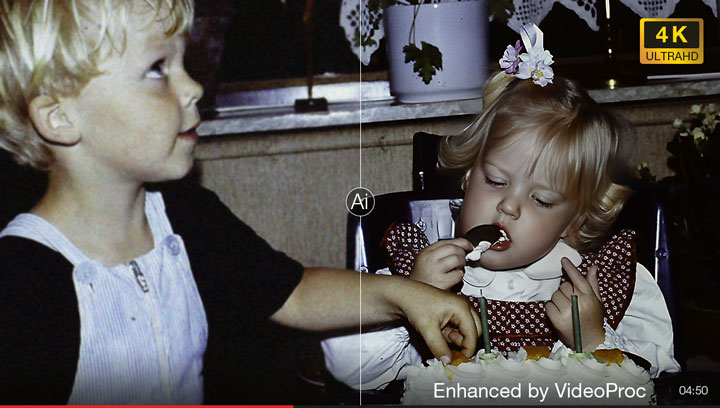
In my testing, VideoProc Converter AI did a solid job cleaning up footage without stripping away authentic texture. Edges sharpened up cleanly, and facial details like eyelashes and skin pores remained natural rather than smoothed over. It can upscale video up to 1080p and 4K. I tried it on several VHS transfers, and the results even at 720p and 1080p were genuinely impressive, restoring real detail rather than just stretching the original frame across a larger screen. It also handled common flaws like heavy analog noise, film grain, and blocky compression artifacts smoothly. It removed the visual clutter without introducing artificial halos or that smudged, over-processed look.
Its video restoration capabilities go well beyond pixel-level clarity improvements. With built-in AI stabilization and frame interpolation, it noticeably reduced shaky camera movements in old handheld clips and smoothed out low-frame-rate footage. This made jittery vintage recordings look much more fluid and comfortable to watch on modern, high-refresh-rate screens. Outside of video restoration work, it also handles photo restoration, allowing you to upscale and colorize faded pictures. It can clean up background hiss in audio tracks as well. Combined with everyday utilities like DVD ripping, format conversion, and online video downloading, it functions as a practical all-round toolkit for managing older family media.

What I Like
- Affordable pricing compared to high-end AI video restoration suites
- Upscales 480p/720p footage to 1080p/4K with natural-looking detail.
- Effectively reduces noise, blur, grain, and compression artifacts while preserving original textures.
- Comprehensive restoration toolkit including de-interlacing, AI stabilization, and frame interpolation.
- Many AI image and audio enhancement, incl. photo restoration, colorization, and audio denoising.
- The fastest tool in my tests, with excellent GPU acceleration.
What to Consider
- Offers fewer manual controls compared to high-end professional editing suites.
- Requires desktop installation, which may be less convenient than browser-based tools, but ensures offline processing and better privacy for personal media.
How's It Performance in Practice
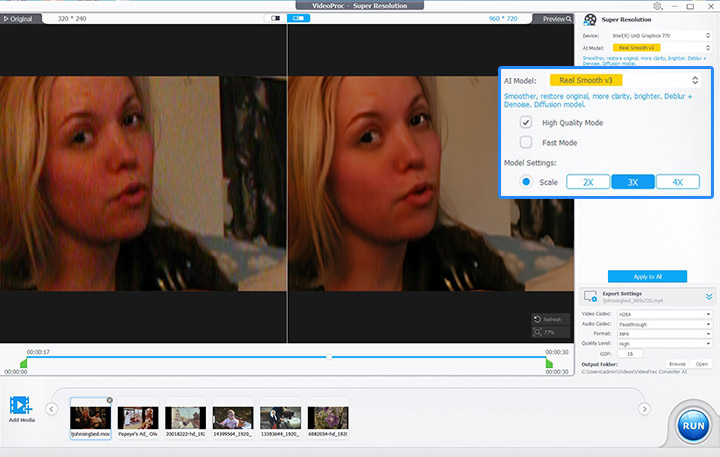
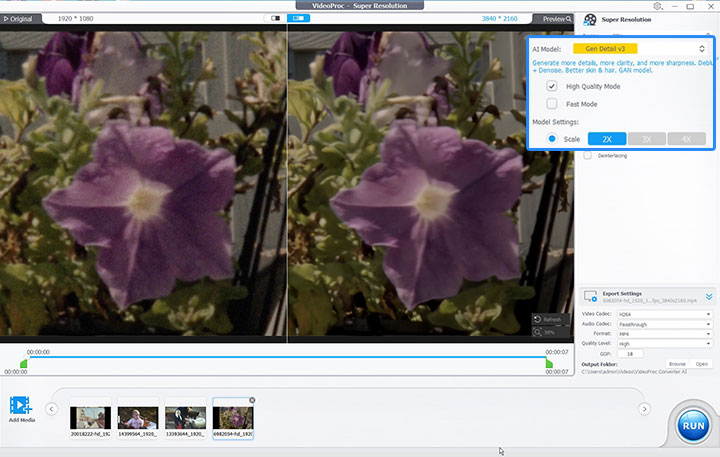
Overall, the video restoration process is straightforward and efficient. Across the various clips I tested, it reliably cleaned up grainy, low-resolution footage into sharp, watchable video. I spent most of my time switching between two specific AI models: Real Smooth v3 and Gen Detail v3. Real Smooth v3 was particularly effective at reducing grain and noise, while Gen Detail v3 excelled at restoring fine details, such as eyelashes and hair, at least in my testing.
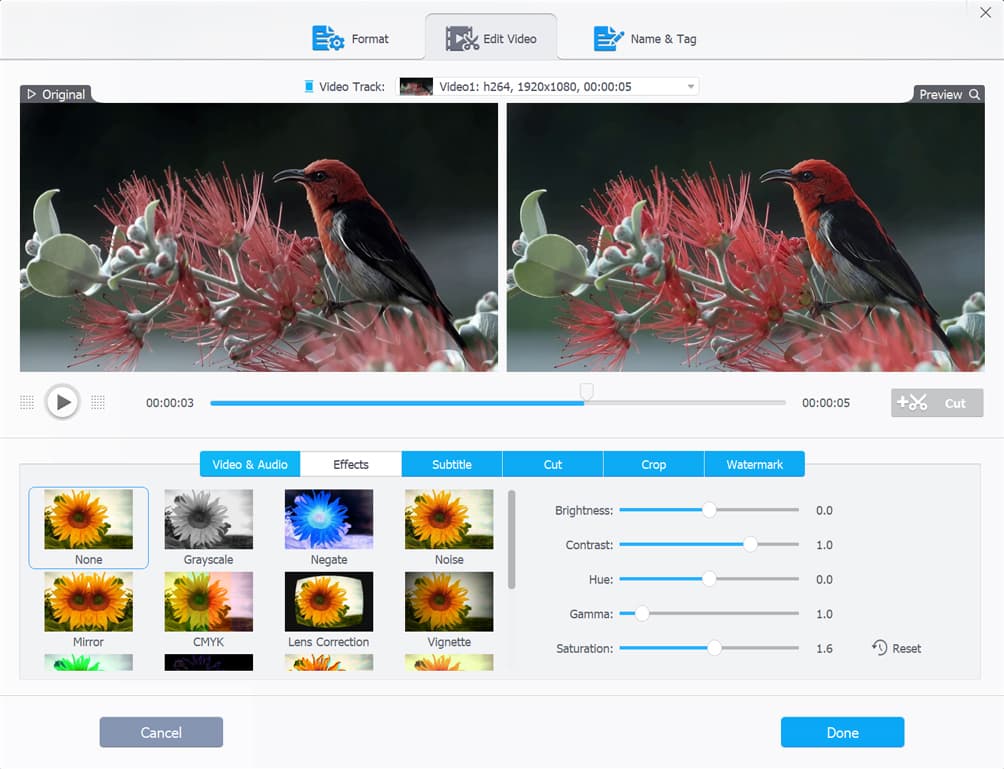
Upscaling 480p and 720p footage to 1080p produced consistently sharp results without that harsh, over-processed look common in common video upscalers. Outputting to 4K also held up nicely, especially when working with cleaner source files closer to 1080p. In addition to clarity improvements, the built-in color adjustment tools came in handy for correcting washed-out, faded footage and bringing back balanced, natural tones.
[Test Old Video 1] Restoration test on the benchmark standard clip
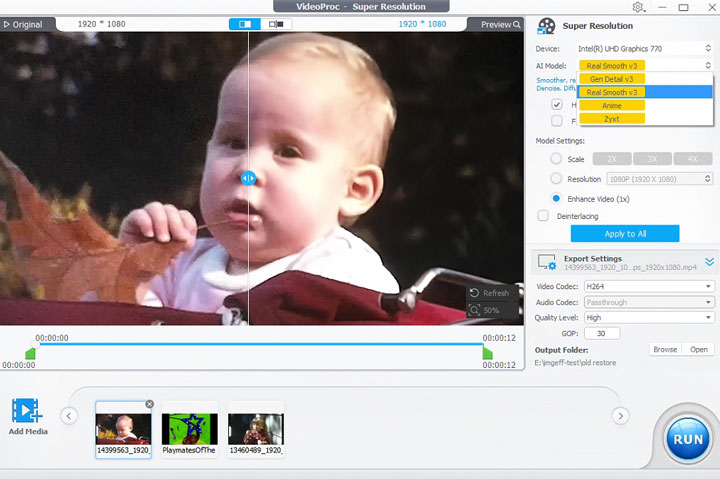
[Test Old Video 2] 320x240p Source Video from archive.org | Real Smooth v3 with 3X upscale
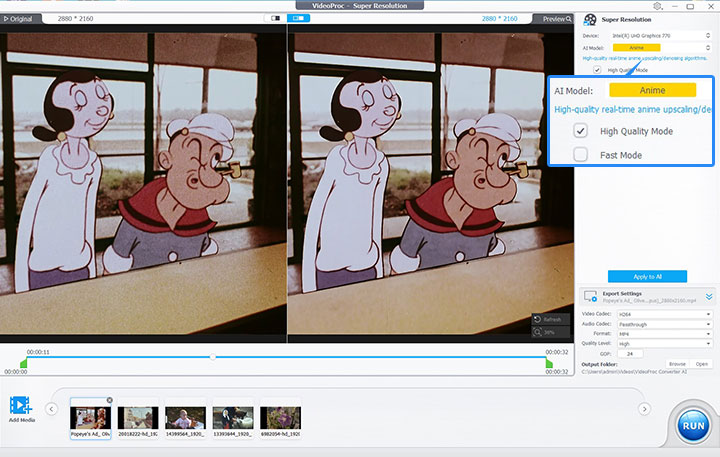
[Test Old Video 3] 2880x2160p Source Video from archive.org. The source video was already upscaled and restored by the original publisher, but still looked noisy and low quality. After restoration with VideoProc, it became crystal clear. | Anime model, 1X upscale
[Test Old Video 4] 1080p Source Video downloaded from Pexels | Real Smooth v3 with 2X upscale
[Test Old Video 5] Enhance the color of the old video to give it a more vivid and vibrant appearance
2. Topaz Video
Price: $299/year (You can also opt for Topaz Studio at $399 per year, which includes Topaz Video, Topaz Photo, and several other applications.)
Rating: 4.6/5 by G2
Best For: High-end AI video restoration with deep model control
In my tests, Topaz Video delivered some of the highest-quality results I've seen for video restoration, but it also required the most time and computing power.
Instead of a single enhancement pipeline, it uses multiple AI models trained for different types of degradation, such as noise, blur, interlacing, and low-resolution compression. This makes a noticeable difference when working with old VHS or DVD footage, where different problems often appear at the same time. What I love most about it is the newer diffusion-based models, such as Starlight Mini, produce a very different look compared to traditional AI video upscalers. Instead of aggressively sharpening edges, the output feels more "reconstructed," with softer and more natural textures. On heavily degraded clips, this reduced the typical over-processed or plastic appearance I've seen in most other video restoration software.
What I Like:
- Starlight Mini can produced the most natural-looking results for restoring the benchmark test clip.
- The Iris model brings very noticeable improvements in facial clarity for home videos.
- Proteus (Manual Control): I spent the most time with this one. The sliders give a lot of control, and small adjustments can significantly change the final look depending on the footage.
- Handles flickering in older analog footage well, especially in backgrounds with banding issues.
What to Consider:
- On my RTX 3060, Starlight Mini was extremely slow. Even short clips often took hours to render.
- It took some trial and error to figure out which model works best for different types of footage.
- Price: At $299, it's clearly aimed at serious users rather than casual restoration.
How's It Practice in Real Performance
When it comes to pure image quality, Topaz Video AI was the most impressive tool I tested. Even its standard Iris model did a great job sharpening soft, low-res footage, bringing out real facial definition instead of smearing skin into a smooth blur. I also liked having direct control over the output. Depending on which model you choose, you get manual sliders to dial in sharpness, de-noise levels, and detail recovery to taste. For really beat-up archives, the Starlight model went a step further, practically rebuilding textures that were barely visible in the original video.
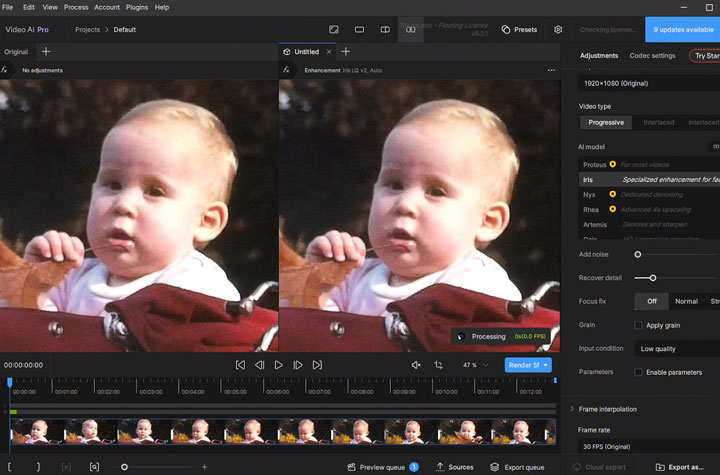
The downsides? It’s extremely slow and demanding on your hardware. Rendering takes serious patience, even on a high-end machine. In my own test, restoring the 12-second benchmark clip with the Iris model took about six minutes. And that adds up quickly with longer footage: a Reddit user reported that a 5-minute 1080p clip took nearly 5 hours to process on an RTX 5080 at higher settings.
[Test Old Video 1] Benchmark clip restored with Topaz Video’s Iris model
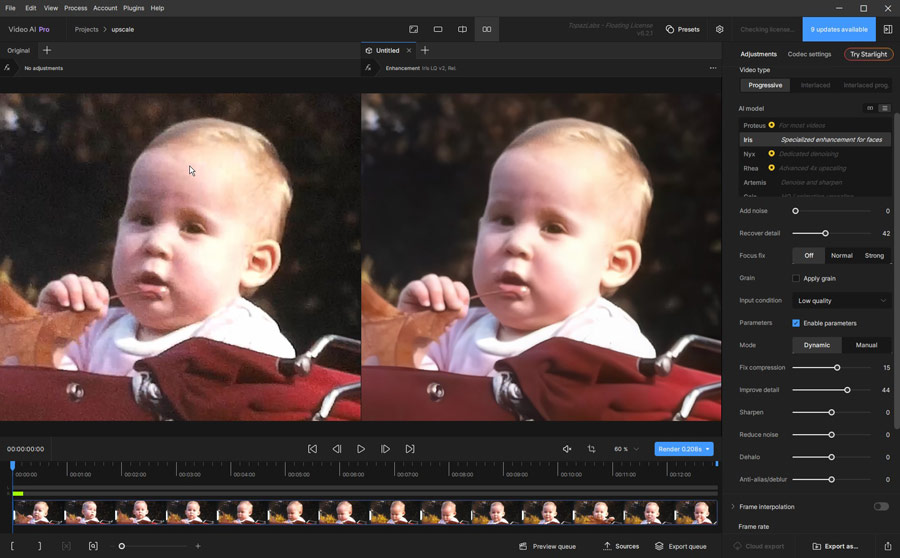
[Test Old Video 2] Restore a 320x240p old video with Topaz Video's Iris
[Test Old Video 3] Restore the same 320x240p old video with Topaz Video's Starlight 2.6
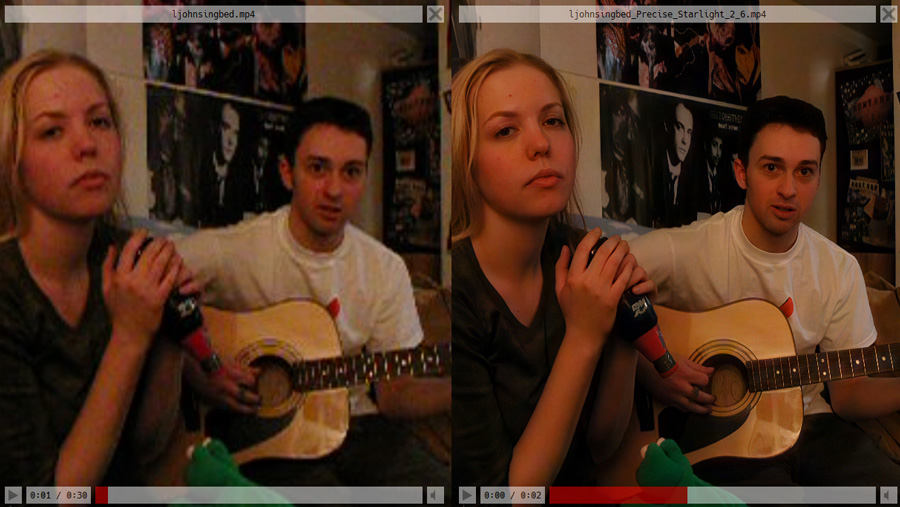
Note: The results from Topaz Starlight 2.6 can be impressive, but once again, it is important to remember that a clearer image does not necessarily mean a more faithful restoration. To show what I mean, I took a high-quality video, deliberately degraded it until it looked blurry, and then restored that degraded version with Topaz Starlight 2.6. As you can see, the restored video looks much clearer. However, when compared with the original high-quality footage, many of the reconstructed details are actually different.
3. Aiarty Video Enhancer
Price: Free trial; $79/year; $165.00/lifetime
Rating: 4.3/5 by G2
Best For: Generative detail recovery and fixing focus issues
Aiarty Video Enhancer stood out in my tests for producing more natural-looking results by rebuilding fine textures in old footage, such as skin detail, hair strands, and fabric patterns. This is powered by diffusion- and GAN-based models that don't just sharpen images, but actually "reconstruct" them.
It can upscale old videos by 200% to 300% while generating remarkably plausible details. In my experience, even at a 200% upscale, the improvement in clarity is massive. One feature I found particularly useful is the Strength slider, which allows you to adjust how aggressively the AI applies restoration. This is key to preventing that "over-processed" AI look and keeping the original film's soul intact. The built-in editing tools, such as color adjustment and trimming, are convenient for quick refinements without switching to other software.
What I Like:
- The "Mo-Detail" model is excellent at adding realistic sharpness to soft or pixelated faces.
- Capable of fixing out-of-focus shots that would otherwise be unusable.
- Simple interface for high-quality results without complications.
- The intensity slider gives you total control over the balance between "restored" and "original."
- It offers a few convenient editing tools like color adjustment and rotation.
What to Consider:
- It does not offer a browser-based option for quick access.
How's It Practice in Real Performance
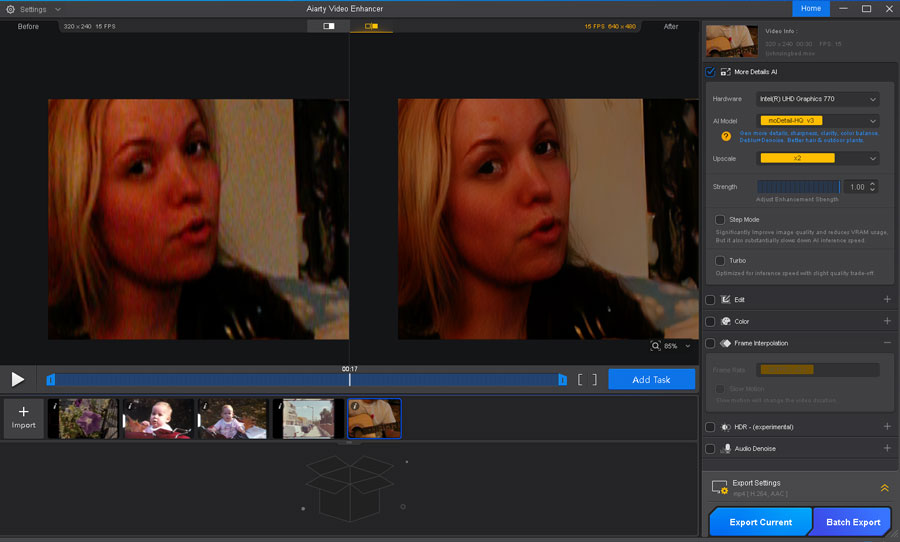
In my hands-on testing, I primarily used the moDetail-HQ v3 and SmoothHQ-v3 models. While moDetail is my go-to for recovering fine details like eyelashes and hair, SmoothHQ is better for cleaning up noise without introducing too much artificial texture. By dialing the Strength slider to around 60%, I was able to turn a blurry 480p portrait into a clear, high-definition clip that looked surprisingly authentic on a large 4K screen.
[Test Old Video 1] Benchmark clip restored with Aiarty Video Enhancer
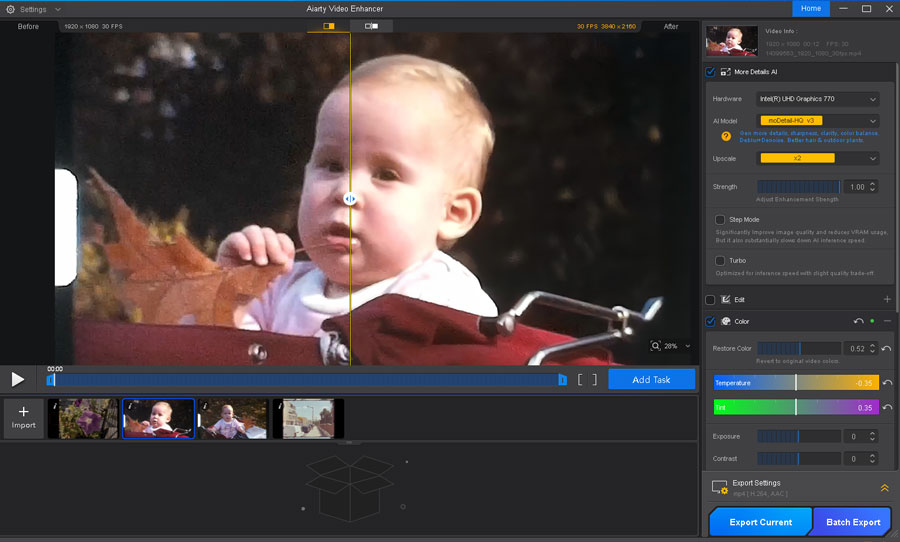
[Test Old Video 2] Restore an low-resolution old video with Aiarty Video Enhancer
4. SEEDVR2
Price: Free.
Rating: 5/5 by Civitai users
Best For: Tech-savvy users seeking the "ceiling" for detail recovery with rock-solid stability without paying a dime.
Developed by ByteDance, SeedVR2 is my favorite free pick for restoring old or low-quality videos. Free aside, its results are so good that it easily outshines many paid old video restoration software alternatives.
The key advantage of this film restoration software is its one-step video diffusion design, which avoids the need for complex multi-stage pipelines and instead handles restoration and enhancement in a single pass. This matters because many diffusion-based video restoration tools struggle with temporal consistency, often showing issues like flickering or subtle background shimmering across frames. In my tests, SeedVR2 handles this noticeably better. The motion feels more stable overall, and fine details tend to stay consistent without drifting or breaking over time.
For my standard test clip, this free old video restoration tool delivered the best results in terms of detail recovery and overall clarity, even outperforming Topaz Video in this case. It was able to recover very fine facial details like eyelashes and skin texture, sometimes reaching a level that feels close to native 4K footage.
However, this is still very much an "enthusiast-level" video restoration tool. It is commonly used through ComfyUI workflows in the open-source community, so setup and usage are not straightforward. You're expected to work with node workflows, model management, and parameter tuning to restore old videos. A decent GPU is also necessary to ensure nothing going wrong.
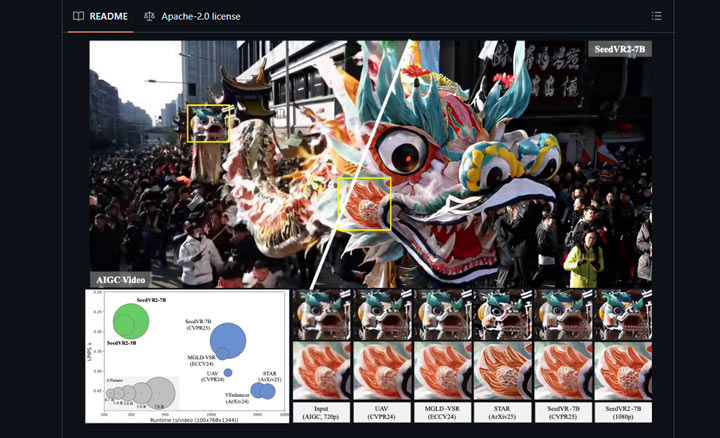
What I Like:
- Produce very realistic and consistent detail when restoring old videos
- Maintains incredible frame-to-frame consistency without the "shimmering" effect
- As an open source model, it doesn't require any payment.
- Also works for upscaling and enhancing photo files.
What to Consider:
- Some users report if your input is too degraded or filled with heavy compression artifacts, SeedVR2 can actually make it look worse by mistaking that noise for detail and amplifying it.
- Not for beginners. It requires setting up a local environment and manually managing models.
- Running the 7B model is demanding for a 16GB GPU, so a powerful machine is needed for freeze-free performance.
How's It Performance in Practice
The test machine I used is fairly solid, but a 16GB GPU still feels a bit limiting when running the 7B model of SeedVR2. The 3B version is noticeably weaker, though the results are still quite impressive overall. In terms of output quality of the benchmark test clip, it gets very close to Topaz Video AI, and on certain clips like the little boy footage, I actually found SeedVR2 recovering slightly more detail.
The main drawback is the setup. Getting everything running takes some effort, since you need to install ComfyUI, download the models, and configure things properly before you can even start testing.
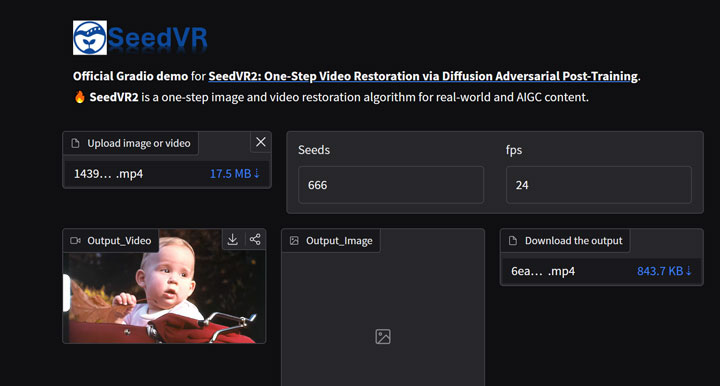
If you just want to try it out first, there's a Hugging Face Space for the 3B version that works surprisingly well. You can upload a clip, see what kind of results you get, and then decide if it's worth putting in the time to set up the full version locally.
5. Avclabs Video Enhancer AI
Price: $299/lifetime
Rating: 4.3/5 by TrustPilot
Best For: Automated portrait refinement and one-click color restoration for large batches of video.
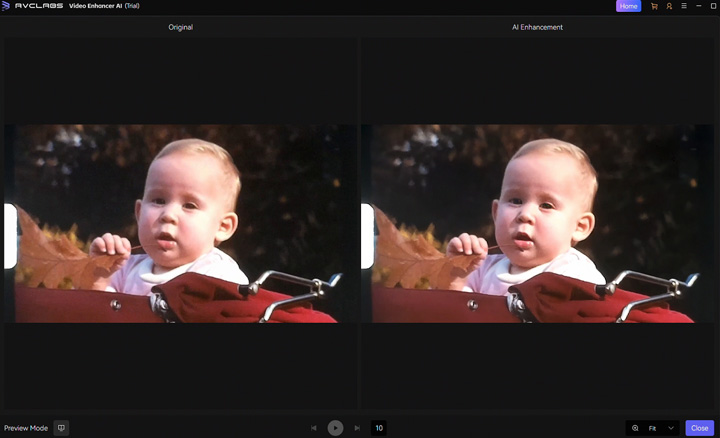
AVCLabs Video Enhancer AI felt like the "portrait specialist" in my testing. It focuses heavily on facial reconstruction and skin smoothing, which makes it a strong fit for things like wedding videos or family footage where people are the main subject.
I like how it handled color. A lot of my old 8mm and VHS clips had that typical yellow or bluish tint from aging, and AVCLabs did a solid job correcting it automatically during the upscale. It basically bundles denoising, upscaling, and color correction into a single step, which saves a lot of time if you're working through a large batch of clips.
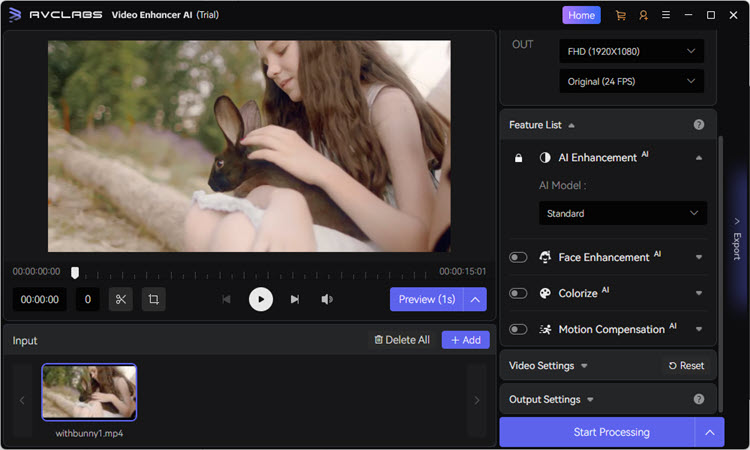
What I Like
- The Face AI model does a great job recovering facial details from blurry, low-resolution footage.
- Color correction works surprisingly well and can fix aged film tones without manual tweaking.
- The interface is clean and easy to navigate, especially when handling batch processing.
- The final output looks polished and ready to share, particularly for people-focused videos.
- The workflow is straightforward, especially for converting SD home videos to 1080p or 4K.
What to Consider
- Facial enhancement can sometimes go a bit too far, giving skin a slightly over-smoothed look.
- Less flexible for fine-tuned, manual adjustments.
How's It Performance in Practice
I really like the UI design of this old video restoration software. It's a great example of how simplicity and a wide range of features can coexist in one program. I tested its Face AI model on the standard benchmark clip, then applied some quick color adjustments, and the results were quite impressive. That said, I also tried it on some other older footage, including wedding recordings and digitized 8mm landscape VHS clips. In some cases, I didn't see much improvement, even after experimenting with different restoration models provided by this video restoration tool.
[Test Old Video 1] Benchmark clip restored with Avclabs Video Enhancer
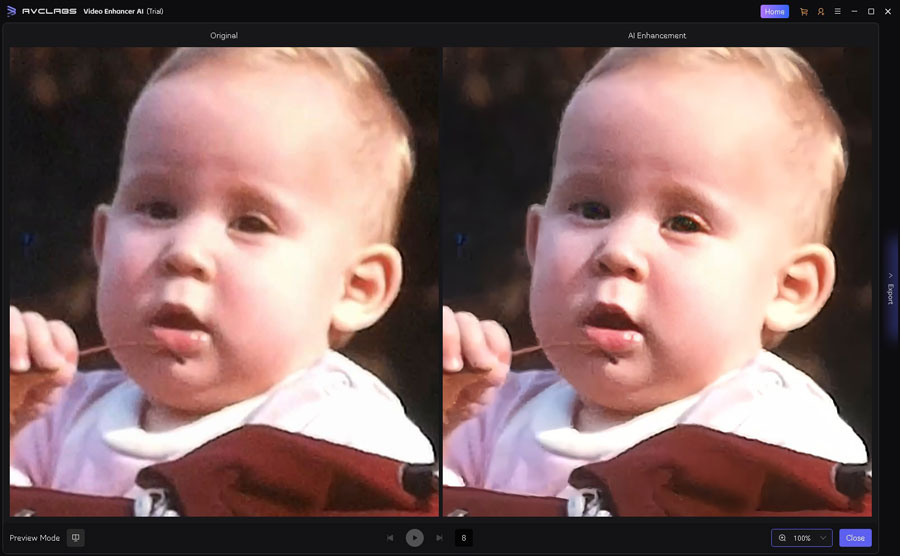
[Test Old Video 2] Restore an low-resolution old video with Avclabs Video Enhancer
6. Neat Video
Price: Starts at $67.90, with output resolution limited to 1080p
Rating: 3.7/5 on Trustpilot
Best For: Basic and reliable noise reduction through a plugin workflow
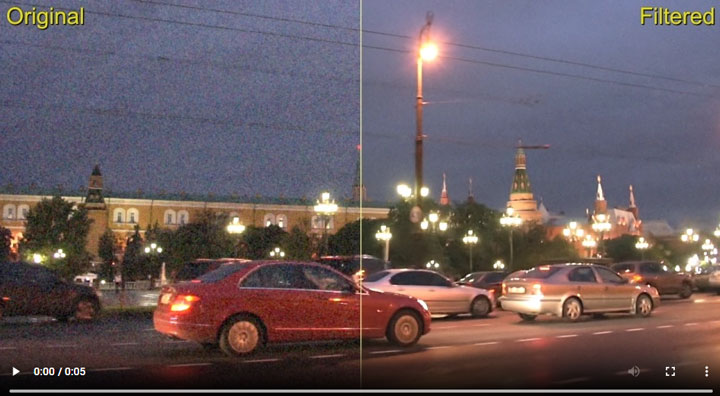
Neat Video isn't standalone software. It's a specialized noise reduction plugin that works inside editors like Premiere Pro and DaVinci Resolve. By creating a noise profile tailored to your camera and ISO, it mathematically cleans footage before any AI upscaling. I included it here because many old videos, including home recordings or ripped DVDs, often suffer from noise due to lighting conditions or capture device limitations. Neat Video is especially useful when editing in a video editor and you need to quickly reduce noise before further processing.
What I Like:
- Industry-leading noise reduction that preserves genuine detail.
- Integrates directly into your existing editing timeline.
- Essential for cleaning "dirty" footage before AI upscaling.
What to Consider:
- Doesn't upscale resolution; strictly for noise removal.
- Interface can be complex for beginners.
- Can significantly increase render times in your editor.
How's It Performance in Practice:
There's not much to cover about Neat Video. Its impact is limited to videos that are already of decent quality, where the main issue is graininess. After all, this old video restoration software is designed specifically for reducing grain, not for full-scale restoration.
7. FreeAIUpscaler
Price: Free
Best For: Quick fixes on pixelated or low-quality clips, especially if you're not too picky about quality.
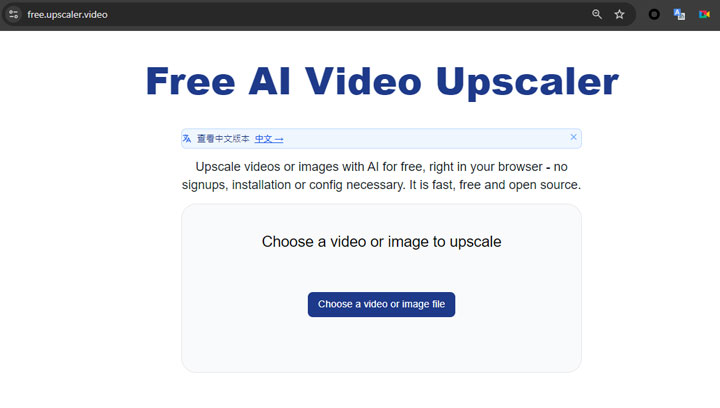
Free AI Video Upscaler is probably one of the most usable free online video restoration tools I've tried. A lot of "free" tools ask you to sign up first, and after you upload your video and start processing, they eventually hit you with watermarks or other limits. This one is actually open-source, with no account required, no usage limits, and no hidden restrictions. It runs directly in your browser using WebGPU, so everything stays on your local machine, which is a big plus for privacy.
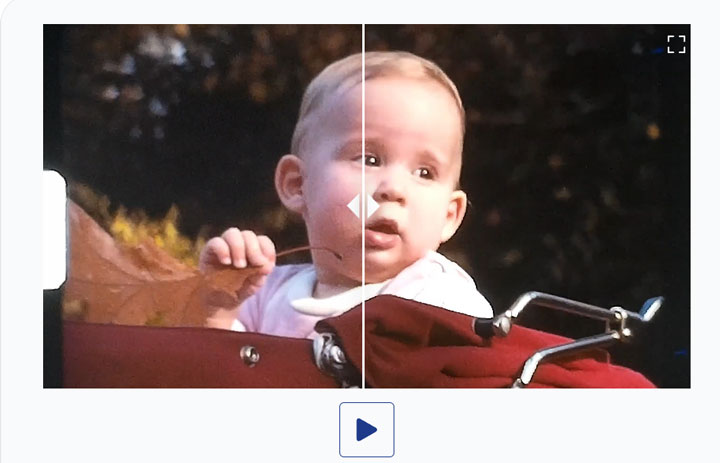
However, the trade-off is that your GPU has to handle all the heavy lifting. In my tests, it slowed my system down quite a bit, so it's not really practical to use it while doing other things on your computer. Because of that, I see it more as a quick fix tool when I don't want to install heavy desktop old video restoration software just for a short clip. As for the output quality, it does improve clarity, but it also tends to over-smooth the image. The result is a "clean but soft" look that can feel a bit like a heavy beauty filter.
What I Like
- No watermarks, no accounts, and no hidden costs.
- Everything runs locally in your browser via WebGPU, so nothing gets uploaded.
- Setup is minimal. If your browser supports it, you can just start using it.
What to Consider
- Slows down your system during processing.
- Can over-smooth details, resulting in a loss of natural film texture.
How It Performed in Practice
I like how simple it is to use. But I do care quite a lot about quality, so I probably wouldn't use it for something like a precious 8mm film scan where I want to keep the original texture. From my tests, the output looks clean but also a bit soft. Unlike VideoProc or Topaz, which try to bring back fine details like eyelashes or skin texture, this online video restoration tool mostly just smooths the noise away. That said, if you're not too strict about quality and just want to make old videos watchable again, it's still worth trying.
[Test Old Video 1] Benchmark clip restored with FreeAIUpscaler
8. Wink Video Enhancer
Price: Approximately $49.99 to $59.99 per year for the VIP plan
Rating: 4.5 on the App Store and 4.5 out of 5 on Google Play
Best For: Quick and simple enhancement of old or low quality videos
Wink Video Enhancer is another video restoration tool I think is worth including in this list. It's available on desktop and mobile as well, but I focused mainly on the online version, as it's the one most commonly used. It can improve the clarity and resolution of older or low-quality footage, with common enhancement features like noise reduction, stabilization, motion blur correction, and upscaling up to 4K, making videos look cleaner and sharper with minimal effort.
One of its main advantages is batch processing, which is useful if you need to restore multiple clips at once. It also offers different enhancement modes such as HD, UHD, Portrait, and AI restoration, along with preset scenarios like concerts, gaming, product shots, and animation, which help optimize results for different types of footage. Overall, it makes it fairly easy to get old videos to the best quality it can achieve without much manual adjustment. Compared to FreeAIUpscaler, which I mentioned earlier, Wink delivers noticeably better quality and offers more features, but it's pricy.
What I Like:
- Very easy to use, even for beginners, with a straightforward interface.
- In practice, it does a solid job improving clarity, reducing noise, and stabilizing footage.
- One-click upscaling to 4K makes it convenient for quick edits.
- Work across web, desktop, and mobile, so it's fairly flexible depending on your setup.
What I Dislike:
- Fine details can sometimes look a bit over-smoothed in the final output.
- The free and basic versions limit access to many more advanced features.
- It's not as strong as professional tools when restoring severely damaged or old footage.
How's It Performance in Practice
Its UI gives the impression of a fairly powerful hub for AI-related tools. I tested both the Quality Restoration and AI Repair features. The Quality Restoration tool is quite basic. It processes videos in just a few seconds, but the output is heavily pixelated and not very useful in practice.
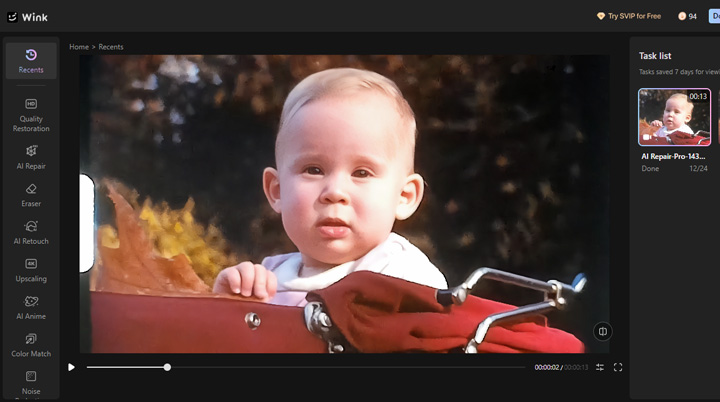
AI Repair, on the other hand, is where the real improvement of old video quality happens. During processing, it shows a quality score, analyzes the issues in the video, and provides an estimated time for completion, which makes the workflow feel more guided. The final result looks noticeably more natural and much clearer than the original, without overdoing the enhancement. One limitation is that the web UI doesn't support side-by-side comparison. However, even from the preview frames, the difference is still quite visible.
How to Get the Best Video Restoration Results
Getting clean, professional results from video restoration software takes more than just dropping a file in and clicking export. To save hours of wasted render time and avoid artificial-looking artifacts, here are a few practical workflow habits that make a massive difference.
Always Test Short Preview Clips First
Never render an entire two-hour video on your first try. Cut out a 5 to 10 second sample that includes challenging elements, such as a close-up face, fast motion, or dim indoor lighting. Run your test export on this short section first to make sure the AI is not warping facial features or creating strange shimmering around moving objects.
Balance Noise Removal with Authentic Texture
When working with video restoration software, the goal is not always to erase every speck of noise. Going too heavy on noise suppression can easily turn organic film grain into a blurry plastic texture. When selecting your AI model or restoration preset, prioritize options that focus on detail recovery and edge sharpness over pure denoising. Leaving a small amount of fine texture helps the video retain its original character and prevents that overly processed look.
Deinterlace and Color Correct
AI models work much better when they are fed a clean base image. If you are working with old camcorder footage or broadcast clips, make sure to deinterlace the video into progressive frames first. Taking a minute to balance brightness and contrast before feeding the file into your video restoration software helps the neural networks detect edges and textures accurately rather than mistaking shadow noise for detail.
Hardware Recommendations for AI Old Video Restoration Software
You do not need an enterprise-grade workstation to run video restoration software, but hardware demands jump quickly depending on your export resolution and the complexity of the AI video restoration software and AI models you pick. Here is what actually matters inside your PC.
Graphics Card (GPU): Prioritize VRAM
Your GPU does almost all the heavy lifting during AI video restoration. A solid mid-range card like an RTX 3060 or RTX 4060 has plenty of muscle for standard 1080p upscaling and daily noise cleanup. The real bottleneck is VRAM. When you push for 4K exports or switch to heavy generative reconstruction models, memory usage spikes fast. Many newer diffusion-based models demand 12GB to 16GB of VRAM just to run locally. While an 8GB card works fine for lightweight upscalers, upgrading to 12GB or more prevents out-of-memory crashes and severe rendering slowdowns on complex projects.
Processor (CPU): 6 to 8 Cores Is Plenty
The CPU is less critical for the actual AI processing, but it still plays an important role in video encoding, decoding, and overall system responsiveness during export. In most cases, a modern mid-range processor such as a 6-core or 8-core CPU (for example, Intel i5 / Ryzen 5 level or above) is sufficient for smooth workflows. However, with very large 4K projects or heavy batch exports, a weaker CPU can still become a bottleneck during rendering and final output.
Storage: An SSD Is Ideal
You do not strictly need an SSD to restore your videos, but having one makes the entire process much smoother. Rendering high-resolution footage generates large temporary frame caches and big video files. A fast NVMe or SATA SSD keeps loading, caching, and exporting snappy, while a traditional mechanical hard drive will still get the job done just fine, only with longer read and write times.
The Science Behind AI Video Restoration: How It Actually Works
Why can modern AI video restoration make an old video look dramatically clearer, while some results still appear overly smooth or even slightly different from the original? It mainly comes down to how the software handles damaged information, uses details from nearby frames, and reconstructs what is missing.
1. Degradation Detection and Cleanup
Old videos rarely suffer from just one problem. A single clip may contain blur, noise, compression artifacts, fading, scratches, and lost detail at the same time. Modern restoration models are increasingly designed to recognize these different types of degradation and adjust the restoration accordingly, rather than applying the same processing to every frame.
This matters because the software first needs to determine what is actual image detail and what is noise or damage. Recent research on old-film restoration has specifically explored degradation-aware restoration models designed to handle the complex and mixed defects commonly found in older footage.
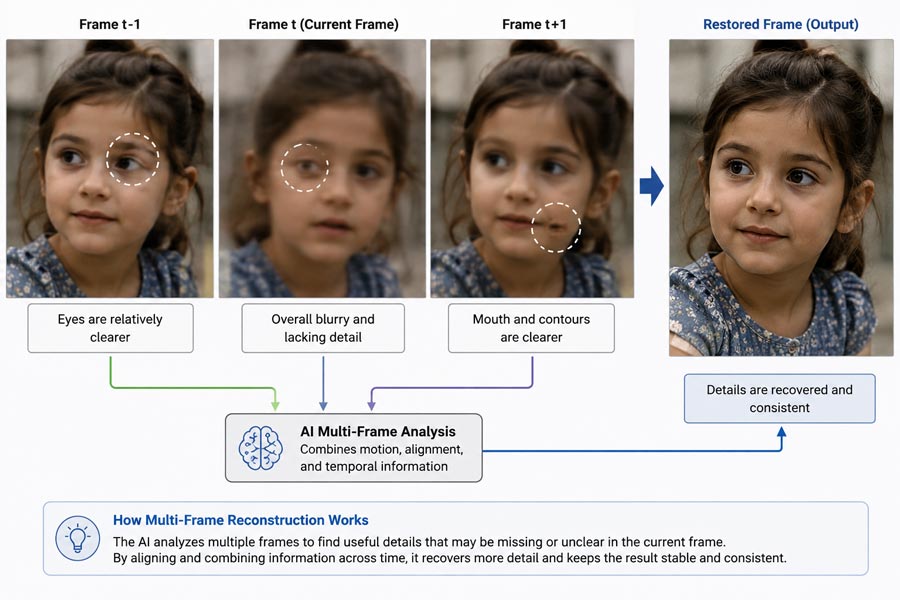
2. Multi-Frame Reconstruction
Video restoration also has an advantage that single-image enhancement does not: information from neighboring frames.
A face that looks blurry in one frame may contain slightly more usable detail in the frames before or after it. Modern AI models can analyze these frames together, using motion and visual relationships across time to produce a cleaner and more stable result.
This process also helps keep faces, textures, and edges consistent from frame to frame. Without that consistency, restored footage can suffer from flickering, shimmering textures, or details that seem to change while the video is playing. Research into temporal-consistent video super-resolution has shown how modern generative models can combine information across frames while improving both detail and visual stability.
3. Generative Detail Reconstruction
When the original video is severely degraded, there may not be enough reliable information left to recover every detail directly from the source. Generative restoration tackles this by combining the visual evidence that remains with patterns the model learned during training. Rather than simply sharpening existing pixels, it can infer plausible high-frequency details such as skin texture, individual strands of hair, fabric patterns, and cleaner facial features. The model may also use information from neighboring frames to keep those reconstructed details more stable over time.
The most advanced approaches today increasingly use technologies such as video diffusion models, Diffusion Transformers (DiTs), pretrained generative priors, GAN-based perceptual reconstruction, and spatiotemporal feature alignment. Recent systems such as SeedVR and STCDiT, for example, use diffusion-based architectures to generate richer detail while also trying to preserve structure and temporal consistency across frames. GAN-based methods such as VideoGigaGAN remain relevant for producing sharp, detail-rich results, while newer diffusion systems are pushing further toward a better balance between perceptual quality and fidelity to the source.
FAQs
1. What is the best way to restore old home videos in 2026?
The most reliable approach is to first digitize your VHS or 8mm tapes at the highest possible bitrate to preserve as much original information as possible. Then, you can use AI old video restoration software like VideoProc Converter AI to handle de-interlacing, resolution upscaling, and artifact removal such as noise and grain.
2. Can AI really fix blurry old videos?
Yes, but with limits. Modern AI video restoration software can "reconstruct" lost details based on millions of hours of trained HD footage. Tools like VideoProc Converter AI or SeedVR2 are particularly good at this, but remember that the original video quality still sets the "ceiling" for the final result.
3. Is free AI video restoration software worth it?
In my view, free AI old video restoration software is absolutely worth trying. Open-source tools like SeedVR2, Video2X, and similar projects can sometimes deliver results that are comparable to or even better than some paid tools, especially when properly configured. They are also highly flexible and customizable, but the trade-off is that they require more technical knowledge and stronger hardware to get good results. Online free video restoration tools are usually more limited in quality and control, but they can still be suitable for users who only need quick or low-demand enhancements.