
 New AI features are available
Most 480p videos look terrible on today's monitors and 4K TVs, whether it's an early 2000s family camcorder tape or a classic DVD rip. Instead of a crisp image, you get a blurry, pixelated mess that completely pulls you out of the moment.
Simply stretching a standard definition (SD) image across millions of extra pixels often only highlights the artifacts and blurs the edges. Upscaling to 1080p (Full HD) is the best way to rescue your older media. While you can't magically pull missing pixels out of thin air, modern software can get incredibly close to true HD.
In this guide, we will show you exactly how to upscale 480p footage to 1080p using several very different tools.
Testing Methodology & Hardware
Before we dive into the tools, we need to set the stage. Comparing a simple, one-click AI app to a massive timeline editor isn't exactly fair when it comes to manual setup time. Because of that, our performance test strictly tracks the actual render and export time.
To keep things realistic and relatable, we ran every test on a standard mid-range desktop rig:
- OS: Windows 10
- CPU: AMD Ryzen 5 5600X 6-Core (~3.7GHz)
- GPU: AMD Radeon RX 6700 XT (12GB Dedicated VRAM)
For the test footage, we used a 15-second clip from a 1991 video. It is an MP4 file (AVC codec) sitting at an awkward 636x480 resolution and 23.976 FPS. The classic video grain and compression make this the absolute perfect stress test for these upscaling tools.
Quick Comparison
Here is a quick breakdown of how these tools stack up against each other. We tracked the actual processing time for our 15-second test clip so you can see the real-world hardware demands.
Tool |
Best For |
Workflow Friction |
Upscaling Method |
Render Time |
|---|---|---|---|---|
Topaz Express |
Cloud-based AI quality |
Low (Drag & Drop) |
AI Pixel Generation |
49s |
VideoProc Converter AI |
Everyday local AI upscaling |
Low (1-Click) |
AI Pixel Generation |
54s |
HandBrake |
Free resizing and deinterlacing |
Medium |
Basic Stretching |
13s |
Premiere Pro |
Existing edit workflows |
High (Manual) |
Advanced Interpolation |
11s |
1. Topaz Express Video Upscale
Topaz is the undisputed heavyweight champion of AI video enhancement, but the desktop software demands a massive graphics card. The cloud-based Express version gives you browser access to Topaz's heavy-hitting AI models, like Artemis and Iris.
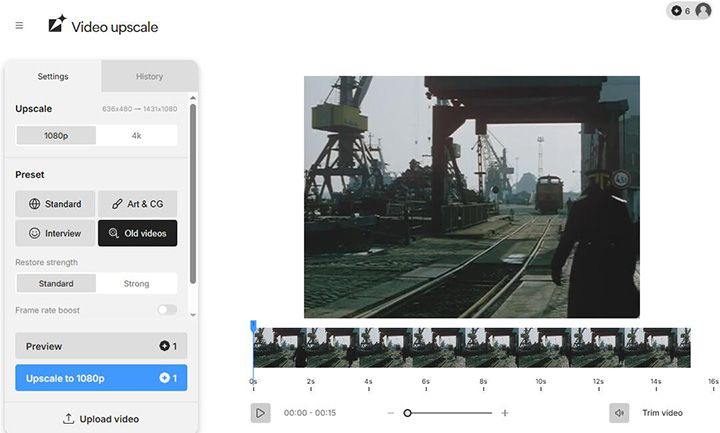
So I uploaded a test clip and selected the "Old Videos" preset, 1080p output, and "Standard" restore strength. Although Topaz does not explicitly list the model name on the page, the naming of the output file suggests that it is likely the Artemis model.
Here's how to convert 480p to 1080p online with Topaz Express.
- Upload your 480p file to the Topaz web interface.
- Set your output resolution strictly to 1080p (FHD).
- Choose a preset and set either Restore strength or Relative sharpen accordingly.
- Click Upscale to send it to the cloud queue, then hit Download when the render finishes.
Pros:
- Recovers realistic facial details and textures instead of just applying a cheap sharpening filter.
- Offloads the massive hardware rendering workload to cloud servers.
- Aggressively removes the blocky compression artifacts common in old 480p files.
Cons:
- You are completely at the mercy of your internet upload speed.
- Cloud server queues can slow down your processing time during peak hours.
- Cloud credits or subscription pricing models can add up quickly for larger projects.
Best for: Users with low-end laptops who need studio-grade facial and texture recovery without frying their hardware.
2. VideoProc Converter AI
VideoProc Converter AI hits the perfect sweet spot for upscaling 480p videos locally on your PC. It requires no internet connection and has lower system requirements than similar AI tools.
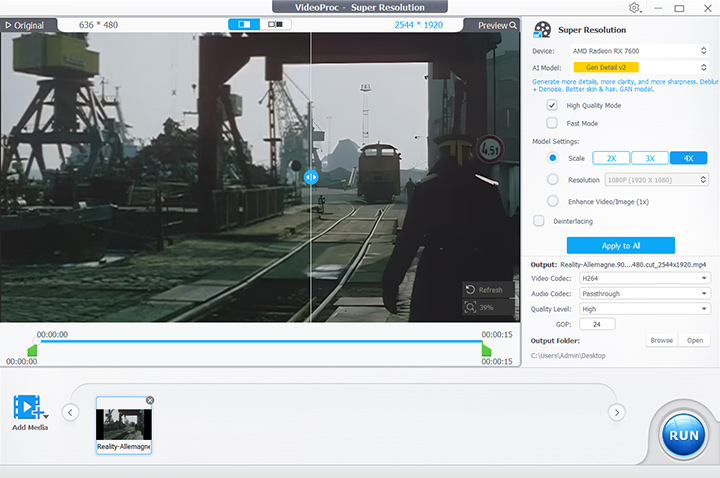
Each of its AI Super Resolution models constitutes an automated 4-in-1 processing: denoising, deblurring, detail restoration, and resolution enhancement. The Gen Detail model is specifically trained to rebuild fine textures like skin and hair.
The program has a Deinterlacing option. If your 480p file is an old DVD rip or a camcorder tape, you can remove those horizontal scan lines when upscaling. With its hardware acceleration, you get industry-leading upscaling quality without turning your computer into a space heater.

Follow the steps below to upscale 480p to 1080p with AI in VideoProc Converter AI.
- Open VideoProc Converter AI and click the Super Resolution icon on the main interface.
- Drag and drop your 480p video directly into the working area.
- Choose your AI model from the right-hand panel. Gen Detail is the most recommended.
- Set the Resolution to 1080p.
- Click the RUN button to start upscaling.
Pros:
- Supports batch upscaling multiple videos at one time.
- Offers a Deinterlacing option for DVD rips or camcorder tapes.
- Includes various AI models so you can choose based on the types of your footage.
- Uses local GPU acceleration for faster processing than relying purely on CPU power.
- Avoids monthly subscriptions or cloud credit systems by offering a straightforward, one-time payment option.
Cons:
- Still requires a moderately capable modern graphics card to achieve the fastest rendering speeds.
- Does not offer cloud processing, so the rendering workload is entirely placed on your local machine.
Best for: Everyday users and content creators who want batch, high-quality AI upscaling directly on their PC without paying for expensive subscriptions or dealing with complex professional editing timelines.
3. HandBrake
HandBrake is the video converter of choice for many people. It's open-source and completely free, runs on almost any hardware. Of course, during the conversion process, you can set the output resolution to upscale your video. In addition, HandBrake has Deinterlacing options like Deinterlace and Decomb.
But I'll be honest, HandBrake does not have magical AI to rebuild missing textures. It uses traditional mathematical scaling to stretch your 480p video to fit a 1080p frame. It works fine when the quality gap is small, but when the gap is significant, such as from 1080p to 4K, you'll see artifacts.
Here's how to upscale 480p to 1080p with HandBrake.
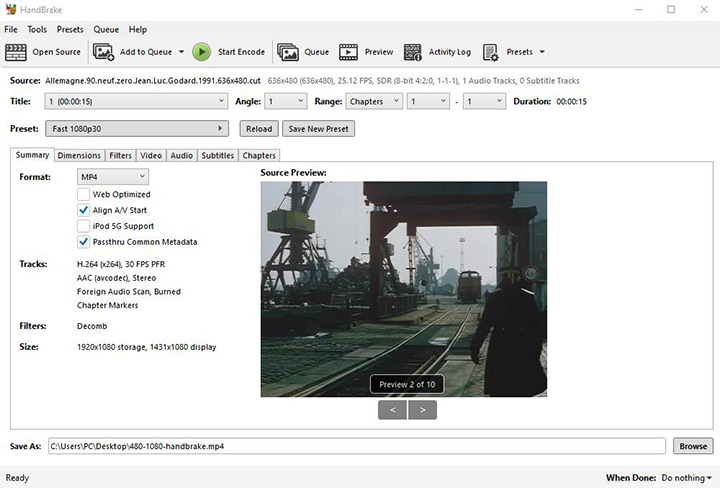
- Open HandBrake and drag your 480p video into the main window.
- Select a starting preset from the right-hand menu, like Fast 1080p30.
- Navigate to the Dimensions tab. Set the Resolution Limit to 1080p HD and ensure the width reads 1920 and the height reads 1080.
- Click over to the Filters tab. If your video has horizontal scan lines, set Deinterlace to Yadif or turn on Decomb.
- Choose your output destination at the bottom, then click the green Start Encode button at the top of the interface.
Pros:
- Completely free and open-source with absolutely no watermarks or locked features.
- The built-in deinterlacing filters are ideal for rescuing old camcorder and DVD footage.
- Incredibly lightweight and stable, even on laptops that are five or ten years old.
Cons:
- Non-AI results may be softer than those from AI upscaling software.
- The interface is dense and can easily overwhelm beginners with confusing settings.
- Inevitable re-encoding, high CPU usage, MP4, WebM, or MKV outputs only.
Best for: Users on a strict zero-dollar budget who need to resize and clean up interlaced DVD rips or old home videos without straining an older computer.
4. Premiere Pro
For those currently working on 1080p projects, your existing video editing software, such as Premiere Pro, is also capable of upscaling videos to 1080p. Simply stretching the footage to fit the screen can result in a jarring, pixelated drop in quality.
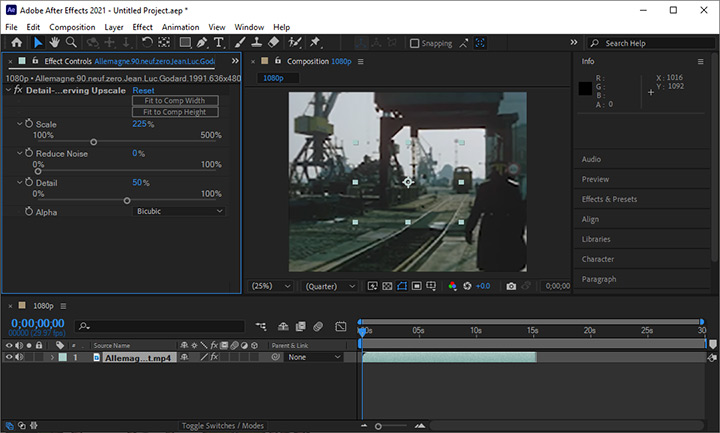
However, by using Adobe's Dynamic Link, you can send that clip straight into After Effects to use the Detail-preserving Upscale effect. This isn't a true AI upscaler, but it is a highly advanced form of interpolation. It analyzes the contrast in the footage to keep hard edges sharp during scaling, preventing the classic muddy look you get from simple "Set to Frame Size."
Here's how to upscale 480p to 1080p using Premiere Pro and After Effects.
- Drop your 480p clip onto a standard 1080p timeline inside Premiere Pro.
- Right-click the clip and select Replace with After Effects Composition to open the dynamic link.
- In After Effects, go to the Effects & Presets > Distort > Detail-preserving Upscale.
- Drag the effect onto your footage.
- Click Fit to Comp Width in the Effect Controls panel.
- Tweak the Detail percentage to sharpen edges, adjust the Reduce Noise slider to smooth out any artifacts, then simply hit Save.
- When you jump back to Premiere Pro, the upscaled clip will automatically update on your timeline.
Pros:
- Significantly outperforms Premiere Pro’s default "Scale to Frame Size" option.
- Offers precise, manual control over edge sharpness and noise reduction on a clip-by-clip basis.
- Keeps you entirely inside your existing professional editing workflow without needing third-party standalone apps.
Cons:
- Does not use AI to generate or rebuild missing textures, such as faces or text.
- Running both Premiere Pro and After Effects simultaneously is incredibly heavy on your RAM and CPU.
- Highly tedious and manual if you need to upscale dozens of separate video files.
Best for: Professional editors who are already building a 1080p project and need to seamlessly integrate a low-resolution 480p archival clip into their timeline.
Traditional Upscaling vs AI Video Enhancement
Let's clear up a common misconception before you start rendering. Simply stretching a 480p video to fit a 1080p screen is not the same thing as enhancing it.
Traditional upscaling uses basic mathematical formulas (like bilinear or bicubic interpolation) to guess what the missing pixels should look like. It essentially duplicates the existing pixels, stretches them out, and blurs the edges so the image doesn't look like a blocky, retro video game. The result is almost always a soft, muddy, and fuzzy video. Nevertheless, since it does not involve more complex computations, the processing speed may be faster.

AI video enhancement, on the other hand, doesn't just stretch the image. It uses neural networks that have been trained on millions of high-resolution videos. When the AI looks at a blurry 480p face, it actually recognizes what eyes, hair, and skin textures should look like, and it mathematically generates entirely new pixels to rebuild those details. That is exactly why AI tools look incredibly sharp compared to standard resizing methods.
Conclusion
So, that's all about upscale 480p to 1080p. You only need to match the right software to your specific hardware and your actual video source.
If you want the absolute highest AI quality without melting your older laptop, use the cloud-based Topaz Express. If you want a fast, stable tool that runs locally on your PC for everyday upscaling, VideoProc Converter AI is the best balanced option.
For professional editors who are already deep into a timeline, use Adobe's Dynamic Link to After Effects to keep your workflow completely seamless. Finally, if you are on a strict zero-dollar budget and only want an incremental increase in resolution, HandBrake is still the undisputed champion.




