
 VideoProc Converter AI
 New AI features are available




 Listed in
 TensorPix has changed significantly since I first tested it. What started as a browser-based AI video and image enhancer has grown into a broader AI media platform, with tools for image and video generation, social media video creation, real estate marketing, and more.
In this updated TensorPix review, I'll explore what the platform offers in 2026, how its pricing works, how its enhancement tools performed in my earlier tests, and whether it is still worth using—especially compared with desktop alternatives like VideoProc Converter AI.
What Exactly is TensorPix
TensorPix is an online platform that uses AI to quickly enhance your videos and photos. Accessed directly in your web browser, it requires no software downloads and is designed for ease of use. Whether you're improving social media content or restoring old videos, TensorPix offers AI tools for video upscaling to near-4K, stabilization, frame rate boosting, and color restoration. For images, it provides AI-powered sharpening, noise reduction, and underwater color correction. Additional features include AI image generation and video compression. TensorPix is designed to be a fast, user-friendly, and accessible AI solution for everyday video and image enhancement.


In my testing, TensorPix's video enhancement proved superior to its image capabilities, but its overall results were often only adequate. A key issue is its tendency to introduce artifacts like oversharpening and smearing. If you need to truly elevate your images and videos, preserving and improving natural details without artifacts, the best alternative is VideoProc Converter AI.
Key Features of TensorPix
TensorPix offers several AI-driven tools to enhance your visuals. Here's a breakdown of the main features:
AI Video Enhancer
Video enhancement is still TensorPix's main feature. You can use it to upscale footage to 4K, remove noise, stabilize shaky clips, increase the frame rate, create slow motion, and restore old or blurry videos. Everything is processed online, so you do not need a powerful computer or dedicated GPU. Just upload the video, choose the filters, and wait for TensorPix to finish. However, that convenience comes with an obvious downside: large videos can take time to upload, and the whole process depends on a stable internet connection. If you frequently work with long 4K footage or private files, a desktop tool may be more practical.
AI Image Enhancer
TensorPix's Image Enhancer can upscale photos, reduce noise, sharpen blurry areas, and clean up compression artifacts. In my earlier test, it was less consistent than the video enhancer. Images often looked sharper, but details such as hair, feathers, and skin could become overly smooth or artificial. Since TensorPix has updated its tools since then, I recommend testing the latest version on a few images before processing a large batch.
TensorShots
TensorShots is TensorPix's tool for creating complete social media videos from product photos, clips, scripts, and brand assets. It can generate a storyboard, organize individual shots, add captions and voiceover, and create missing images or video clips with AI. You can then edit each scene before exporting the final video. It is especially useful for small businesses and marketers who need short promotional videos but do not want to build everything from scratch. However, it is still a guided AI workflow rather than a full professional video editor.
Real Estate Video Maker
The Real Estate Video Maker is a specialized TensorShots workflow for property marketing. Upload listing photos, property details, clips, and branding, and TensorPix turns them into an editable real estate video. It can be used for new listings, open houses, price updates, recently sold posts, and social media property tours. Project and photo limits depend on your subscription plan.
AI Image Generation
TensorPix can also generate and edit images with text prompts. You can create images at up to 4K, change backgrounds or lighting, combine multiple reference images, and copy the style of an existing picture. It is useful for product images, ads, artwork, logos, and other marketing graphics. The results depend on the selected model and prompt, so some trial and error is still required.
AI Video Generator
The AI Video Generator creates short clips from text prompts or images. It is different from TensorShots: the Video Generator creates individual shots, while TensorShots combines multiple shots, captions, voiceover, and existing assets into a complete video.
Video Compress
TensorPix also offers an online video compressor for reducing file sizes and preparing videos for sharing. Businesses and developers can use its API to add TensorPix enhancement features to their own apps or workflows. API access is limited to selected paid plans.
Let's Test It's Performance
To really see what TensorPix can do, I put its video and image enhancement features to the test, focusing on the areas they highlight most.
1. Video Enhancement Performance
Test 1: Enhancing an Instagram Portrait Video
For the first test, I downloaded a portrait video from Instagram. I used preset enhancement options: Deep Clean Ultra 4 and 4x Upscale Ultra 4.
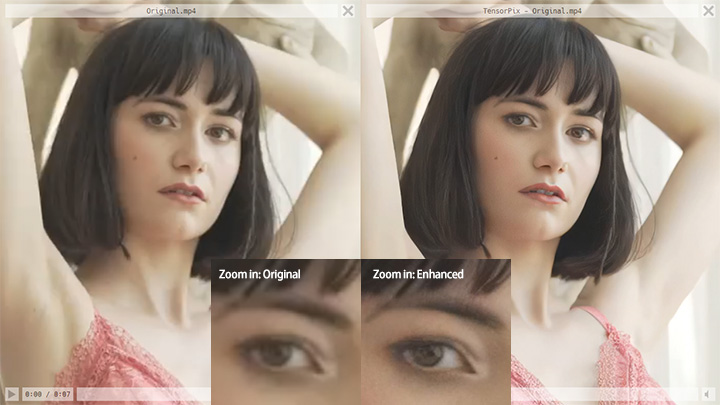
The result: The enhanced video looks sharper than the original, but the source resolution was probably too low to produce a truly clear result for large-screen viewing. The zoomed-in comparison makes this limitation easier to see. I also noticed jagged edges around the subject's arm. During playback, some details changed slightly from frame to frame, creating a subtle shimmering effect and making the motion look less consistent.
Test 2: Denoising Underwater Footage
The original footage had a lot of visible noise, so I went to the Manual panel and applied AI Denoise and 2× Upscale Ultra 3. See my settings below.

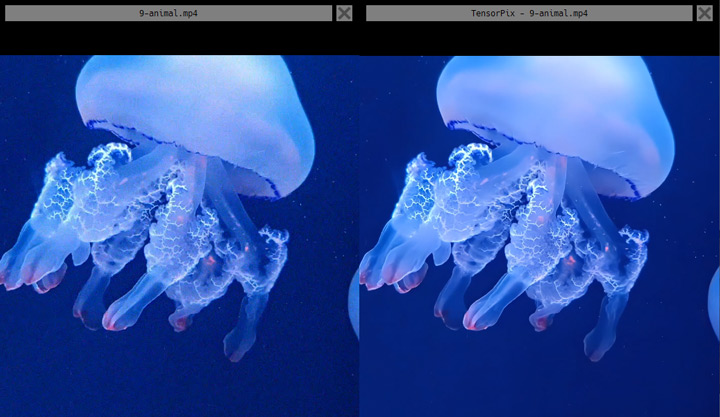
The result: It looked cleaner and sharper overall. However, a few small areas were cleaned too aggressively, causing some fine details to disappear. Whether this is acceptable depends on your preference. If a clean-looking result matters more to you than preserving every small detail, the trade-off may not be a major issue.
Test 3: Enhancing a Blurry AI-Generated Video
For this test, I selected 2× Upscale with the AI video preset.
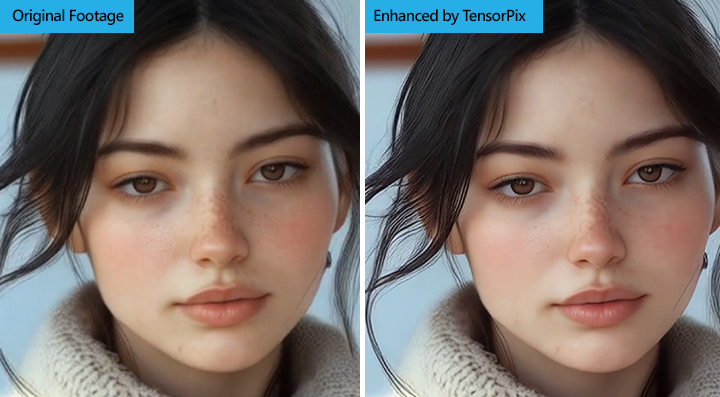
The result: At first glance, the output looked sharper and clearer. However, a closer look revealed that some of the fine details had been smoothed away. The texture and folds of the clothing became flatter, with less depth and definition than in the original.
2. Image Enhancement Performance
TensorPix provides four main filters for image enhancement: "De-Aua" for underwater color correction, "Smart Denoise" for noise reduction, "200% AI Upscale," and "400% AI Upscale." It's important to note that these filters can't be used simultaneously, which is a bit inconvenient in some situations.
For example, if you have a noisy, low-resolution image, you might want to denoise and upscale it at the same time, but TensorPix requires you to apply filters separately. Because of this limitation, I tested some of these features individually using different images.
Note: I was unable to update this section with a new test. Although TensorPix still has an Image Enhancer page on its website, I could not find the tool in the current dashboard, and the links I tried led to a 404 page. The results below therefore come from my previous test.
Test 1: Denoise a Griany Nighttime Building Photo
I used a nighttime building photo that was quite noisy for this test. The denoised result was noticeably cleaner than the original. Most of the image looked natural, although some areas with blurred textures on the building did exhibit a slight smearing effect.
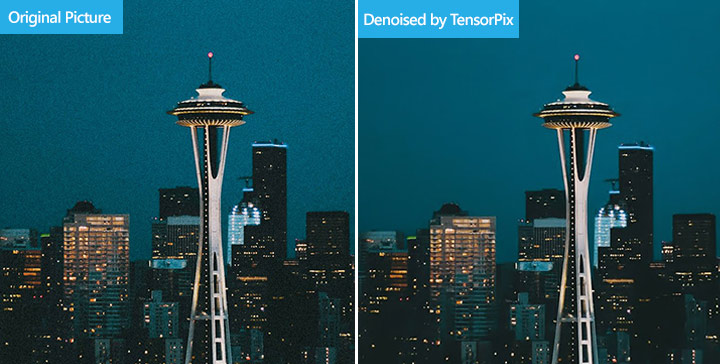
The result: Upon closer inspection, I also noticed subtle color changes in small details. For example, small reddish lights on the top buildings appeared as bluish lights in the denoised version.
Test 2: Upscale an AI Image by 200% of the Origianl Resolution
For the 200% upscale test, I used a low-resolution, slightly blurry AI-generated image.

The result: The upscaled image did appear sharper, but it also looked over sharpened, especially around the face outline. Hair details, particularly on the right side of the face, looked blurry and undefined. Overall, the 200% upscale result wasn't as pleasing as I'd hoped.
Test 3: Upscale a Griany Bird Photograph by 400%
I tested the 400% upscale using a slightly noisy and unclear bird photograph downloaded from a website. After upscaling with TensorPix, the image was sharper, but honestly, it looked too sharp.

The result: The texture in the upscaled photo appeared very harsh and unnatural. The smooth, soft feathers in the original image looked stiff and artificial, almost like plastic.
TensorPix Pricing: Is It Good Value
TensorPix charges by credits rather than by individual tools. The number of credits required depends on what you are doing, including the model, resolution, video length, frame rate, and filters selected. The official pricing page gives rough estimates, but the exact cost usually appears only after you configure the task. This makes the pricing less straightforward than a normal monthly subscription.
Image Generation Is Relatively Affordable
During my test, the image models required only a small amount of credit:
| Model | Settings | Cost |
|---|---|---|
Nano Banana 2 |
1K |
0.10 credits |
Nano Banana 2 |
2K |
0.14 credits |
Nano Banana 2 |
4K |
0.20 credits |
Grok Imagine |
1K or 2K |
0.04 credits |
For occasional image generation, these costs seem reasonable. The problem is that TensorPix does not provide a complete public list of prices for every available model. You often need to open the generator and select a model before finding out how many credits it requires.
Video Generation Gets Expensive Quickly
Video generation consumes credits much faster. For example, Kling 3.0 cost:
- 3.78 credits for a 15-second video at 720p
- 5.04 credits for a 15-second video at 1080p
Without a subscription, TensorPix charges $3 per additional credit. At that rate, one 15-second Kling video at 1080p would cost about $15.12.
That is expensive for such a short output, especially since AI video generation may require several attempts before producing a usable result.
Do the Paid Plans Help
Paid plans include monthly credits and reduce the cost of buying more. For example, the Premium plan includes 35 credits. That would cover fewer than seven 15-second Kling videos at 1080p. Once the included credits are used, Premium members pay $1.20 for each additional credit.
The annual Premium price looks relatively affordable when shown as a monthly rate, but the included credits may not last long if you generate videos regularly.
What About Video Enhancement
Video enhancement generally uses fewer credits than video generation, but the free plan has important limitations. It only accepts source videos up to 720p, offers slower processing, and provides fewer premium options. Users working with 1080p or 4K footage will need a paid plan.
For a few short enhancement jobs, the cost may be acceptable. For frequent or long-form processing, the credit system can become less economical than desktop software that does not charge per task.
My take: TensorPix is reasonably priced for occasional use, but it is not especially cost-effective for frequent video enhancement or generation.
User Feedback: What Others Are Saying
To get a broader sense of user experiences with TensorPix, I looked at feedback across several platforms. Overall, user opinions appear to be quite varied, with some platforms showing more positive reviews than others. Here's a summary of what users are saying on different review sites and online communities:
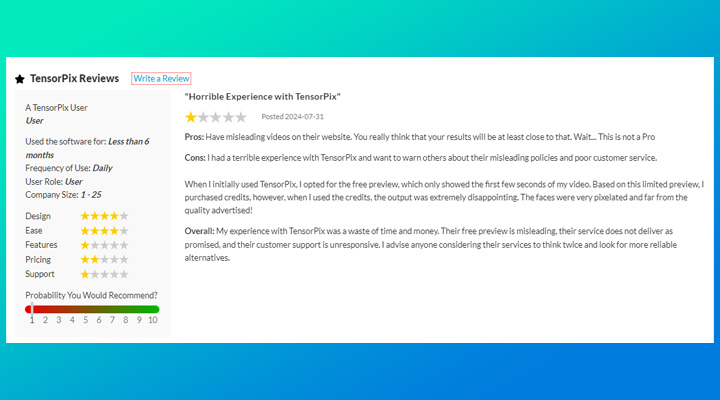
SourceForge Rating
SourceForge Rating: TensorPix received a SourceForge rating of 1/5, a disappointing score that suggests significant user dissatisfaction with the platform.
Trustpilot Rating
On Trustpilot, TensorPix achieves a much more positive rating of 4.5/5. Many users on this platform express satisfaction, citing the service's user-friendly interface and overall ease of use as key positives. However, negative reviews on Trustpilot often mention slow download speeds and concerns about the quality of the enhanced output.
Reddit User Reviews
My search for user reviews on Reddit revealed a generally negative sentiment. Unfortunately, the majority of Reddit users discussing TensorPix seem disappointed with the quality of the video and image enhancements.
Best TensorPix Alternative for Video and Image Enhancement
TensorPix is easy to use, but I'm not fully convinced by its enhancement tools. The video results were hit-or-miss, and I could not find a working Image Enhancer in the current dashboard—the links I tried led to a 404 page. Price-wise, TensorPix makes more sense for occasional use. If you only have one or two short clips to process, the credit cost may be acceptable. But if you need to enhance both images and videos, process files in batches, and get more natural-looking detail without dealing with a credit-based system, VideoProc Converter AI is a better alternative to TensorPix.
Highlight features of VideoProc Converter AI:
- Upscale videos and images with improved clarity and richer details in the final output.
- Automatically fix visual flaws like grain, blur, haze, and compression artifacts.
- Use 3 distinct AI models for ensuring the best possible outcome across various scenarios.
- More AI tools: colorize faded photos, restore face(s), audio denoise, stabilize…
- Rich bonus features: edit, compress, convert, record, and download video/audio
- Bulk process hundreds of videos/images/audio files at high speed

To give you a clearer picture of the differences in output quality, let's take a side-by-side look at how VideoProc Converter AI and TensorPix perform in various enhancement scenarios.
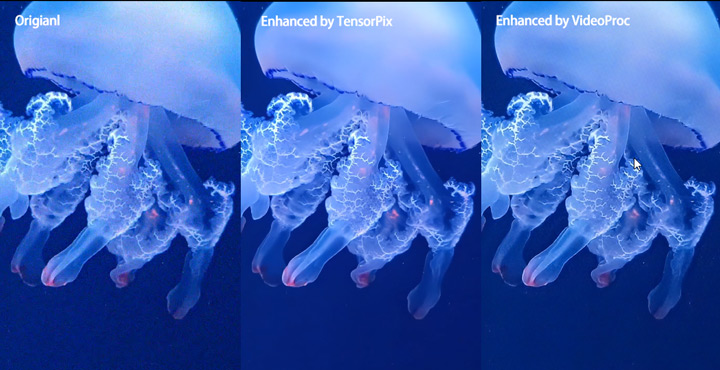
TensorPix removed more noise, but the denoising felt a little too aggressive in some areas. VideoProc left slightly more texture and produced a more natural-looking result overall.
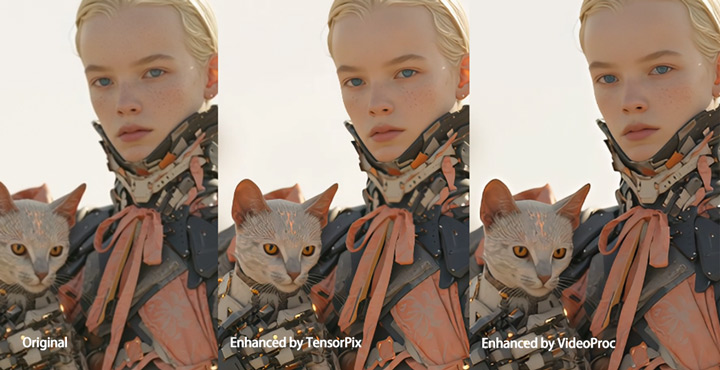
The results were quite close in this test.
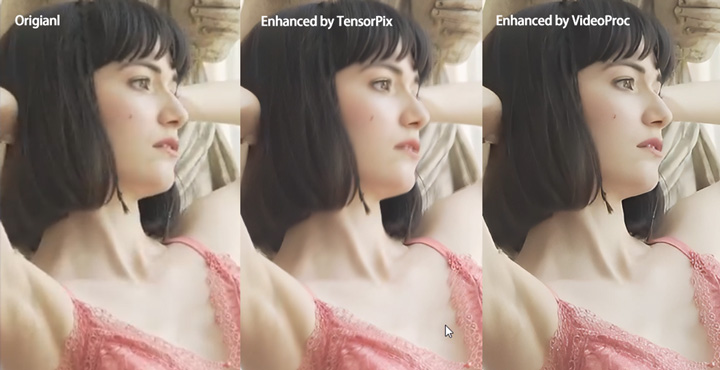
TensorPix occasionally produced softer-looking frames, so the sharpness was not always consistent throughout the clip. VideoProc kept the subject clearer in the frame shown below and looked more consistent during playback.
Free download and install the best alternative to TensorPix - VideoProc Converter AI!
FAQs
1. Is TensorPix easy to use?
Yes, TensorPix is designed with user-friendliness in mind. Its web interface is very intuitive and straightforward, making it easy for beginners to enhance their videos and images.
2. Is there a free trial?
Yes, TensorPix offers free credits upon signup, allowing you to try out the platform. However, the free trial is limited in features and processing capabilities, and output videos are watermarked.
3. What are the main features of TensorPix?
TensorPix's core features include AI-powered video and image enhancement, upscaling, denoising, video stabilization, frame rate boosting, underwater color correction, AI image generation, and video compression.
4. Does TensorPix require software download?
No, TensorPix is a web-based platform, so it doesn't require any software download or installation. You can access it directly through your web browser.
5. How does TensorPix pricing work?
TensorPix uses a credit-based system. You purchase credits in packages, and different features consume a certain number of credits depending on the processing task.



