
 New AI features are available
I still remember watching my grandparents' wedding on a grainy VHS tape. The laughter, the dancing, the little moments that felt so alive. But that tape is now decades old, and every time I play it, I worry it might not work the next time. Over time, home movies like these start to feel less accessible. Tapes wear out, DVDs get scratched, and even when they still play, it's not always convenient to watch them on today's devices. That's why many people are now digitizing old home movies. We need to keep them safe, make them easier to watch on modern screens, share with family, and even reuse clips in new creative projects. If you have old home movies stored on tapes or discs, this guide will walk you through how to safely digitize them and keep them usable for years to come, whether you do it yourself or use a professional service.
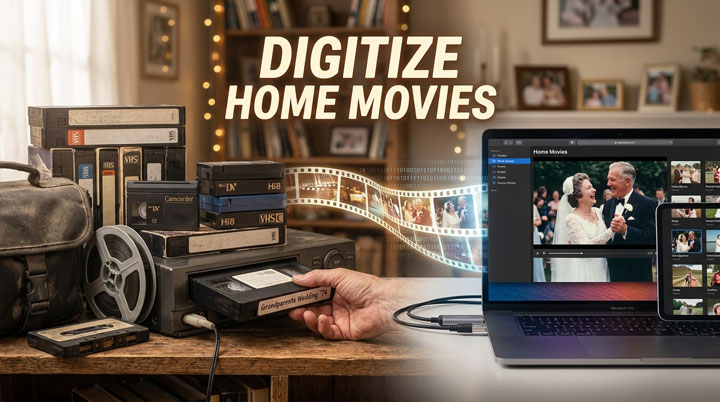
Why You Need to Convert Old Home Movies to Digital Now
Digitizing your home movies has become increasingly important, since many tapes and DVDs from the 1980s and 1990s are reaching the end of their expected lifespan, and every year brings a higher risk of permanent loss.
VHS, Hi8, and 8mm tapes rely on magnetic particles bonded to a plastic strip. Over 15–25 years, these particles lose their charge, causing colors to fade, audio to hiss, and tracking problems to appear. Eventually, the binder holding the magnetic layer can deteriorate completely. This condition is known as sticky-shed syndrome, which can make the tape unplayable.
DVDs face a similar risk. Recordable DVDs (the kind you might have burned home movies onto) are made of multiple layers of plastic and reflective material glued together. Over time, the adhesive can break down, letting oxygen seep in and tarnish the reflective layer. This phenomenon, often called "DVD rot," makes the disc unreadable by any player or computer.
Digitizing your home videos doesn't just keep them safe. It also makes it easy to watch them anytime, share with loved ones, and even mix them with new footage for creative projects.
How to Digitize Home Movies: The DIY Digitization Guide
Taking the do-it-yourself route is highly recommended. It's usually much cheaper than paying per tape or disc, keeps your irreplaceable memories in your control, and protects your privacy. Most importantly, doing it yourself gives you the chance to achieve the highest possible video quality when preserving your family history. Depending on what your home videos are stored, you can:
1. Digitize Home Videos from Analog Tapes
For most families, the oldest and most fragile home movies are still on VHS, Hi8, or 8mm tapes. These tapes degrade over time, and once they fail, the memories they hold are often gone forever. Because of this, rescuing analog tapes should be the first priority in any home movie digitization project. Digitizing these tapes requires a bit more effort because the video has to be captured in real time.
Step 1. Prepare the Equipment
- A working playback device (VCR, Hi8 camcorder, or 8mm camcorder).
- A video capture device (USB adapters with RCA or component inputs).
- A computer with basic capture software installed.
Step 2. Prepare your tapes
Fast-forward and rewind them completely before playback. Tapes that have been sitting for decades can stick, and immediate playback risks damaging the reels.
Step 3. Connect your equipment carefully
Plug the capture device into your computer, then connect the audio/video outputs from your tape player.
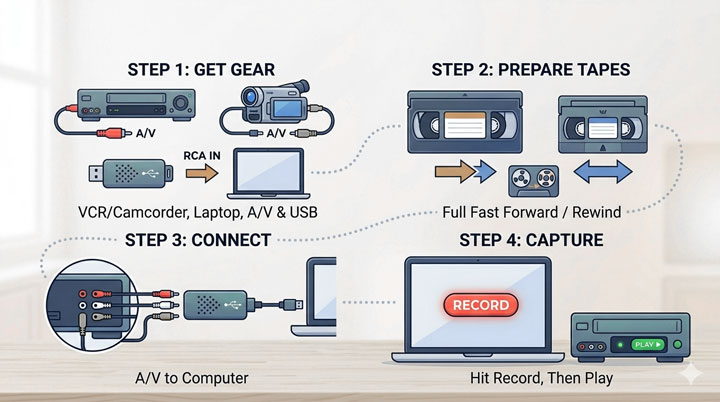
Step 4. Record in real time
Open the capture software, hit record, and then play the tape. A 90-minute tape takes 90 minutes to digitize, but this preserves every frame.
Once digitized, these files can be watched, shared, and edited like any modern digital video. Even better, you can later enhance them using AI tools for sharper, smoother, and cleaner playback.
2. Digitize Home Videos from DVDs
DVDs are already digital, so backing them up is much simpler. Most home movie DVDs simply need to be ripped, converted into modern formats like MP4 or MKV, to ensure they remain usable on today's devices. You can use a DVD ripper to extract the content safely. Here I use VideoProc Converter AI for demonstration, since its very straightforward to use and speedy. You can also user alternatives like HandBrake and MakeMKV.
- Rip (commercial) DVD/ISO/VIDEO_TS folder into MP4, MKV, and 420+ formats
- Convert DVDs for iPhone, iPad, Apple TV, Android, and other popular devices
- Enable 1-click shrinking videos from GBs to MBs without noticeable quality loss
- 1:1 backup with full or main title mode, preserving menus, chapters, and extras
- All-in-one: convert, edit, de-interlace. AI-enhance footage, download, and record

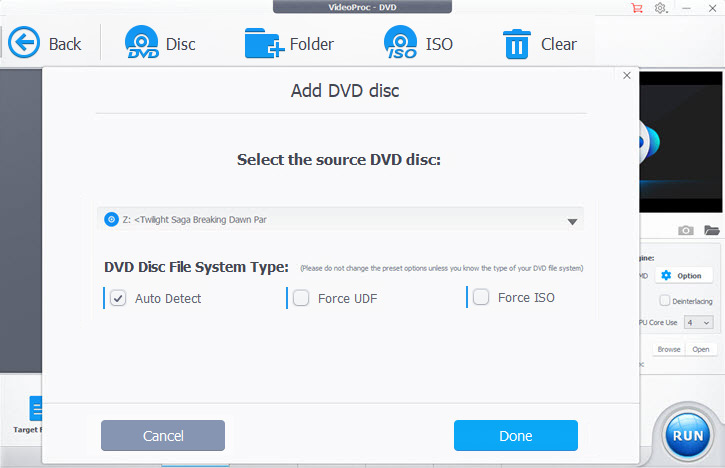
Step 1. Load Your DVD
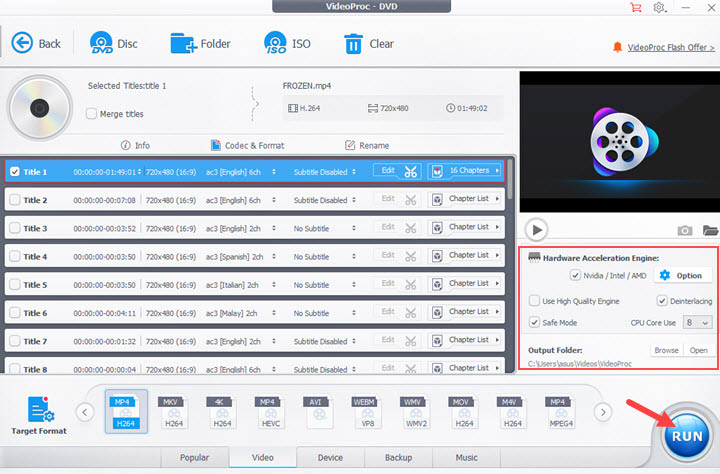
Let's begin the DVD to digital conversion process by inserting the DVD into your computer or laptop. Open VideoProc Converter AI, and click "DVD" and "DVD Disc" to load the disc to it.
Ste 2. Choose an Output Format
Click "Video" at the bottom to choose an output format. You can select from over 420 formats and presets, including options for YouTube, Apple TV, and other popular devices and platforms.
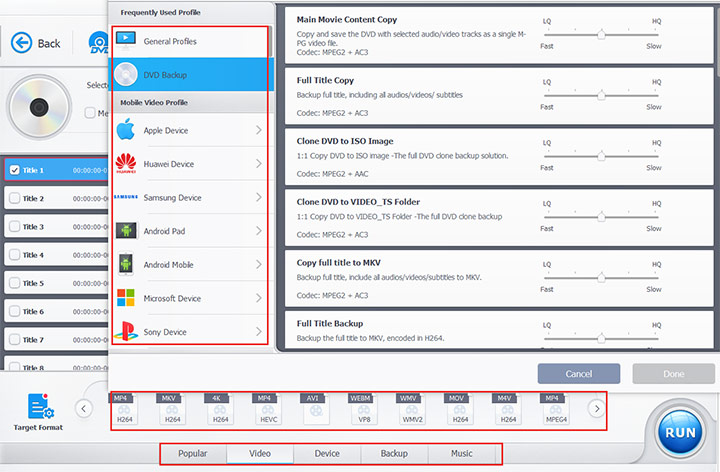
Tips:
For best balance between quality and file size, H.264 is the safest choice with maximum compatibility. If you want smaller file sizes and your device supports it, you can choose HEVC or AV1. Generally, AV1 offers the highest compression efficiency, but HEVC/H.264 are still more widely compatible across devices.
Step 3. Convert DVD to Video
Before converting, you can optionally select subtitles and audio tracks based on your preference. When everything is ready, click "RUN" to start converting your DVD into a digital video file.
Optional: Upscale the digitized Home Video to 4K Quality
Once your analog tapes and DVDs are digitized, you can use AI-driven video enhancer to improve the old footage for modern screens. To take VideoProc Converter AI as an example, it's Super Resolution lets you upscale resolution, deblur, denoise, and fix other visual flaws with the advanced AI technology. Even better, you can use it to boost frame rate and stabilize footage. These can make old videos look sharper, cleaner, and more lifelike perfect for sharing with family or editing into new projects.
How to Digitize Home Movies: Using Professional Video Transfer Services
If you don't have access to a working VCR, don't want to set up capture equipment, or simply prefer a more hands-off approach, professional video transfer services can be a convenient alternative. The main appeal of these services is simplicity. You place an order, receive a shipping kit, pack your tapes, and send them in for conversion. A few weeks later, your original media is returned along with digital files on a USB drive or download link. The trade-offs are mostly practical. Costs can increase quickly with larger collections, turnaround times are usually several weeks, and everything is handled by a third party. In most cases, what you get back is a direct digital transfer of the original footage without further enhancement. Regardless, below are some of the popular options:
1. Legacybox
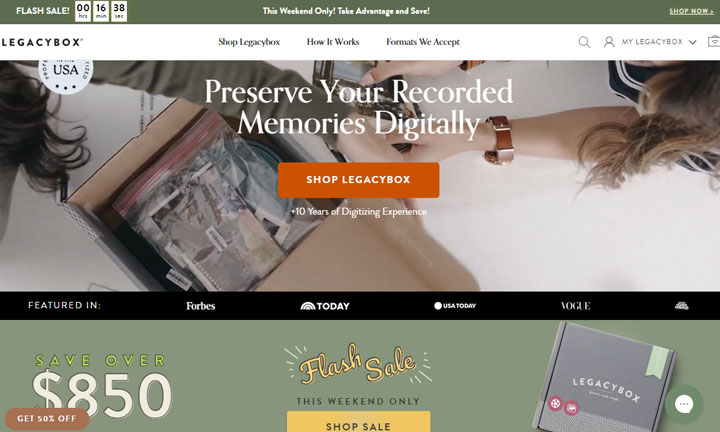
Legacybox is one of the most well-known mail-in digitization services in the U.S. It focuses on converting a wide range of physical media, including VHS tapes, 8mm film, photos, and DVDs, into digital formats. The process is simple: users order a kit, pack their materials, and ship them to the company's processing facility. After conversion, the original items are returned along with digital files on USB or via download. Legacybox is often chosen for its accessibility and broad media support, especially for users who want a straightforward, guided experience without dealing with technical setup.
2. iMemories
iMemories offers a similar mail-in digitization service but places more emphasis on digital accessibility and viewing experience. In addition to converting tapes and film reels, it provides a cloud-based platform where users can stream and organize their digitized content. This makes it easier to view home movies across devices like phones, tablets, and smart TVs. The workflow is still fully managed—users ship their media, and the company handles the conversion. iMemories is often preferred by users who want both digitization and ongoing digital access in one ecosystem.
3. Capture
Capture (often referred to as Capture.com) provides a more streamlined digitization service with a focus on simplicity and fast turnaround. It supports common formats like VHS, camcorder tapes, and film reels, converting them into standard digital video files. The process is similar: users receive a shipping kit, send in their media, and receive the converted files digitally or on physical storage. Compared to some larger services, Capture tends to emphasize a more straightforward, no-frills approach, focusing mainly on reliable conversion rather than additional features or platforms.

FAQs
How Much Does it Cost to Digitize a Tape?
If you choose a professional mail-in service, expect to pay between $15 and $30 per tape, plus the cost of the USB drive and shipping. If you choose the DIY route, the cost is significantly lower. A reliable USB video capture card costs around $20. If you already own a computer and a VCR, that $20 investment allows you to digitize an unlimited number of tapes for free.
What is the Best Digital Format for Old Home Movies?
The universal standard for video files today is MP4 using the H.264 video codec. This format offers an excellent balance of high visual quality and manageable file size. More importantly, MP4 files are universally compatible. They can be played natively on Windows and Mac computers, uploaded directly to YouTube or cloud storage, and shared easily with family members via smartphones and smart TVs.
Can I Digitize Home Movies at Walmart or Walgreens?
While many big-box retail stores offer photo and video digitization services at their photo counters, it is important to understand how they operate. Walmart, Walgreens, and CVS do not generally digitize your tapes in the back room of the store. They act as middlemen. When you drop your tapes off, they pack them up and ship them to third-party processing facilities. This adds extra transit time and an additional layer of risk, as your tapes are changing hands multiple times before the work even begins.



