
 New AI features are available
Want to extract subtitles from a YouTube video?
How hard could that be? Click Show transcript in the video description, and the caption text will appear to the right of the player. Then, a simple copy-and-paste will give you the subtitles. You can even choose whether or not to include timestamps.
Although it does work, it's not an option I would recommend. This tedious manual process will only result in a jumbled, unformatted mess.
So, here in this guide, I'll show you how to get the job done and extract subtitles exactly how you need them, whether raw text or SRT/VTT files.
Use an Online Subtitle Extractor
Web tools offer a quick way to extract subtitles from YouTube videos online. They don't require software installation, and you can use them on any device with a browser.
DownSub is one of my favorite online subtitle downloaders. Once you enter a video link, it will list all available subtitles across every language, whether auto-generated or uploaded by the creator.
You can simply select your desired language and format. It allows you to save it as raw text, a TXT file, or an SRT subtitle, saving you the trouble of making an SRT file yourself. In addition to basic subtitle extraction, it also offers functions such as pre-download editing, auto translation, and bilingual subtitles.
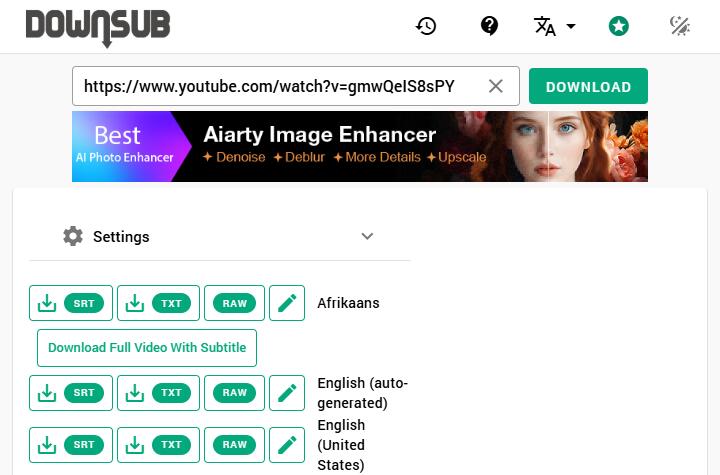
Here is how you can pull a clean CC file from a YouTube video using DownSub:
- Copy the URL of the YouTube video.
- Visit downsub.com in your browser.
- Drop the video link right into the search box and hit the download button.
- Select the language and format you need.
- Click Save to extract the subtitle file from the video.
Pros:
- Works on any device with a web browser, including your smartphone.
- Requires absolutely zero installation or account creation.
- Gives you access to auto generated and translated caption tracks.
Cons:
- The websites are often heavily cluttered with intrusive pop ups and banner ads.
- Cannot extract subtitles from local video files you already have saved on your hard drive.
Use a YouTube Subtitle Downloader Extension
Browser plugins like YouTube Subtitle Downloader further simplify how to extract subtitles from YouTube videos. They live right where you are watching, eliminating the need to switch between web pages.
Once installed, the extension embeds a download button directly beneath the player. When opening a video, you can click on it to detect available subtitles for the current video and download them.
It lets you grab auto-generated captions, manually uploaded tracks, and translated versions. You can also easily toggle between downloading a clean TXT file or an SRT file or a VTT file complete with timestamps.
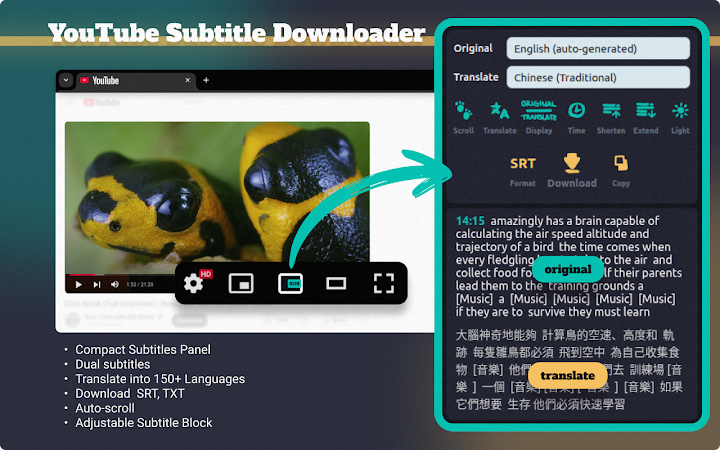
Follow the steps below to extract subtitles from YouTube videos with an extension:
- Go to Chrome Web Store and add the plug-in to your browser.
- Play a YouTube video.
- Click the new download button integrated below the video player.
- Select your preferred language and format in the plugin interface that pops up on the side.
- Click the download button and the subtitle file will instantly save to your computer.
Pros:
- Eliminates the need to switch tabs or copy URLs.
- Places the extraction tools directly on the YouTube page for a seamless workflow.
- Supports multiple formats in various languages.
Cons:
- Restricted to desktop web browsers.
- Requires installing a third-party add-on, which some users prefer to avoid.
- Cannot process local video files or bulk download from entire playlists.
Open-Source Downloader
For users requiring more subtitle extraction capabilities, yt-dlp is a highly powerful and reliable option.
As one of the best downloaders, it offers a wide range of very flexible subtitle-related features. It can list all available subtitles for your specified video and save them in your preferred format and language.
Beyond these, you can write scripts to batch-download subtitles from entire YouTube playlists, or combine subtitle extraction with other features to create custom workflows, much like assembling LEGO bricks. For instance, while yt-dlp saves the video by default, you can use commands to tell the program to skip the video download and scrape only the subtitle files.
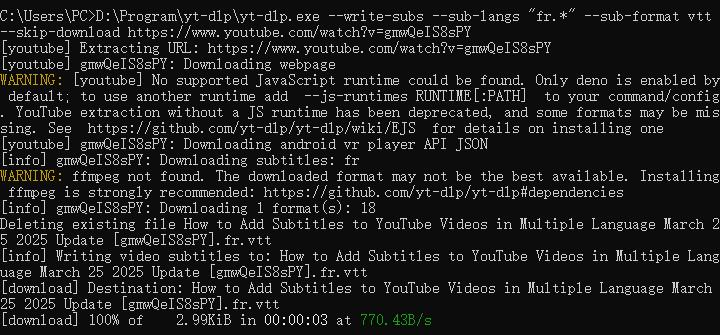
The following is an example demonstrating how to use yt-dlp to extract manually uploaded French subtitles as a VTT file, skipping video download.
- Download and install yt-dlp on your computer.
- Launch the Command Prompt if you are on Windows, or the Terminal app if you are on a Mac.
- Type the following command
yt-dlp --write-subs --sub-langs "fr.*" --sub-format vtt –skip-download [YouTube URL] - Hit enter to run the script.
Note: If you get HTTP 429 errors, add --sleep-subtitles SECONDS to the command.
Pros:
- Completely free, open source, and free of any intrusive ads or pop ups.
- Incredibly powerful for bulk processing playlists and entire channels.
- Highly customizable for fetching multiple languages and auto generated tracks simultaneously.
Cons:
- Has a steep learning curve if you are not comfortable with command lines.
- Lacks a graphical user interface, meaning there are no buttons to click.
- Requires memorizing or copy-pasting text commands into a terminal window.
Extract Subtitles from an Existing YouTube Video
The methods above all work well for extracting subtitles from live YouTube links. In other cases, you may want to extract subtitles from a downloaded video, or grab the subtitles alongside new videos. The web tools and browser extensions we just covered simply cannot handle local files or heavy video downloads.
VideoProc Converter AI is tailored for these two scenarios. It features a robust built-in downloader engine that saves subtitles alongside the video itself from about 1000 platforms. On top of that, it has a dedicated extraction module to pull SRT or ASS files straight out of the video files already sitting on your hard drive.

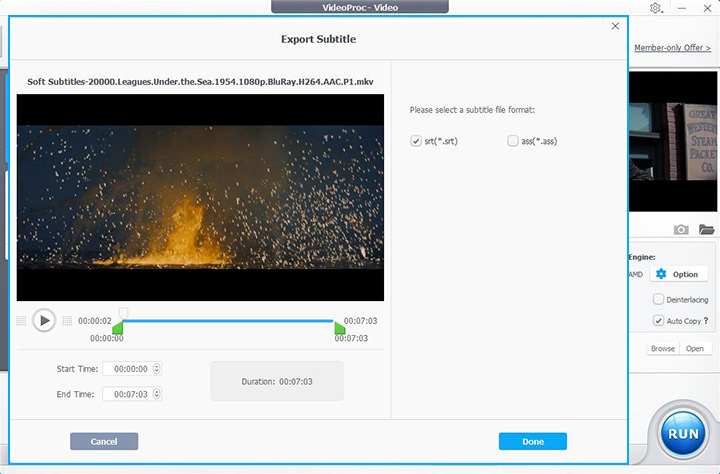
If you already have a video saved locally, here's how to extract its embedded subtitle track:
- Open the program and go to the Video module from the main interface.
- Drag and drop your downloaded video file right into the workspace.
- Navigate to the Toolbox tab at the bottom of the screen and double click the Export Subtitle option.
- Choose SRT or ASS as your output format and click Run.
Pros:
- Handles live YouTube links and local video files effortlessly.
- Allows you to batch download entire playlists and channels with subtitle tracks.
- Supports almost all video formats, MOV, MKV, MP4, FLV, etc.
- All-in-one: editing, converting, compressing, AI tools, etc.
Cons:
- Requires downloading and installing a desktop application.
- Might feel like overkill if you only need a single sub file from live YouTube videos.
- It is a premium piece of software, although it does offer a generous free trial.
Conclusion
Extracting text from YouTube does not have to be a miserable manual process. You just need to pick the right tool for your specific situation.
If you simply want to quickly extract subtitles from a few YouTube videos, tools like DownSub or browser extensions are excellent choices. For power users pulling bulk data from entire playlists, yt-dlp is well worth the effort. Finally, if you want an all-in-one solution to handle live YouTube links and local video files on your hard drive, give VideoProc Converter AI a try.




