
 VideoProc Converter
 New AI features are available

 Listed in
 If you've been curious about turning your ideas into moving pictures with just a few words, Sora by OpenAI might have caught your attention. It's a text-to-video model from the same company behind ChatGPT and DALL-E. Sora has sparked lots of discussion since its release. As someone who has worked in video creation for years, I took it for a test spin.
If you haven't tried it yet, this Sora review provides a look at what it can do and what it can't. You'll see how Sora works, what it looks like when you use it, and my feelings about it. Sora brings fresh ideas to the table, and this review breaks them down clearly — no hype, just what you need to know.
First Impressions of Sora
Sora is an AI model that can turn your text description into a video or an image. In December 2024, OpenAI introduced Sora to the public during the 12 Days of OpenAI. Now, it's available to all ChatGPT Plus, Team, and Pro users. If you are subscribed, you can find it in the sidebar on your ChatGPT interface or visit sora.chatgpt.com directly to try it for yourself.
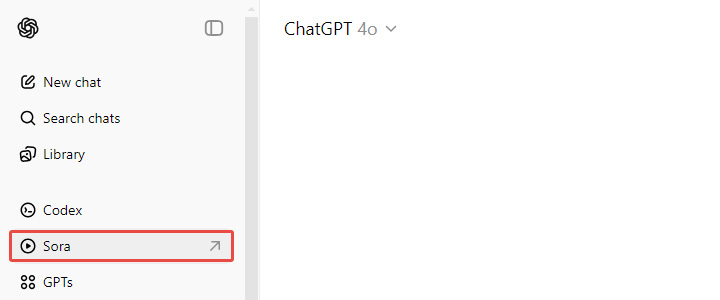
Sora is as easy to use as any AI text-to-video generator. You type a prompt, and Sora creates a video based on that idea. You can also upload an image or video as a starting point.
Pricing: Is Sora Free
The short answer is no. You cannot use Sora for free. If you want to use it, you'll need to subscribe to ChatGPT Plus, Team, or Pro to access Sora at all. Here's a table about what you need to know about Sora's price.
ChatGPT Tier |
Plus/Team |
Pro |
|---|---|---|
Pricing |
$20/month or from $25 per user/month |
$200/month |
Image and Video Generation |
Unlimited |
Unlimited |
Resolution |
480p, 720p |
480p, 720p, 1080p |
Video Length |
5s, 10s |
5s, 10s, 15s, 20s |
Concurrent Generations |
2 |
5 |
Download Format |
GIF, MP4 (Watermarked) |
GIF, MP4 (no watermark) |
As of writing (June 2025), there is no API access for Sora. ChatGPT Free, Enterprise, and Edu accounts are not eligible for Sora access.
Usability and Interface
Sora keeps things simple. When you open it, you'll see a clean, modern interface. The prompt box is at the very bottom of the screen. Below that, there are options to change the aspect ratio, resolution, video length, variations, etc. Everything is neat, and all functions are intuitive.

Here's what you can do with each option:
- +: use an image or video from the library or your device
- Type: choose the output format as image or video
- Aspect ratio: 16:9, 3:2, 1:1, 2:3, and 9:16 for video; 3:2, 1:1 or 2:3 for image
- Resolution: 480p and 720p for ChatGPT Plus and Team users; up to 1080p resolution for ChatGPT Pro users
- Duration: 5, 10, 15, or 20 seconds. 5s or 10s duration videos for ChatGPT Plus and Team users; up to 20s duration for ChatGPT Pro users
- Variations: generate 1, 2, or 4 of variations from one prompt
- Preset: choose from the given presets or add a style as a new preset
- Storyboard: create or edit a video by frame or timestamp on a timeline
Actually, the interface is very similar to Midjourney's if you have experience in text2image. It feels like Sora takes all the good elements from Midjourney and improves upon them.
In addition to the prompt box, you can browse tons of videos and images created by other users in the Explore feed. Clicking on any creation reveals details about its creator, prompt, and settings. With a search bar, filter, and views like Top (by day, week, or month) and Likes, you can easily find trending creations.
How to Use Sora
Sora is pretty straightforward to use. If you are a ChatGPT Plus, Team, or Pro user, visit sora.chatgpt.com. That will take you to a workspace where you can start creating right away.
- Write a prompt in the input field to describe what you want to see in your video.
- Upload an image or video file in your initial prompt (optional).
- Change a few settings, including aspect ratio, resolution, duration, variations, and preset.
- Tap the Generate button to start.
- Check the progress in the Activity in the upper right corner.
- Edit the generated video with tools like Re-cut, Remix, Blend, or Loop (optional).
- Download the video as an MP4 or GIF with a watermark (unless you are on the Pro plan).
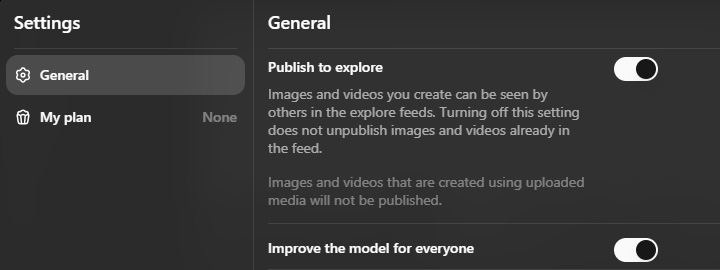
By default, Sora may publish your AI creations to the public "Explore" feed, allowing others to view and remix them. If you prefer them to stay private, you can turn off automatic publishing in "Profile > Settings > Publish to explore." Also, you can opt out of "Improve the model for everyone" to ensure your content isn't used for model training.
Key Features Test & Review
Sora offers tools to guide, adjust, and improve your video results. I'll show you how each feature works and what you can do with them.
Text-to-Video Generation
As you just read above, you probably already know this core feature and how to use it. You type a text prompt to describe what you want, and within a minute or two, Sora gives a short clip that tries to match your idea.
According to OpenAI, Sora understands complex scenes with multiple characters and realistic motion. It was a mix in our tests. Some results were good, but other times, Sora struggled. It may look cool at first glance, but the details don't hold up. Below is an example to give you an idea.
Prompt: Hyperrealistic 8K video of a crowded Tokyo commuter train at rush hour. The camera is positioned low, looking up at the tired, expressionless faces of passengers. The lighting is cold and fluorescent. shot with ARRI Alexa, 35mm lens, moody cinematic lighting, color graded.
The crowd looks good in the first few seconds. But in the next few seconds, the man in the center suddenly disappears while walking, leaving only his suitcase sliding in the subway. Sora got the "vibe," but not the structure.
The biggest strength here is how fast and easy it is. You don't need animation skills. You don't even need to be specific. Just type and go. But the downside is that you can't always trust Sora to fully understand what you meant.
Storyboard
Besides the simple composer, Sora features a Storyboard mode that lets you specify what you want to happen at particular timestamps. It helps to adjust the pacing and sequence of the actions.
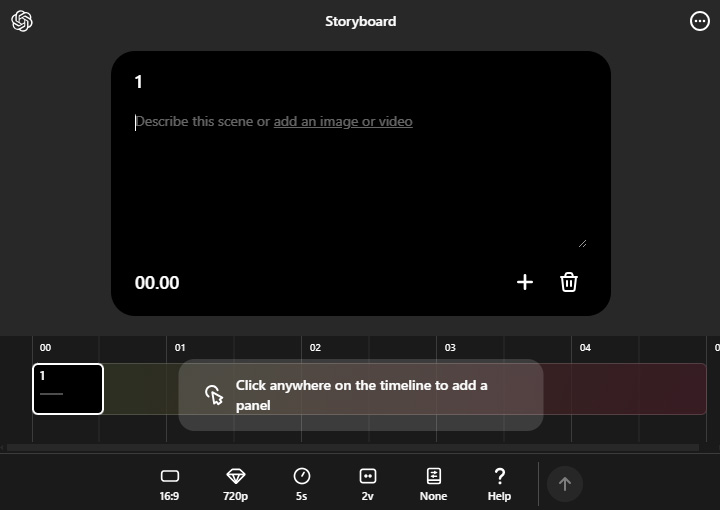
Above the timeline lies caption cards, where you type the text prompts to describe what is to occur. Leaving space between the cards is recommended. That gives Sora time to connect the scenes. Otherwise, your video is more likely to have Hard cuts. Sora includes an Expand caption feature to suggest and expand your prompts, but misreading may happen.
Remix
I'd say the Remix feature is something like video inpainting. It allows you to change a specific part in your generated video using text instructions.
Say you have a clip of opening large doors into a library. You can replace doors with French doors or turn the library into a lunar view, only if we ignore for the moment that one door opens inwards and the other opens outwards.
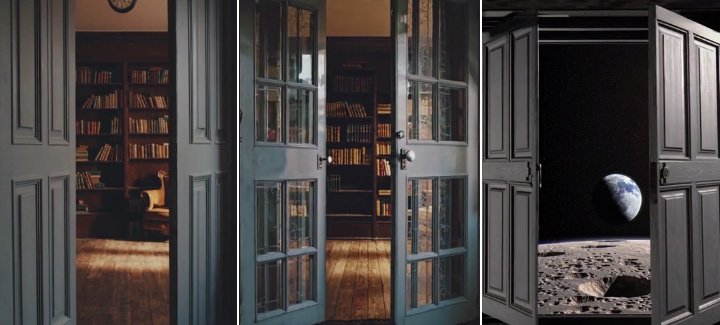
It also comes with control options. You can adjust the Remix strength (strong, mild, subtle, or custom). When you set it as Custom, Sora gives an option with strength controls from 1 to 8. This gives you more say in how visible your changes will be in the new video.
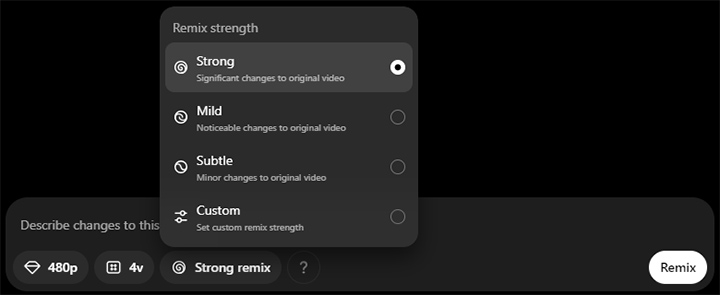
Remix worked best for simple changes, like swapping elements or changing colors. More complex edits sometimes confuse the system or give unexpected results. It cannot change the timing or length of the clip. It's not perfect, but when it works, it saves you from having to start from scratch.
Re-cut
Re-cut lets you adjust the pacing, regenerate a section, or extend the length of a clip without having to redo the entire video. For example, in the previous subway video, I can use the re-cut to clip out the first few seconds that seem good and ask Sora to rebuild the rest based on this. You can change the aspect ratio (by cropping), resolution, duration, and more in a new storyboard.
One thing to keep in mind: the edits aren't always perfect. Timing between new and old parts might feel off, and motion continuity can break.
Loop
The Loop tool can turn any short video into a repeating animation. You trim a section of the video to repeat, and Sora creates a small additional clip to connect the end to the beginning seamlessly. It works best for scenes with gentle motion, such as flowing water, blowing leaves, or drifting clouds.
Sora has three loop types: Short (adds 2s), Normal (adds 4s), and Long (adds 6s). If the end and beginning of the clip are very different, adding more time would be better to avoid varied results or hard cuts.
Blend
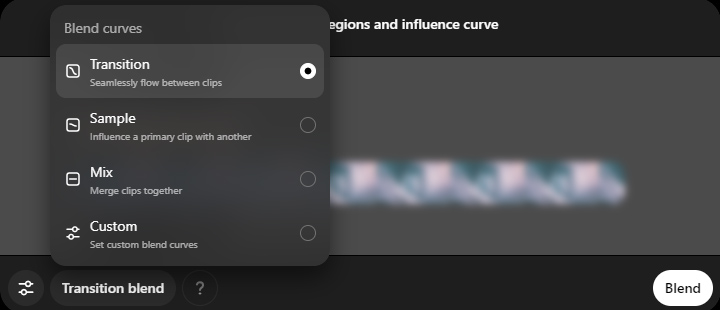
The Blend feature merges two separate videos into one with a smooth transition. It's not a merger for the duration but for the content and style. It's more like a Morph rather than a Blend.
Just know that the more different the two clips are, the harder it is for Sora to connect them cleanly. You might see visual noise or strange artifacts if the scenes don't share a theme.
Limitations from Real-World Use
With all the above overview, you are probably wondering if Sora is really that good. Sora can produce clips with relatively stable imagery (fewer flickering or warping issues) and basic continuity. The interface and all the creative features also make a big impression, but it's not without its downs.
Length and Resolution Constraints
Sora is currently limited to very short clips (Plus: 5~10 seconds, Pro: up to 20 seconds) and moderate resolution (720p on Plus, 1080p on Pro). That is far from full HD cinematic quality or length. It's useful for quick clips but not for any extended footage. Projects beyond brief B-roll snippets are hard to achieve without stitching many clips together.
Physics Understanding and Consistency
Although Sora can sometimes generate good videos, we can still tell its physics understanding is not there from the previous examples. In our trials, a majority of generated videos had serious errors, such as the man suddenly disappearing while walking in the subway and the doors opening in the wrong direction. Its understanding of motion and physics isn't fully reliable, and therefore, results can defy physical logic.
Sora first ignored the prompt of a man doing backflips in the example below. When the model followed the prompt, it handled the limbs in a total mess. I can't even describe what's happening here.
High Cost for Full Features
We talked about that earlier: to get 1080p and longer 20s videos, you need the $200/month Pro plan. That's a steep ask for casual users, and even the $20/month Plus only grants very limited capabilities. Some competing tools offer free trials or cheaper credits, whereas Sora bundles the cost into a premium ChatGPT subscription.
Can I Get Better Output Resolution
Sora creates some impressive visuals, but when it comes to resolution, there are limits. By design, the maximum output resolution of Sora is 720p on Plus and 1080p on Pro. For users who need sharper or larger footage, that can be disappointing.
One workaround is to enhance your Sora outputs using a third-party AI video upscaler. A recommended option is VideoProc Converter AI.
VideoProc Converter AI features several AI models to boost video quality by sharpening the image, adding details, and increasing resolution. The program can increase resolution by up to 4x (400%), for instance, converting a 480p video to 1080p or 1080p to 4K, while preserving and enhancing details. Here's what it can do to polish your content effortlessly.
- AI Super Resolution: Upscale your Sora videos up to 4K and images up to 10K, adding extra image pixels to enhance clarity and detail without introducing artifacts. It can also automatically remove noise, resulting in sharper and more professional-looking videos.
- Frame Interpolation: Currently, Sora can only generate videos with a frame rate of 30. VideoProc Converter AI can increase the framerate of your videos up to 480fps, creating ultra-smooth slow-motion effects or enhancing the fluidity of motion.
- Fast Processing with GPU Acceleration: VideoProc is optimized to use your graphics card to speed up AI calculations. It boasts up to 47x real-time hardware acceleration.
- Offline, Local Processing (No Uploads): Since VideoProc runs on your machine, you don't have to upload your videos or images to the cloud. This is great for privacy. Your content stays with you and will not be used for model training.
- Cost-Effective Licensing: VideoProc Converter is a one-time purchase or annual license software, not a monthly subscription. Often, you can get a lifetime license for a price that is equivalent to only one or two months of Sora's subscription. This can be more budget-friendly in the long run.
In our test, we took a 480p clip of "a jellyfish floating in space" and upscaled it to 4K using the AI Super Resolution feature. The colors popped more, the edges looked cleaner, and the overall clarity improved without losing the surreal, dreamy effect of the original video.
You don't need to be a pro editor to use it. Just import the clip, choose the upscale option (like 2X or 4X), and click start. It's fast and beginner-friendly. If you love what Sora creates but want sharper, cleaner output, especially for TikTok, YouTube, or client projects, VideoProc Converter AI is a great post-processing step.

Verdict
Sora is an exciting glimpse at where AI video is headed. It gives you the power to turn simple text into animated scenes right in your browser, with no special skills or gear required. The interface is smooth and the tools are creative. However, it's only up to a point. The potential is huge, yet the current execution has clear shortcomings.
I'd say Sora is similar to how DALL-E 1 was interesting but far from perfect. OpenAI is likely to use this period to collect user-generated data to improve the model. So, right now, Sora might feel more like a novelty for experimentation rather than a reliable production tool.
If you enjoy being part of the future while it's still being built, this is a tool you'll want to explore. And with the right tools, like VideoProc Converter AI, you can take the results even further by upscaling and refining your videos after generation.
FAQ
Is Sora Video Generation Worth It?
If you are already using ChatGPT Plus or Pro, then yes, Sora is definitely worth trying. It's fun, easy to use, and can bring your ideas to life in seconds. Just know it's not for high-end production yet. For experimenting, prototyping, or sharing creative ideas, it's a solid tool.
Is Sora Better than Runway?
Sora and Runway have different strengths. In terms of ease of use, Sora offers better scene editing and a cleaner interface. In terms of output quality, Runway has better prompt comprehension and world consistency with its Gen-4 model. In addition, you can use Runway Gen-4 Turbo for a free trial.



