Download Online Videos & AI Upscale to HD/4K!
Wistia is a top choice for business video hosting, but downloading its videos for offline viewing isn't as straightforward as grabbing content from YouTube or Vimeo. By default, Wistia hides direct video links unless the content uploader explicitly enables the built-in download option. If you're dealing with an embedded video where the download button is missing, you'll need to locate the hidden source link and use a capable parser. In this guide, we'll walk you through 4 reliable, step-by-step methods to download any embedded Wistia video for free.
Method 1. Download Wistia Video Using VideoProc Converter AI
Highlights: download wistia videos in easy clicks, stable & fast, AI-powered upspcaling, all-in-one.
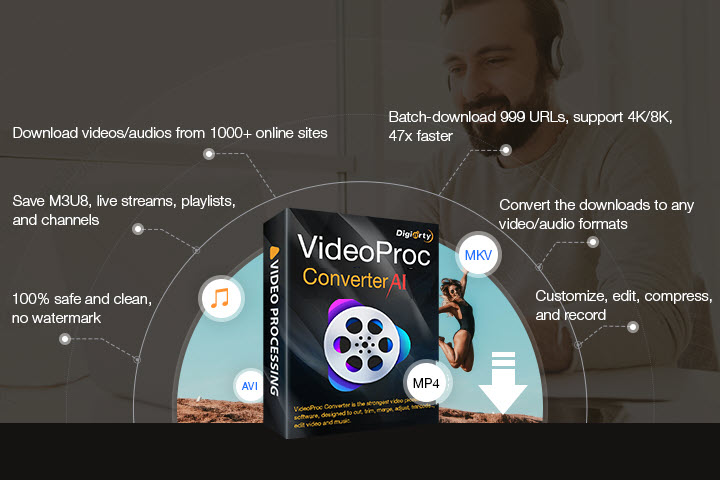
VideoProc Converter AI features a smart media download engine that bypasses manual coding entirely. Instead of hunting through browser developer tools for hidden source links, you simply copy the Wistia embed data, and VideoProc handles the decryption and link cleaning automatically. And its not limited to Wistia. With the support for 1000+ UGC sites and 2000+ niche sites, it allows you to download videos from any sites basically including Wistia, Facebook, Vimeo, Dailymotion, just to name a few, and save them in different formats and resolutions. Better still, if the original embedded video is low quality or compressed, VideoProc's built-in AI Super Resolution tool can upscale it up to HD or 4K with a single click. These make it an ideal all-in-one solution for both saving and enhancing offline media.

Step 1. Get the URL of a Wistia video.
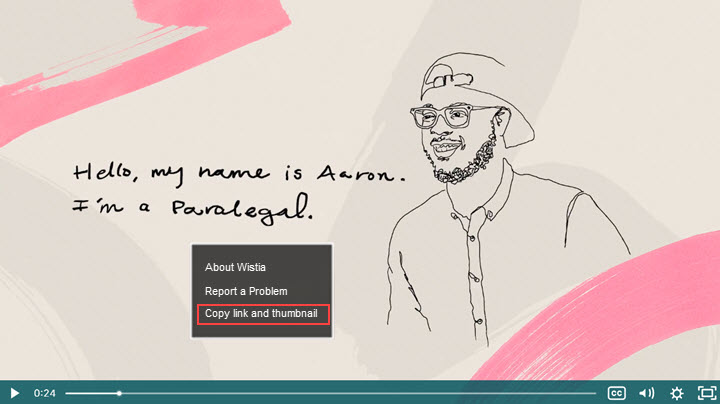
Open a Wistia video that is embedded to a site or email. Right-click on the video, then you will see three options, and choose "Copy link and thumbnail".
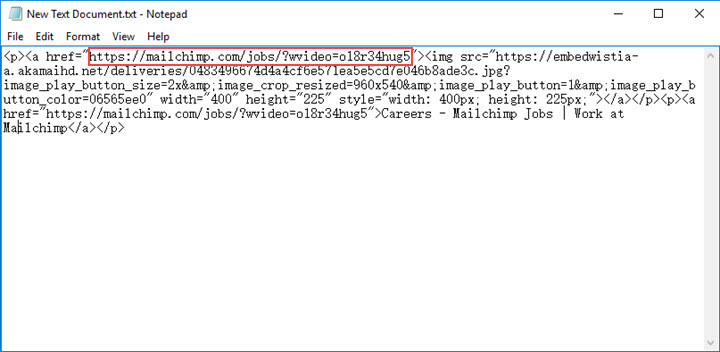
Then paste it to a new text document in Notepad. Copy the URL in <a href= "xxx">, just as the screenshot shows below.
Step 2. Paste the link to VideoProc Converter AI.
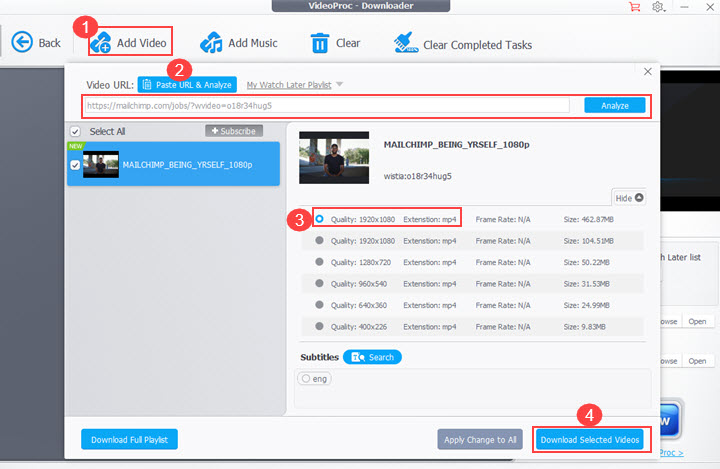
Open VideoProc Converter AI. Click "Downloader" > "Add Video" > paste the Wistia video URL > "Analyze". Once the link analysis is finished, choose a format and resolution for your Wistia video. Hit "Download Selected Videos".
Step 3. Download the video in VideoProc Converter AI.
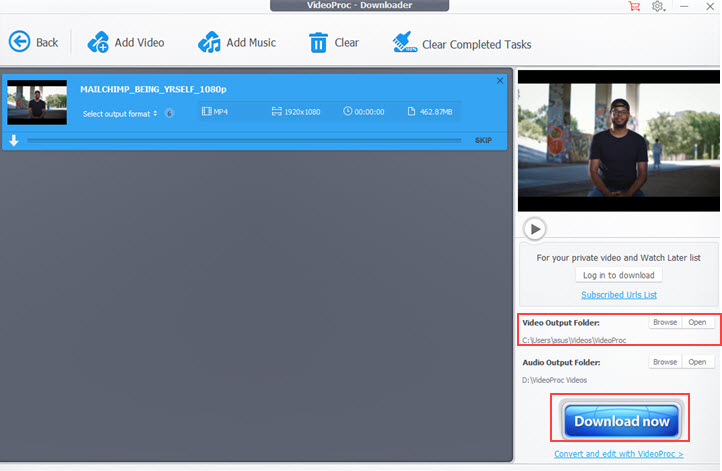
Select a folder to save the Wistia video, and hit the "Download now" button. In no more than a minute, the Wistia video will be saved on your computer.
Alternative Method to Save Wistia Video
If you'd rather skip the URL extraction entirely, you can simply use VideoProc Converter AI's built-in Screen Recorder to capture the Wistia video as it plays. The recorder allows you to freely select the recording area and save your video in high, uncompromised quality.
Method 2. Download Wistia video in Chrome/Firefox
To download Wistia videos in Chrome or Firefox, you need to install a browser extension first. You can search on the browser store to find a Wistia downloader extension. After a brief test, we found that most downloaders are not free, and the "No Video Found" error happens randomly. The tutorial is based on a Chrome extension called Flash Video Downloader.
Step 1. Find this tool in Chrome Store and install it on your browser.
Step 2. Play the video that is embedded on a webpage.
Step 3. Click on the icon of this extension, then it will auto-detect the video.
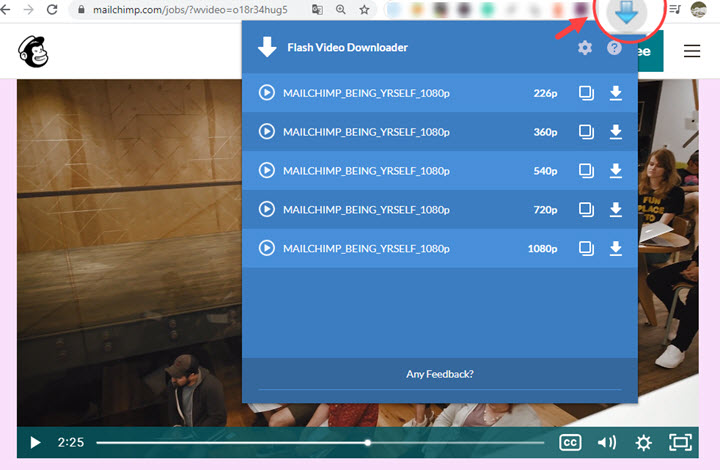
Step 4. If the video is larger than 1 MB, go to settings and trigger the option of "Video More Than 1 MB". Apply Changes.
Step 5. Choose a resolution, then hit the download icon to download Wistia videos online.
Disadvantages
1. Failed to detect embedded Wistia video on occasion.
2. Slow and unstable to download long Wistia videos.
3. There are many add-ons named the same in Chrome Store. You may find the right one after several tries.
Method 3. Download Wistia Video for Free with Its Embedded Code
If you prefer to download Wistia videos without any tool, you can use its embedded code. But note that this requires the HTML knowledge, at least, to read code lines, identify tags and attributes. You can try it with the guide below.
Step 1. Go the page where the Wistia video is embedded.
Step 2. Right-click on the video and choose Copy link and thumbnail.
Step 3. Paste it to a document of Notepad.
Step 4. Find out the embedded code which is placed after "wvideo="
Step 5. Type "http://fast.wistia.net/embed/iframe/" to the address tab.
Step 6. Add the embedded code after the last dash, and press Enter.
Step 7. Press Ctrl + U if you are using Windows; press Option + Command + U if you are using Mac.
Step 8. Find the link with a suffix of .bin and copy it to a new tab.
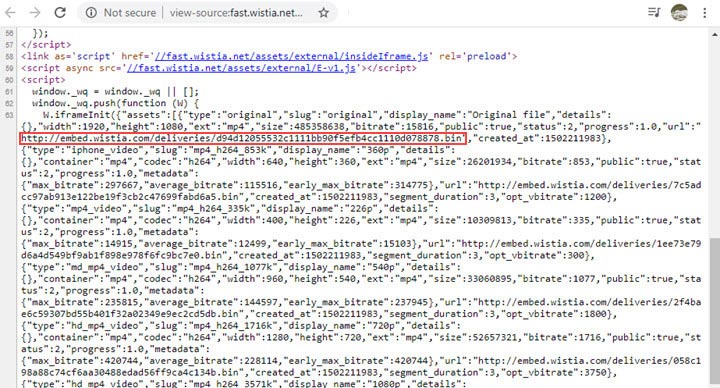
Step 9. Change .bin into .mp4, and hit Enter.
Step 10. Finally, you will be navigated to a video preview window. Hit the three-dot icon to download the video to your computer.
Disadvantages
1. Too complicated and time-consuming.
2. Unfriendly to beginners.
3. You need to read the code lines carefully to figure out the URL that contains the video of the desired resolution.
Method 4. Download Wistia Video for Free Using the Developer Tools
Most modern web browsers have a suite of powerful developer tools that can help you save video clips from webpages (except Safari). Once you find the video file in the Network tab, you get its auto download link. Now we'll show you how to find these links.
Step 1. Play the video embedded on a webpage or an email.
Step 2. Right-click on the video, and select Inspect to open the developer tools.
Step 3. Choose Network, then you will see many small TS files.
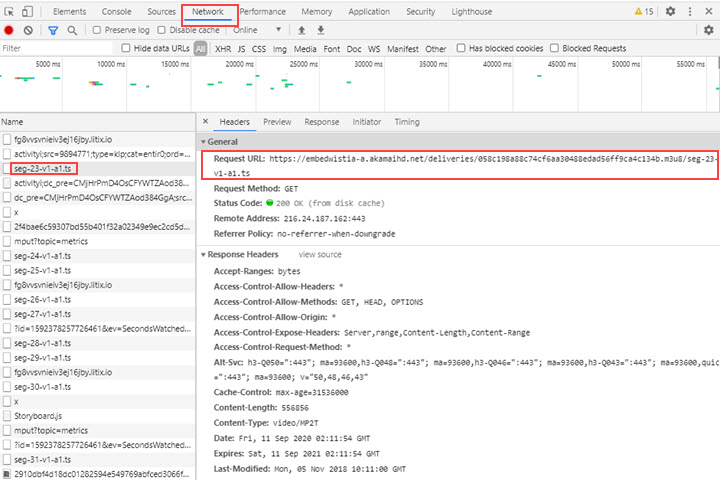
Step 4. Click one, and paste its request URL to open a new tab.
Step 5. Then the .ts video will be downloaded automatically.
Step 6. Back to the page, and download all these clips one by one.
Step 7. Merge these small files into an MP4 video with VideoProc Converter AI.
Besides Wistia videos, this method also works for some other platforms, such as videos hosted on Rumble, Vimeo, LinkedIn, etc.
Disadvantages
1. You have to download multiple TS files and join them into one MP4 video.
2. Complex to deal with developer tools.
3. No resolution options.
Frequently Asked Questions about Wistia Videos
1. Is there a way to download Wistia videos?
Yes, as long as you have a share link that allows downloading. You'll see options to choose the video quality and start downloading directly.
2. How to download embedded Wistia videos?
Right-click on an embedded Wistia video and choose "Copy link and thumbnail". Paste it somewhere else and find the link in the "<a hrefs= >" part. Finally, copy and paste the video link to the downloader in VideoProc Converter AI, and start downloading.
3. How to get the URL of a Wistia video?
Right-click on the play window of a Wistia video. Select Copy link and thumbnail, then you'll find the URL of the video and other info including video resolution, thumbnail URL, video title, etc.
Conclusion
When you failed to download videos from the Wistia player, there's always a way out, third-party video downloaders, developer tools, and even without any tool. But the best way is to use decent video downloading software VideoProc Converter AI. Although Wistia changes the video code every year, VideoProc Converter AI downloads Wistia videos uploaded in 2021, 2020, 2019, and 2018 successfully. Now download VideoProc Converter AI and save your preferable videos without any hassle.
Disclaimer: Any copy-protected or authorized videos you download from Wistia are not recommended for commercial use.