
 New AI features are available
Summary: Want to hardcode subtitles to your MP4, MKV or other video files? The post will offer you 3 ways to hardcode SRT to MP4 so that you can enjoy movies and videos with subtitles on different players and devices. To add and burn-in subtitles to any videos, VideoProc Vlogger is a free and easy way.
Hardcode subtitles, also known as burned-in or forced subtitles, means embedding the subtitle text directly into the video image, making it a permanent part of the footage. Unlike soft subtitles, burned-in subtitles do not rely on player support or subtitle settings, so they remain visible on any device, platform, or social media app.
This approach is often chosen when compatibility and visibility matter more than flexibility. Users hardcode subtitles to avoid playback issues on unsupported devices, ensure subtitles show up on muted videos, or prevent sync and font inconsistencies across different players. In short, hardcoded subtitles trade editability for reliability, which is why they are widely used for sharing, learning, and public-facing videos.
Why You Need to Hardcode Subtitles (When Soft Subtitles Fail)
Soft subtitles are added as separate subtitle streams, which means viewers can turn them on or off and adjust how they appear in supported media players. In theory, this sounds flexible and convenient. In practice, however, soft subtitles often fail in real-world playback scenarios—especially across different devices, platforms, and apps.
- Soft subtitles rely on player support and real-time rendering, which can lead to sync issues, high CPU usage, or subtitles disappearing entirely on lower-end devices.
- Many websites, mobile apps, smart TVs, and built-in media players do not fully support soft subtitles, causing missing, distorted, or incorrectly positioned text.
- Social media platforms and short-video apps usually ignore soft subtitles, meaning viewers on muted playback won’t see any captions at all.

Burned-in subtitles work differently. Because the subtitles are embedded directly into the video image, they do not require subtitle plugins, player settings, or format compatibility. Once hardcoded, subtitles stay visible and perfectly synced on computers, mobile phones, TVs, and virtually any playback environment.
If your goal is reliable subtitle display—whether for sharing, learning, or publishing, hardcoding subtitles is often the safest solution. In the next sections, we’ll walk through three practical ways to burn SRT, ASS, or SSA subtitles into videos using VideoProc Vlogger, VLC Media Player, and HandBrake.
How to Hardcode Subtitles with VideoProc Vlogger
Some professional video editing programs can help us easily burn-in subtitles to videos. Here we sincerely recommend VideoProc Vlogger to make this job done easily. VideoProc Vlogger can add subtitle files and hardcode subtitles to MP4/MKV/AVI/MOV videos easily.
VideoProc Vlogger - Hardcode Subtitles into Video Permanently without Quality Loss
- Simplicity – Hardcode subtitles to MP4, AVI, MOV and other popular video files in a click.
- Real-time Preview – Drag on the timeline and preview in real-time.
- Customizable & Real-time Preview – Edit subtitle font, color, position, and size as needed.
- High-Quality Engine – No visible quality loss after burning subtitles onto videos.
- Fast Speed – Embed subtitles in MP4 and other video files within minutes thanks to level-3 GPU acceleration tech.
- Advanced Edit Features – Split, add watermark, change speed, motion crop, add music, edit frame by frame…

5 Steps to Hardcode Subtitles to Any Videos
Step 1. Download and install VideoProc Vlogger on your Windows or Mac. Open the software and set up a new project. Add your media files, including videos, pictures, music and subtitle file(s) into the Media Library.
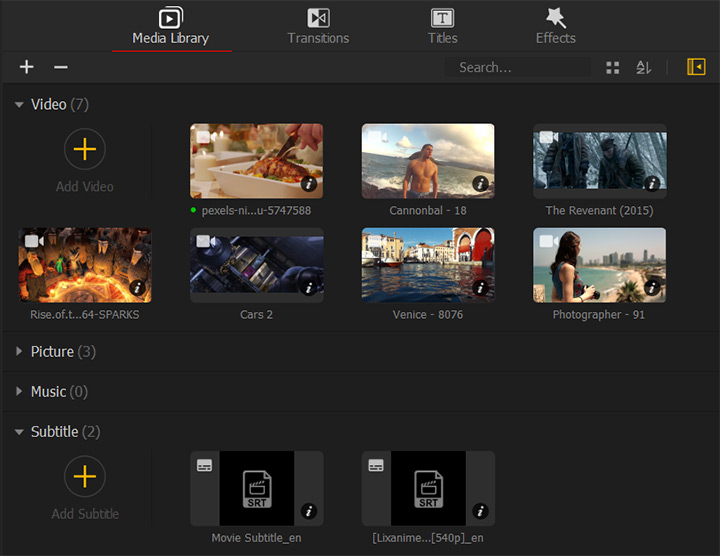
Step 2. Drag the main video to Video Track and make some edits if necessary.
Step 3. Drag the subtitle file to Subtitle Track on the timeline. And you can drag left or right to sync with the video.
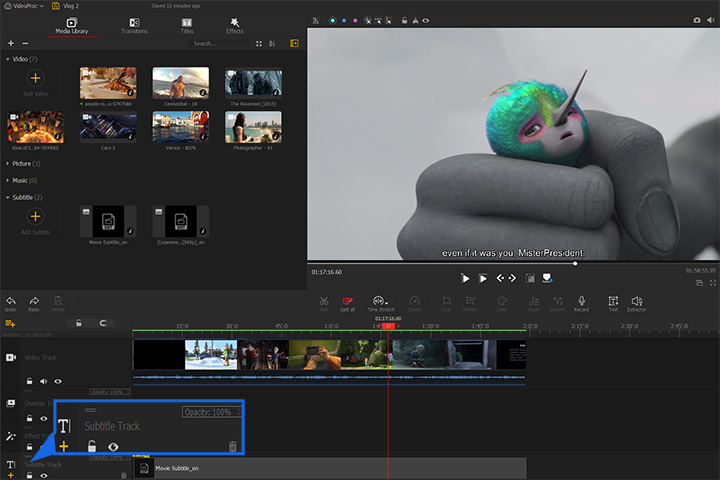
Step 4. Hit Export. On the pop-up window, you can set File Name, destination to save the file, output format, resolution, and video quality and so on.
Step 5. Click on Start button to trigger the subtitle hardcoding. After a moment, you'll get the final video file that is burned with subtitles.
How to Hardcode Subtitles with Handbrake
HandBrake has long been a go-to free transcoder, and subtitle burning is one of its more practical features. Since version 1.3.2, it supports hardcoding not only SRT but also ASS and SSA subtitles into MP4 and MKV videos. HandBrake treats subtitles in a very utilitarian way. You can burn them in, but you get almost no visual control over how they look.
There’s no way to adjust font style, color, size, or on-screen position inside HandBrake, which is a common pain point mentioned by users on forums and Reddit. If your ASS subtitles rely on styling or precise placement, the results may differ from what you expect. In short, HandBrake works well for straightforward subtitle burning when appearance doesn’t matter, but it quickly shows its limits once you need customization or preview-level control.
1. Launch the latest version of Handbrake.
Open up Handbrake and click About Handbrake. Select Update > Check for update. Handbrake starts to check the available updated version of the program. If a later version is available, Handbrake will then ask you to download it and have it installed on your computer. After you acquire Handbrake 1.3.2, start up the program.
2. Add video files to Handbrake.
Click File to add the video clip that you would like to merge with subtitles. You can also drag and file to the right side of the interface for directly loading up to the app
3. Choose a needed video format.
You then come to the main interface after Handbrake successfully loaded up the source video. Click Preset and choose a needed ready-made video profile. Among those, the option with the highest resolution is 1080P. If you want a result with ultra-high resolution, click Save New Preset to create a customized preset.
Go to the Summary section, and unfold the Format tab to select a desired output container formats from MP4, MKV. Why you shouldn't choose WebM? It doesn't support of hardcode subtitles at all. If you need MOV, AVI, and other file formats, then better goes with VideoProc Vlogger which is much more compatible.

You can skip the settings of Dimensions, Videos, Audios, and Filters if you are a beginner. However, if you need to have better control over the output file size, quality, and processing speed, you have to check each tab carefully.
4. Add the Subtitle Files.
Click Subtitles > Import subtitles to impart your SRT, ASS, or SSA subtitle file to Handbrake. Tick the select box of burn-in.
5. Choose the output file location.
Hit Browse to select the destination file folder and create a new file name. Click on Save.
6. Start to Add the Subtitle Overlay.
Hit the Start Codec option which is in green and can be found on the menu bar on the top. It takes 26 minutes to hardcode SRT subtitles onto my 30-mins videos (1080P, 30fps, H.264).
How to Hardcode Subtitles in VLC media player?
VLC Media Player can hardcode subtitles into videos, but the process is less intuitive than dedicated subtitle tools. New users may struggle with navigating the menus, setting the correct encoding options, and ensuring the subtitles remain in sync. Unlike visual editors, VLC offers no real-time preview of the subtitles, so you only see the final result after exporting the video.
VLC is entirely free, lightweight, and widely available on multiple platforms, which makes it a practical choice for casual subtitle burning tasks. It works well for simple SRT subtitles and short videos, but it can become slow or cumbersome for longer clips, ASS/SSA styling, or batch processing. VLC is best suited for users who value accessibility over precise visual control or advanced subtitle formatting.
1. Open up VLC media player
Click the icon of the VLC media player on your desktop to launch it up.
2. Add subtitles and video files.
Come over to Media, and select Stream. This will lead you to the Open media panel. There you should firstly click + Add to import subtitle file. After that, you can click Use a subtitle file to add the prepared subtitle, click Stream, and then hit Next.
3. Select Destination to Stream to.
Click Add to reach the Destination Setup panel. Hit Browse to select the desired output file folder and set the file name. After making the right settings, click Next.
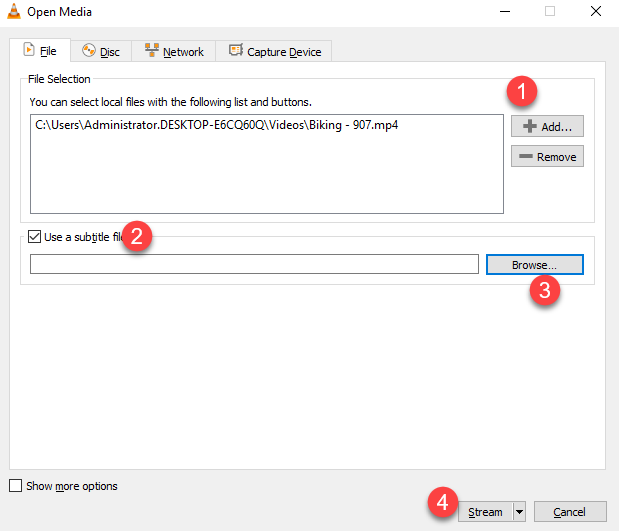
4. Chose a Proper Profile.
Now you are on the Stream Output tab, your first task is enabling the Active Transcoding option.
There are lots of video and audio codecs available once you click the select box of Profile. But we recommend you use H.264 + MP3 (MP4) to get avoid issues like missing audio, a/v out of sync, wrong pictures, etc.
5. Edit Selected Profile.
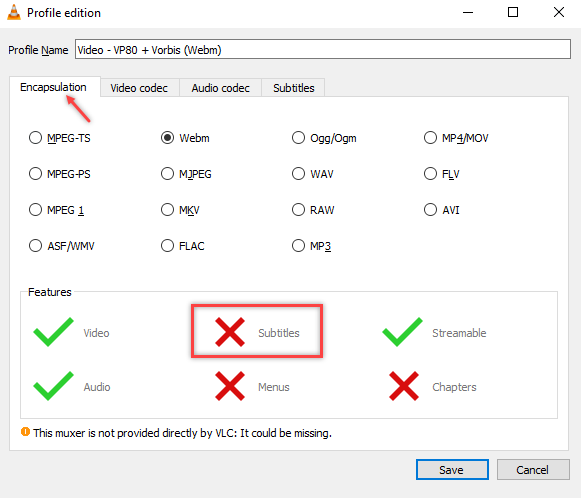
Hit on the grey toolkit icon to enter the profile edition tab. There you can see Encapsulation, Video codec, Audio codec, and Subtitles. Let's get into them one by.
• Encapsulation
The checked Encapsulation should be tail with the Profile Name that you have chosen. In my case, MP4/MKV is ticked as I select Video – H.264 + MP3 (MP4) on the before step.
Suppose you select another video profile, pay attention to the Subtitle option shown on the Feature tab. If the icon of Subtitle is a red cross, then it implies the chosen formats don't allow you to add hardcode subtitles. You need to roll back to the earlier step to select a different profile.
• Video codec and Audio codec
Beginners are advised to leave parameters of these two tabs as default as any improper settings on bitrate, resolution, or framerate may render horrible quality loss, slow transcoding speed, and many other weird issues.
• Subtitles
The easiest but most important steps: check Subtitles and enable Overlay subtitles on the video, and then click Save.
6. VLC media player starts to hardcode subtitles.
Click Next. Now VLC media player begin to add subtitles to your videos permanently. This process takes minutes to hours depending on the original and output file size and formats. Warm note: don't close the program before everything gets finished.
Bonus: How to Change the Subtitles Appearance by using the VLC media player?
With VLC media player, you can change the properties of the subtitles including font, color, position, size, and other information. Note: There is no access to preview how the subtitles would look like, so you may need to try many times to get the desired effect.
1. Click Tools > Preference, go to the left bottom of the interface, and click All.
2. Scroll down the settings list, and find Subtitles/OSD. Once you click this and select Text renderer.
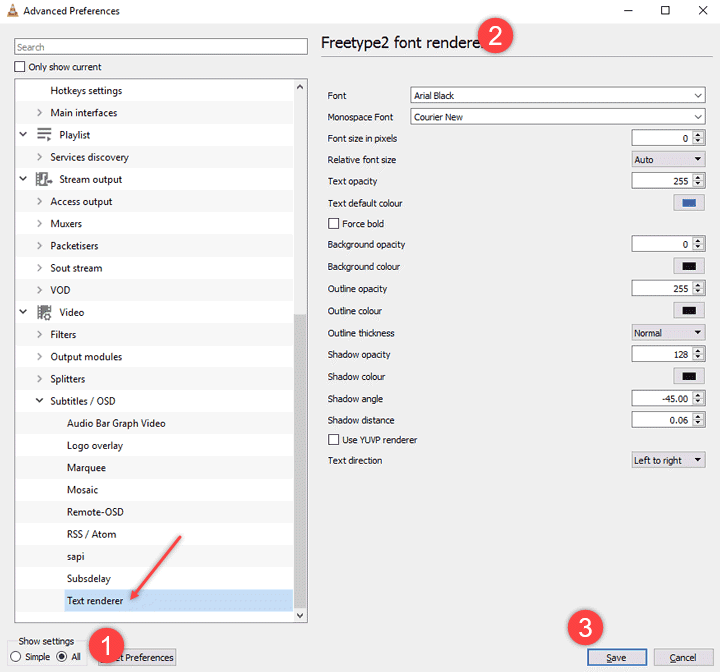
3. You can acquire many options to adjust how subtitles look in the video.
4. Click Save after making needed settings.
FAQ
Can VLC Hardcode Subtitles?
Yes. VLC can hardcode subtitles into MP4, AVI, and MKV on Mac, PC, and Linux. However, the process is manual, with no real-time preview, so syncing and checking subtitle position can require trial and error, especially for beginners.
Can VLC Or HandBrake Remove Hardcode Subtitles?
No. Hardcoded subtitles are permanently embedded into the video image. VLC and HandBrake can remove soft subtitles or closed captions, but once burned-in, subtitles cannot be deleted or edited without re-encoding the video from the original source.
Any Easy Hardcode Subtitles Software Recommended?
For tech-savvy users, HandBrake, VLC, VideoProc Vlogger, and Avidemux can handle hardcoding. For beginners, VideoProc Vlogger stands out as the easiest option, offering visual preview, style adjustments, and reliable syncing without complicated menus or command-line commands.
How To Hardcode Subtitles in Bulk?
VideoProc Vlogger allows batch hardcoding by importing multiple videos via Video Folders, then adding subtitles for each clip. Once confirmed, the software merges subtitles automatically, saving time and avoiding repeated manual settings for each file while maintaining proper sync.
Will Hardcoded Subtitles Keep ASS/SSA Styles?
Not always. Some tools like VLC or HandBrake may flatten ASS/SSA styling, causing colors, positions, or effects to change. VideoProc Vlogger preserves most styles and lets you preview, making it better for anime or visually styled subtitles.



